39 Automations Admin Guide
39.1 Overview
Status: This page is technical reference for the Automations 0.92.1 implementation. It does not claim customer availability; staging verification and production enablement are separate gates.
This administrator reference describes the Portal launch, email, and model-routing configuration for the Automations 0.92.1 implementation. The Portal steps document platform-operator prerequisites, not a user-level enablement switch.
39.2 Enabling Automations in Portal
39.2.1 Prerequisites
- Nous and Portal are running, and the dedicated Automations workload and launch integration are configured.
- A platform operator has provisioned the Automations platform; enabling a Workspace product does not provision the platform.
- The target Portal Workspace is active, and Automations is enabled in that Workspace’s product settings.
- The user opening Automations is an active member of the selected Workspace.
39.2.2 Steps
- Confirm that the platform operator has provisioned the Automations platform and configured its Portal launch/signing integration.
- In Portal, confirm that the target Workspace is active and its Automations product setting is enabled.
- An active Workspace member signs in to Nous, selects that Workspace, and opens
/app/automations. The Nous BFF requests a short-lived, workspace-bound launch token from Portal.
39.2.3 Shell mode
Shell mode filters available piece metadata to a vetted allowlist. Platform operators configure it in the Automations deployment; it is not a workspace-admin toggle. Sophea deployments pin Code execution to AP_EXECUTION_MODE=SANDBOX_CODE_ONLY. To configure shell mode:
- Set
NOUS_AUTOMATIONS_SHELL=truein the Automations API and worker/engine deployment environments. - Set
AP_SANDBOX_PROPAGATED_ENV_VARSto exactlyNOUS_AUTOMATIONS_SHELL. Keep the broker URL and signing secret in the API deployment only; Engine-authenticated piece requests use the API signer. - Check that the configured runtime exposes only the allowlisted pieces.
The shell mode allowlist includes 18 vetted pieces:
@activepieces/piece-sophea(all Sophea actions and triggers)@activepieces/piece-manual-trigger(manual trigger)@activepieces/piece-schedule(time-based triggers)@activepieces/piece-webhook(Catch Webhook with per-trigger authentication settings)@activepieces/piece-tables(data tables)@activepieces/piece-forms(forms and human input)@activepieces/piece-file-helper(file operations)@activepieces/piece-csv(CSV operations)@activepieces/piece-data-mapper(data transformation)@activepieces/piece-data-summarizer(data summarization)@activepieces/piece-date-helper(date utilities)@activepieces/piece-delay(delay step)@activepieces/piece-math-helper(math operations)@activepieces/piece-pdf(PDF operations)@activepieces/piece-qrcode(QR code generation)@activepieces/piece-store(key-value storage)@activepieces/piece-text-helper(text utilities)@activepieces/piece-xml(XML operations)
Code, Loop, and Router are built-in flow controls, not additional pieces or entries in this 18-piece allowlist. Neither engine children nor piece processes receive the broker signing secret. Shell mode has no public sign-in or sign-up API. Platform operators provision the installation through the app-native seed-sophea-operator.js seed command using JSON on stdin; check verifies the existing operator, platform and personal project without creating them or running migrations.
39.3 Configuring Workspace Email
The send_workspace_email action sends through Nous’s SMTP configuration.
39.3.1 Prerequisites
- Configure an SMTP server, username, and password in the Nous backend.
39.3.2 Configuration
- Configure SMTP in the Nous backend deployment.
EMAIL_CONFIGUREDrequiresSMTP_SERVER,SMTP_USER, andSMTP_PASS. - Set these Nous backend environment variables:
SMTP_SERVER: SMTP server hostnameSMTP_PORT: SMTP server port (defaults to587)SMTP_USER: SMTP usernameSMTP_PASS: SMTP passwordSMTP_TLS: whether to use TLS (defaults totrue)EMAIL_FROM: sender address (defaults toSMTP_USER)
- Send to a mailbox you can read and verify actual receipt. The action output and a
sentstatus do not establish inbox delivery; inspect any refused recipients.
39.3.3 Email behavior
- Recipients defaults to
RUN_USER(the Automation runner).WORKSPACE_MEMBERSexposes a selector for active Portal Workspace members. - Body format defaults to Markdown;
plain_textis also available. - The broker can return
sentorpartialwith refused recipients. Verify delivery in the recipient mailbox separately.
39.4 Setting Up Model Routing
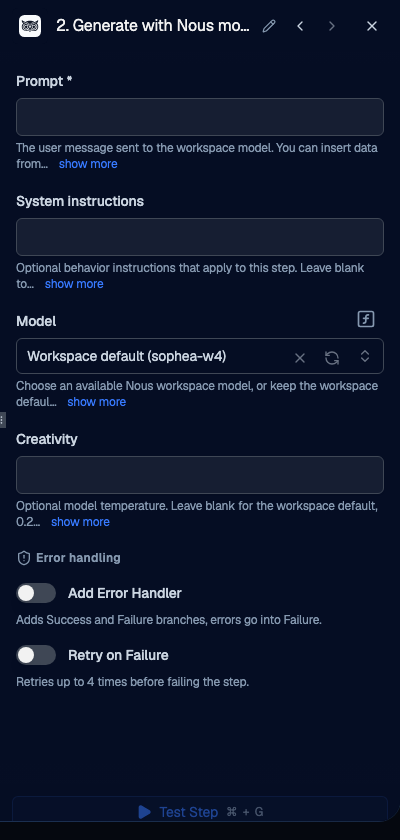
Sophea Automations uses the same visible CHAT model and Workspace default configured for Nous. Runtime actions call the Nous broker directly. Generate and Refine use the Portal model proxy, but both surfaces enforce the same Workspace authority.
39.4.2 Available models
The model selector lists Workspace default plus the visible explicit models available to the Workspace. The stored workspace_default sentinel resolves to the current Workspace CHAT default each time the flow runs, so changing that default affects unchanged flows without a restart.
A saved explicit model that is later hidden runs on the current Workspace default and records the requested model, executed model, and fallback reason in the run audit. A missing, deleted, malformed, non-CHAT, or different-Workspace model ID fails before a provider call.
Generate and Refine refresh the catalog when opened and again before submission. If an explicit selection disappears before the click completes, the operation stops, refreshes the selector, and waits for the user to choose or retry.
39.4.3 Model parameters
The ask_workspace_model action accepts: - prompt: The text prompt (required) - systemPrompt: System instructions (optional) - modelId: Selected Workspace model ID, not a LiteLLM alias. It defaults to workspace_default; explicit choices use opaque, signed IDs scoped to the Workspace. - temperature: Optional sampling temperature (0-2); leave blank to use the model’s default.
39.5 Configuring Webhooks
39.5.1 HMAC-signed webhooks
The Catch Webhook trigger (@activepieces/piece-webhook) accepts configurable authentication. In shell mode, the available choices are only Header Auth and HMAC Signature.
39.5.2 Setup
- Add a Catch Webhook trigger and choose Authentication.
- For HMAC Signature, configure Signature Header Name (default
x-signature), Secret, and Algorithm (defaultsha256; choices also includesha1andsha512). - Set Signature Encoding (
hexby default, orbase64) and, if needed, an optional Signature Prefix. - Use the Live/Test URL displayed in the trigger settings instead of constructing a webhook path.
39.5.3 Verification
The HMAC is calculated over the request’s raw body using the configured header, secret, algorithm, encoding, and optional prefix. This trigger does not require an X-Sophea-Timestamp freshness header, and X-Sophea-Signature is not a fixed header name: use it only if you configure that name. Header Auth compares the configured header name and value. In shell mode, None and Basic Auth are not available.
39.6 Managing Templates
39.6.1 Built-in templates
Sophea ships with 51 distinct templates: 43 domain templates tagged across nine categories, plus eight starter templates: - Knowledge (11) - Reports (11) - Research (10) - Review (8) - Approvals (5) - Email (4) - Data (3) - Legal (1) - HR (1)
Some domain templates have more than one category tag, so the category counts overlap and do not sum to 43 distinct templates.
The eight starter templates cover common starting points: asking a workspace model, daily web research email, answering from indexed knowledge, daily knowledge digest email, structured extraction, content review approval, Excel-ready CSV report, and agent web research report.
39.6.2 Custom workspace templates
To reuse a custom flow, use Export and Import, then review its workspace-specific settings in the destination before publishing. These controls reuse flow graphs; they do not create catalog templates.
39.6.3 Template categories
The category carousel groups templates in the catalog; category tags can overlap.
39.7 Monitoring and Debugging
39.7.1 Run history
The builder header’s Runs control opens Recent Runs in the resizable right panel. This panel lists flow executions; version history is separate.
39.7.2 Step inspection
Select an actual run to inspect its step inputs, outputs, result status, and errors in the run debugger. Agent Timeline details are not available for every run.
39.7.3 Loading run data into tests
- Open an actual run from the header’s Runs control.
- Select the step to inspect.
- Choose Load into test to seed the step’s input in the test panel, then edit the input and test that step again.
The test result is a step test, not a replay of the published worker run.