29 Actions and tools
Actions let agents do more than read indexed documents. An action calls an external system on the user’s behalf, then returns the result into the conversation. Use actions when an agent needs live data, needs to look something up by ID, or needs to trigger a workflow you already run elsewhere.
This chapter covers the two action surfaces workspace admins manage:
- MCP Actions at
/app/admin/actions/mcp. Register a Model Context Protocol server, configure how Nous authenticates to it, and pull its catalog of tools. - OpenAPI Actions at
/app/admin/actions/open-api. Paste an OpenAPI spec, choose how each request is authenticated, and expose individual endpoints as tools.
The default assistant derives its MCP actions at request time from the current user’s access. For a workspace-created agent, attach only the MCP or OpenAPI actions it needs in the agent editor. See Agents for that step.
29.1 Use apps and actions in chat
Attaching actions determines which actions the agent can use. For the default assistant, accessible MCP apps appear automatically in the chat composer’s Tools menu. Selecting an MCP app there creates an optional allowlist of that app’s enabled actions for the current chat. It is not a second access setting or a request that guarantees an action will run.

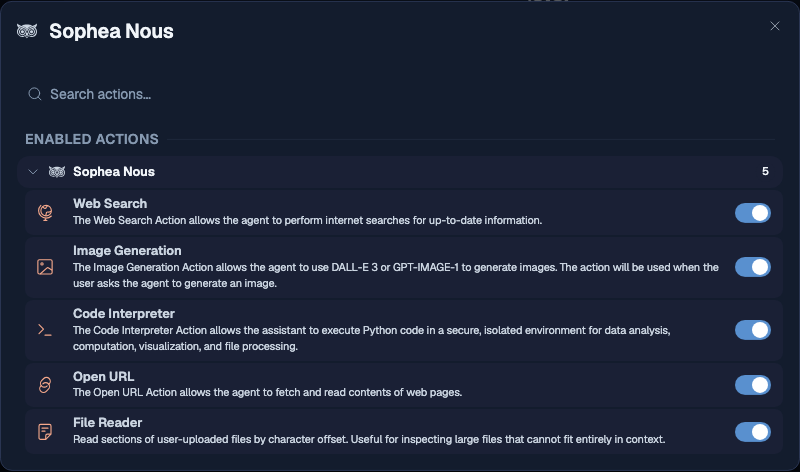
- On the default assistant, Sophea Nous starts on. Web Search, Open URL, Code Interpreter, Image Generation, and File Reader are enabled initially. When the current user has connected an app that is searched live, such as Microsoft Teams, Outlook, Gmail, IMAP mail, or Sophea Meet, Live App Search is also available and enabled initially. Workspace-created agents offer exactly the built-in actions their creator switched on.
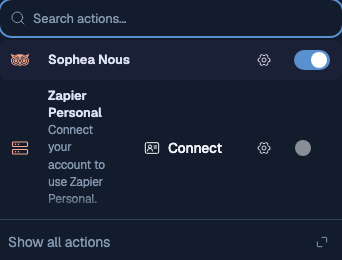
- Each accessible MCP app, such as Zapier, appears automatically when the server is connected and your access scope permits it. If the app still needs a personal connection, its row shows Connect and cannot be selected yet. There is no separate per-user enable step in Chat Preferences.
- Selecting an MCP app in the composer makes that app’s enabled actions available throughout the current chat. You can keep up to two MCP apps active in a chat. The model decides whether an action is useful and which allowed action to call; selecting the app does not guarantee execution. The app stays selected after completed responses, technical failures, and cancelled responses. Turn it off in Tools when later messages no longer need it. Starting a New Chat or switching chats, assistants, or projects clears the selection.
- Refreshing the page clears MCP selections and resets Knowledge Search to its default enabled All sources state. It does not cancel an answer that is still being written: that answer keeps running and continues in the reopened chat. See Built-in Deep Research mode.
- The persistent Sophea Nous app behaves differently. Its enabled built-in actions stay available across messages, and the model chooses an action only when it is useful; its app switch does not force a call.
- Open Configuration for an app to choose its Enabled actions. For Sophea Nous, the app switch and its action switches are two views of one setting: the app reads as on while at least one built-in action is enabled, turning the app off disables every built-in action, and turning it back on enables them all again. MCP action switches control which actions may run, independently of the app’s chat-scoped selection.
- Standalone OpenAPI actions use their own enabled-action switches because they do not belong to an MCP app.
Live App Search reads directly from the current user’s personal connections. Use it for freshness questions such as meetings from today or recent mail from a sender, and for searches by meeting name, mail subject, sender, or body text. Gmail, Microsoft Outlook, and IMAP messages are never indexed in Knowledge Search. Nous never sends another member’s personal credentials, and disconnecting the last supported personal app removes its live capability.
Zapier’s provider actions are organised one level deeper. Open Configuration to browse a provider such as Gmail and choose actions individually, then select the Zapier app to make those enabled actions available in the current chat. The model may call a relevant allowed action or answer without Zapier. Every newly discovered Zapier action starts off. An individual Find Email switch does not enable Send Email, another Gmail action, or another provider.
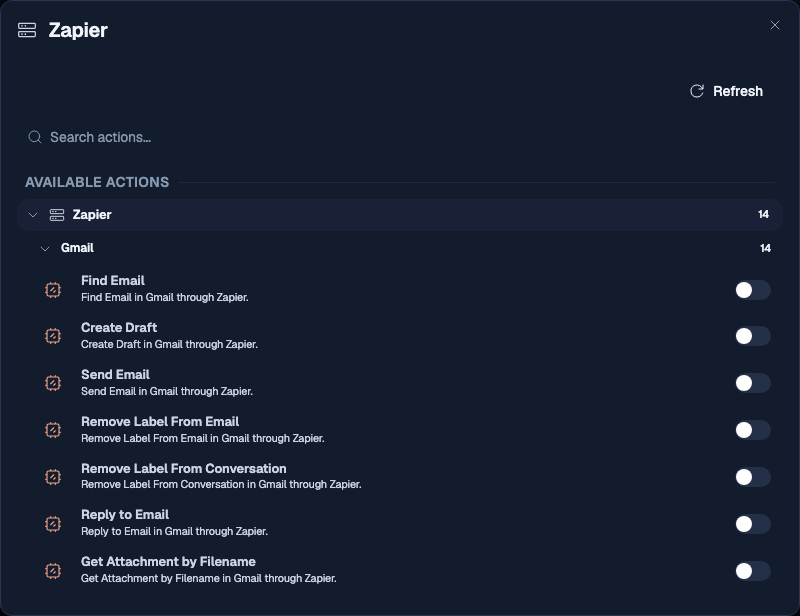
Choose Refresh after changing the enabled actions in Zapier. The control stays available even when the current catalog contains zero actions. It stays busy and blocks duplicate clicks until the complete refresh finishes. Nous replaces the current user’s catalog without changing another user’s catalog. If Zapier’s management contract is incompatible, Nous hides those actions instead of falling back to its generic management tools. A temporary connection failure or a catalog change during refresh keeps the last validated catalog and offers a retry.
Knowledge Search, Deep Research, and published external agents are composer controls rather than app gates. Knowledge Search starts enabled over All sources, and the model searches only when useful. Turning it off disables connected-knowledge retrieval for the chat. A narrowed scope turns Knowledge Search into the first ordered tool step; ambient All sources search is not an ordered step. MCP apps remain selected in the current chat until the user turns them off. Deep Research remains selected until the user turns it off and continues to run by itself. A published external agent clears after Nous accepts its background run and remains selected if submission fails before that point. A published external agent can coexist with an MCP app selection, but the MCP allowlist applies only to Nous and is not sent to the remote agent; an accepted handoff clears only the external agent. Knowledge Search can coexist with an MCP app selection: a message can search the knowledge base and then use an allowed action, and the reply covers both. Starting a New Chat or switching chats, assistants, or projects clears other chat-scoped selections and resets Knowledge Search to enabled All sources, while keeping the saved app configuration.
Deep Research runs by itself. While it is selected, Nous temporarily hides enabled apps and Knowledge Search from the active-tools summary without changing saved app switches or the Knowledge Search scope. Those settings return afterward. If an allowed app or action is unavailable or does not fit the selected model, Nous removes it from the available tool set and can continue with the remaining valid work. Selecting an MCP app does not turn that warning, or a response that uses no MCP action, into a required-operation failure.
The composer permits at most eight ordered tool steps. Ambient Knowledge Search does not count toward this limit. A narrowed Knowledge Search scope counts once and always runs before other selected steps.
An MCP app being visible, ready, and selected are separate states. Visible means the server is connected and its access scope permits the user. Ready means any required personal authentication is complete. Selected means the user has made that app’s enabled actions available for the current chat; the model can still answer without calling one. Removing access, disconnecting the server, revoking personal credentials, or leaving the app with no enabled actions removes an existing selection before a later message.
29.1.1 Connect personal MCP credentials
An MCP server can be available to the workspace while still requiring each user to connect a personal account. The app row reports these states separately. A connected server that still needs your credentials shows Connect, and its app and action switches remain unavailable until your connection succeeds.
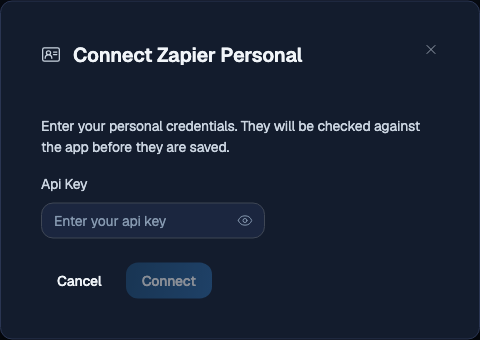
- For an API-token connection, choose Connect, enter every requested credential, and submit the form. Nous tests the credentials against the live MCP server before saving them. A failed test leaves the previous connection unchanged.
- For OAuth, choose Connect and complete the provider’s authorization page. Nous returns you to the same chat after it verifies the new connection.
- Until your personal connection is complete, Nous excludes the app’s actions from the tools sent to the model. A stale selection cannot make Nous use the workspace creator’s credential.
- For a supported Zapier connection, a successful connection also discovers that user’s enabled provider actions. Use Refresh from the app configuration when the enabled set changes in Zapier.
29.2 What actions are
An action is a named callable that an agent can invoke during a chat. Each call is a single, scoped request: the agent picks the action, fills in the arguments from the conversation, the request runs against your configured endpoint, and the response is fed back into the model so it can write a grounded answer.
Two action types are available:
- MCP tools. You register one MCP server. Nous discovers the tools it exposes, and each tool becomes an attachable action.
- OpenAPI tools. You upload one OpenAPI document. Each operation in the spec becomes an attachable action.
A third capability, Code Interpreter, is not on these pages. It is a per-agent toggle in the agent editor that lets the agent run sandboxed Python during a chat. Manage it on the agent itself, not here.
If a vendor offers both an MCP host and an OpenAPI spec, prefer MCP for richer tool descriptions and built-in argument schemas. Use OpenAPI when you only have a spec and no MCP wrapper.
29.2.1 Zapier provider actions and controller tools
Zapier’s MCP server publishes a small catalog of controller tools while managing a larger set of enabled actions for services such as Gmail, HubSpot, and ClickUp. A supported personal Zapier connection translates those enabled provider actions into individually selectable Nous actions.
This distinction affects both administration and chat:
- For an Individual Key (Per User) Zapier connection, the MCP Actions page and the app’s Enabled actions configuration show provider groups and their individual actions. Zapier’s controller tools stay hidden and are not sent to the model as alternative actions.
- Every user connects their own Zapier credentials and receives an independent catalog. Newly discovered actions start off until that user enables them.
- A Shared Key (Admin) connection remains a standard MCP connection and uses the protocol tools published by its server. Nous does not automatically convert a shared connection or its catalog into a personal provider-action connection.
- A follow-up question can use results already present in the conversation. Select Zapier again only when the follow-up should make another live Zapier action available.
If an expected provider action is missing, enable it in Zapier and choose Refresh in the app configuration. A zero-action catalog still offers Refresh. After changing an existing server from a shared key to an individual key, any user without a ready personal connection must choose Connect and supply personal credentials before Nous can discover or execute that user’s provider actions.
29.2.2 Creating multiple ClickUp tasks through MCP
This is separate from the personal ClickUp Connector, which still uses exact-proposal confirmation and does not support bulk actions. For the verified ClickUp task-create action in the connected personal Zapier app, an already-authorized request for up to 16 independent tasks in the same resolved List and with supported fields is validated as a whole before any task is created. Nous then creates each task sequentially, without a second confirmation because the MCP action is already authorized. This limited capability does not extend to other providers or actions, mixed requests, or unresolved destinations. The response shows links for tasks that Nous verified as created and distinguishes tasks that have not been sent. See ClickUp task creation with an MCP action for same-member continuation and Stop or uncertain results.
29.3 MCP Actions
The Model Context Protocol is a standard for exposing a catalog of tools over HTTP. An MCP server publishes a list of tools, their input schemas, and their human-readable descriptions. Nous fetches that catalog, persists it, and lets you attach individual tools to agents.
Open /app/admin/actions/mcp to see every MCP server registered in this workspace. An empty workspace shows a prompt to connect your first server.
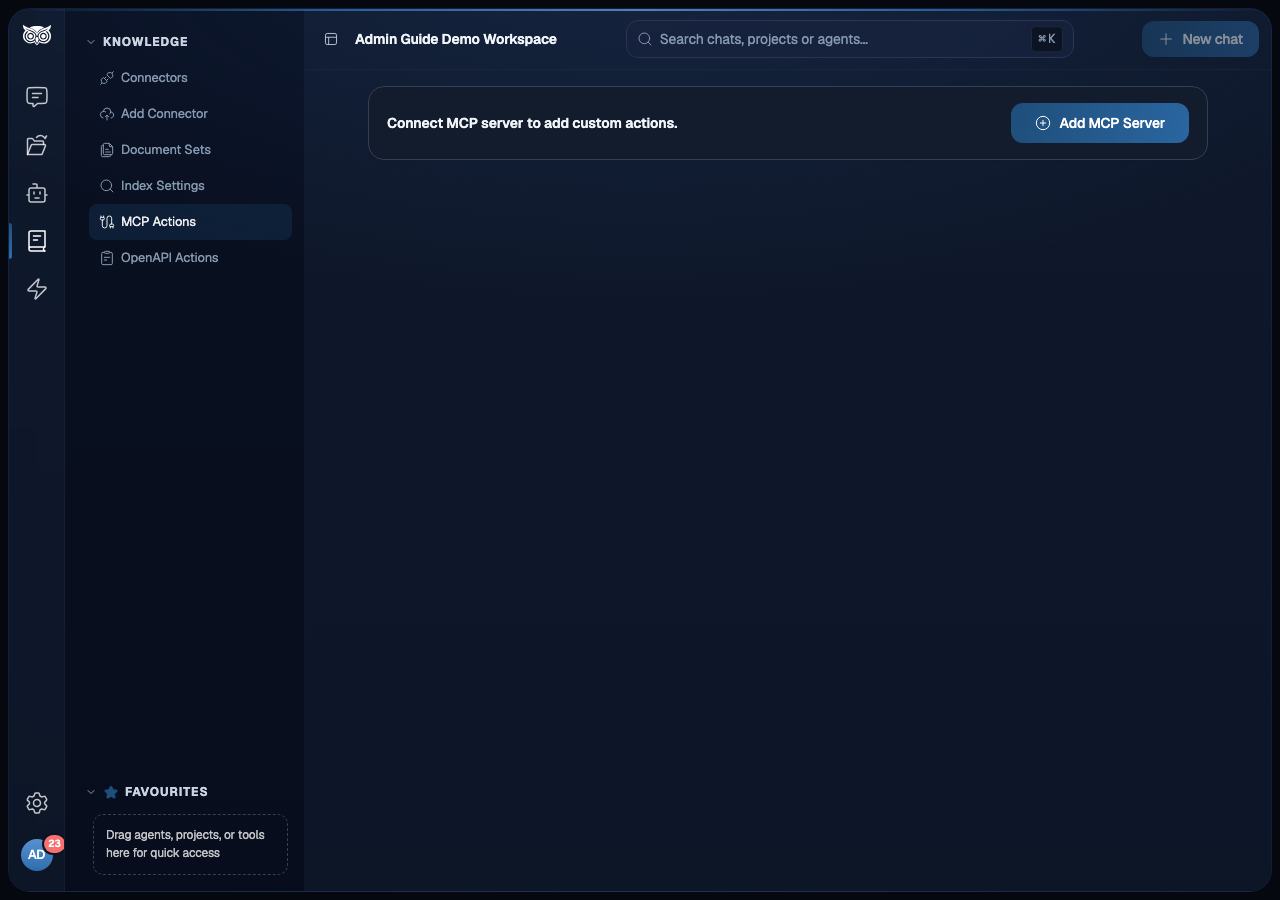
The Knowledge sidebar shows MCP Actions and OpenAPI Actions alongside connector and document administration. Navigate between the action pages from that sidebar. Agents remains a separate workspace section.
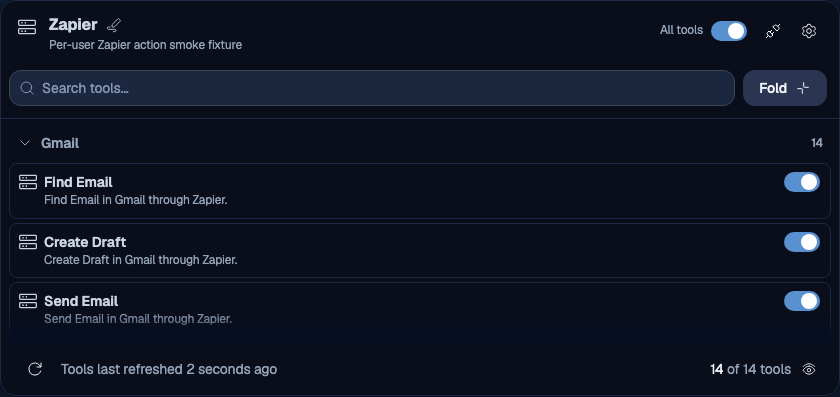
Open a server card to review the same actions that the current user can configure in chat. When an MCP catalog supplies provider metadata, the page groups actions under providers; tools without provider metadata remain in one flat list. A supported Zapier card therefore shows groups such as Gmail, ClickUp, and Microsoft Outlook, while its internal management tools stay hidden. Every provider group starts collapsed. Expand only the provider you need; a search temporarily opens matching groups, and clearing the search restores your previous expansion choices.
Each connected card has an All tools switch. Turn it off to disable the entire app’s current tool list in one operation, or turn it on to enable the full list. Individual tool switches remain available after you unfold the card. Use View tools and Fold to expand or collapse each app independently. Settings controls whether a tool is available to run; the app and action switches in chat separately control whether the selected assistant may choose it. For a personal Zapier connection, these Settings controls affect only the current user’s discovered actions.
29.3.1 Register a new MCP server
Click Add MCP Server. The modal opens with connection and access fields.
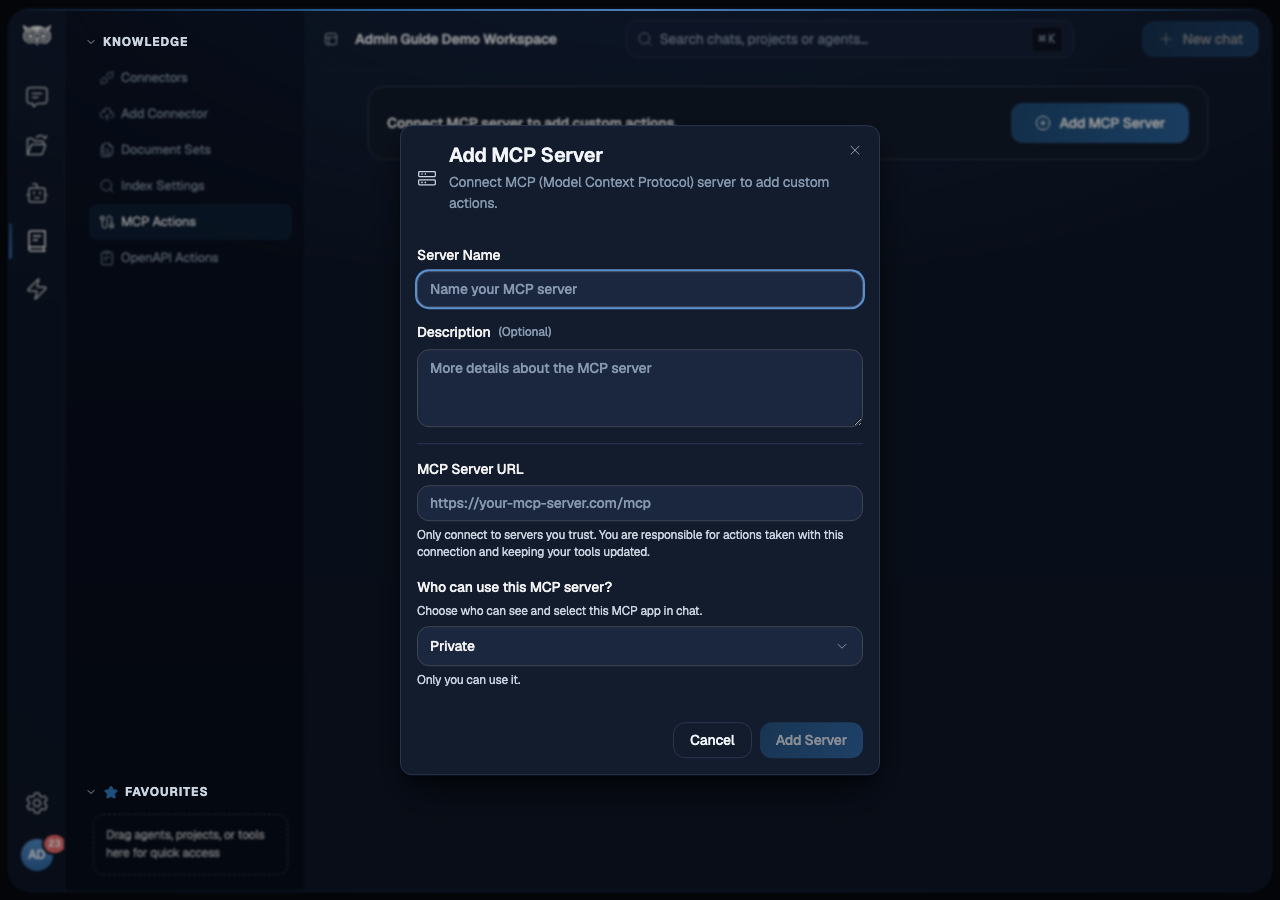
Fill in the fields:
- Server Name. A short label your admins will recognise. This is what shows up in the picker when attaching the action to an agent.
- Description (Optional). A sentence explaining what the host does. Other admins will see this when they pick which tools to attach.
- MCP Server URL. The endpoint of the MCP host. Use
https://for anything that leaves your network. Only connect to servers you trust. - Who can use this MCP server? Choose Private, Teams, or Workspace. Private is the default. Teams requires at least one active Portal Team; Workspace makes the app available to every active member of this workspace.
You can change the access scope later from Manage MCP Server. Access controls whether a user can see, connect to, and execute the MCP app. It does not grant membership in the upstream service. Connections created before access scopes were introduced remain available to the Workspace for compatibility; review those connections and narrow their scope where appropriate.
Click Add Server. The entry is created without any authentication yet. Configure authentication separately from the server’s detail page before Nous can fetch the tool catalog.
29.3.2 Authentication modes
Open the server’s row and click Authenticate. The authentication modal exposes four modes:
- None. No credentials are sent. Use only for fully public, read-only MCP hosts you trust.
- OAuth. Users connect to the MCP host with OAuth. Optionally enter a
Client IDandClient Secretwhen the host does not support Dynamic Client Registration (DCR). A client ID may be saved without a secret. Choosing Clear for only the Client Secret while keeping the Client ID leaves OAuth configured with that ID. Choosing Clear for both returns the next connection to DCR. Nous rejects a secret without an ID, or choosing Clear for Client ID while keeping the secret. The modal shows the redirect URI to register with the host. - OAuth Pass-through. Nous forwards the user’s existing access token to the MCP host as an
Authorizationheader. Use this only when the host trusts the same identity provider as Nous. - API Key. Pick
Individual Key (Per User)so each user supplies their own key, orShared Key (Admin)to enter one organisation-wide key. The shared key is sent on every request as a bearer token.
Saved credentials appear as masks. The mask is display-only; do not copy it as a credential. For each field, choose Keep to retain the saved value, Replace to enter a new exact value, or Clear to remove it. If you choose Replace, even text that matches the displayed mask is saved as the new credential.
The API token for Shared Key (Admin) and every required credential field for Individual Key (Per User) must remain set. Clear is rejected for a required value, and the saved configuration stays unchanged.
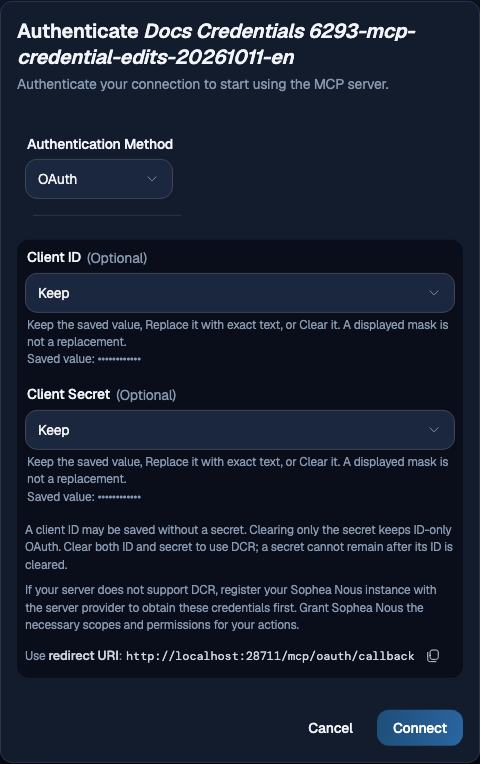
Pick the mode the host supports. Mixing modes does not work: the server accepts OAuth, the pass-through token, the configured API key, or nothing.
29.3.3 Discover and review tools
After the server is saved, open its row to see the discovered tools. Each tool has a name (used by the model when calling it), a description (used by the model when deciding whether to call it), and an input schema (the arguments the tool accepts).
Nous derives the default assistant’s MCP actions at request time from the current user’s access. They appear as one available MCP app in the composer’s Tools menu only for users allowed by the server’s access scope. The app remains unselected until the user chooses to make its enabled actions available for the current chat.
Review every tool before you allow agents to use it. The descriptions the model reads come directly from what the MCP server publishes. If a description is vague, the model will call the tool at the wrong moments. Edit the description on the host side and then refresh.
To refresh the catalog after the host adds or changes tools, click Refresh tools. A supported action catalog uses Refresh actions instead. The refresh control stays busy until discovery and synchronization finish, then Nous shows the updated list without a page reload.
29.3.4 Remove an MCP server
Open the server’s row and click Delete. Any agent that referenced one of its tools loses that capability immediately. The agent itself continues to work; the action call disappears from its tool list on the next chat.
29.4 OpenAPI Actions
An OpenAPI action wraps a standard OpenAPI (Swagger) document. Nous parses the spec, lets you pick which operations to expose, and turns each one into an attachable tool. The agent fills in the path, query, and body arguments from the conversation, then Nous sends the request with the auth configuration you set.
Open /app/admin/actions/open-api to see every OpenAPI action registered in this workspace.

29.4.1 Register a new OpenAPI action
Click Add OpenAPI Action. The modal opens with a single input area.
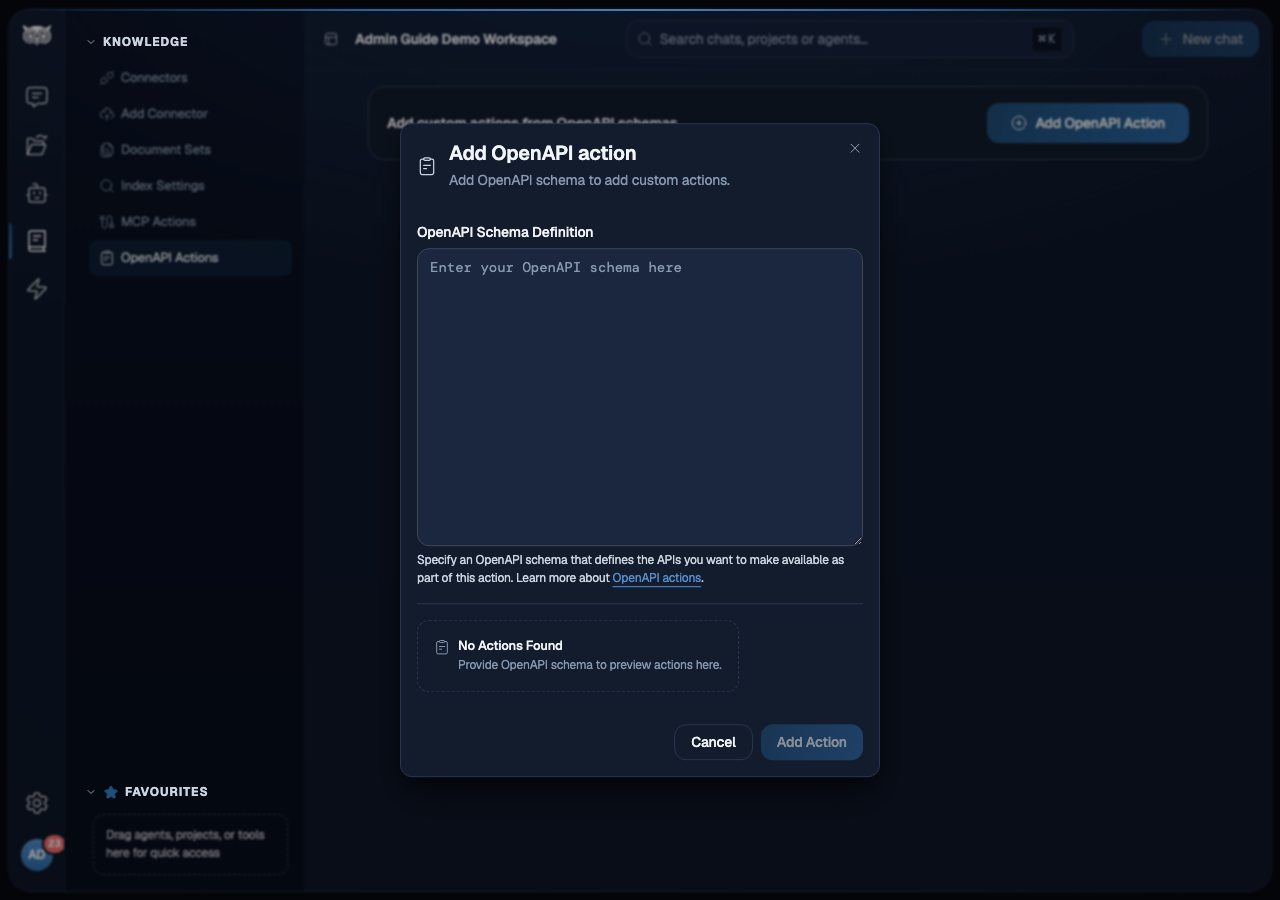
The modal has one field:
- OpenAPI Schema Definition. Paste a JSON OpenAPI 3.x document. Nous validates it as you type. The action name, description, and base URL are read from the spec:
info.titlebecomes the action name,info.descriptionbecomes the description, and the first entry inservers[].urlbecomes the base URL Nous calls. There is no separate name or URL field. Edit your spec soinfo.titleis descriptive before pasting.
Once the schema validates, the preview area below the textarea shows each detected operation as a tool. If the schema is invalid or empty, the preview shows No Actions Found. Click Add Action. Each operation in the spec is then attachable as an individual tool. The entry is created without any authentication. Configure authentication from the action’s detail page.
29.4.2 Authentication modes
Open the action’s row and click Authenticate. The authentication modal exposes three modes:
- OAuth. Nous performs an OAuth flow per user. Provide the
authorization URL,token URL,client ID,client secret, and any required scopes. Use this when the upstream API supports OAuth and you want per-user access tokens without the user managing the secret themselves. - Custom Authorization Header. Enter a fixed set of headers (typically
Authorization: Bearer …or a vendor-specific header) and Nous adds them to every call. Use this for service-to-service APIs that issue one long-lived key. - OAuth Pass-through. Nous forwards the end user’s existing access token to the upstream API. Use this when the API has its own per-user identity model under the same identity provider and you do not want Nous to hold a shared key.
Pick the mode that matches how the API expects to be called. Mixing modes inside one OpenAPI action is not supported. If you need two auth styles for the same vendor, register two separate OpenAPI actions.
29.4.3 Remove an OpenAPI action
Open the action and click Delete. As with MCP servers, any agent that referenced one of its operations loses access on the next chat. The agent’s configuration is not destroyed; only the tool call is removed.
29.5 Attach an action to an agent
At request time, the default assistant receives only the MCP actions accessible to the current user. Attachment in the agent editor is required for workspace-created agents and for OpenAPI actions.
To attach a registered action:
- Open Agents and open the agent you want to extend, or create a new one.
- Scroll to the Actions section in the editor.
- Toggle on the accessible MCP tools or OpenAPI operations you want this agent to use.
- Tighten the agent’s instructions so the model knows when to use each tool. A clear instruction beats a clever description.
- Save the agent.
The next time a user starts a chat with this agent, the tools are available to the model. The model decides when to call them; you cannot force a call from the editor.
After attaching, validate the agent. Open a new chat, ask a concrete question that should trigger the tool, and confirm the agent calls it with the right arguments. If the model never calls the tool, the description or the agent’s instructions are the first place to fix.