Part III: Connectors
This is the connector home page. It explains the common lifecycle and access rules. Use the dedicated guide for the provider you want to connect.
Open Connectors at /app/connectors or open Add Connector at /app/connectors?view=add.
Connector lifecycle
Every indexed connector follows this path:
- Create. Choose a provider, enter the form fields, and authorize the provider or save customer credentials.
- Source sync. Nous reads the provider and discovers the selected items.
- Search indexing. Nous processes and indexes supported items.
- Ready. Search can return the indexed items. New and changed items are picked up on later refreshes.
- Reconnect, reindex, or remove. Use the connector detail page when a credential expires, a scope changes, or the connector is no longer needed.
Source sync and search indexing are separate. A connector can show that source sync is complete while some documents still wait for search indexing. Check both statuses before testing a new connector.
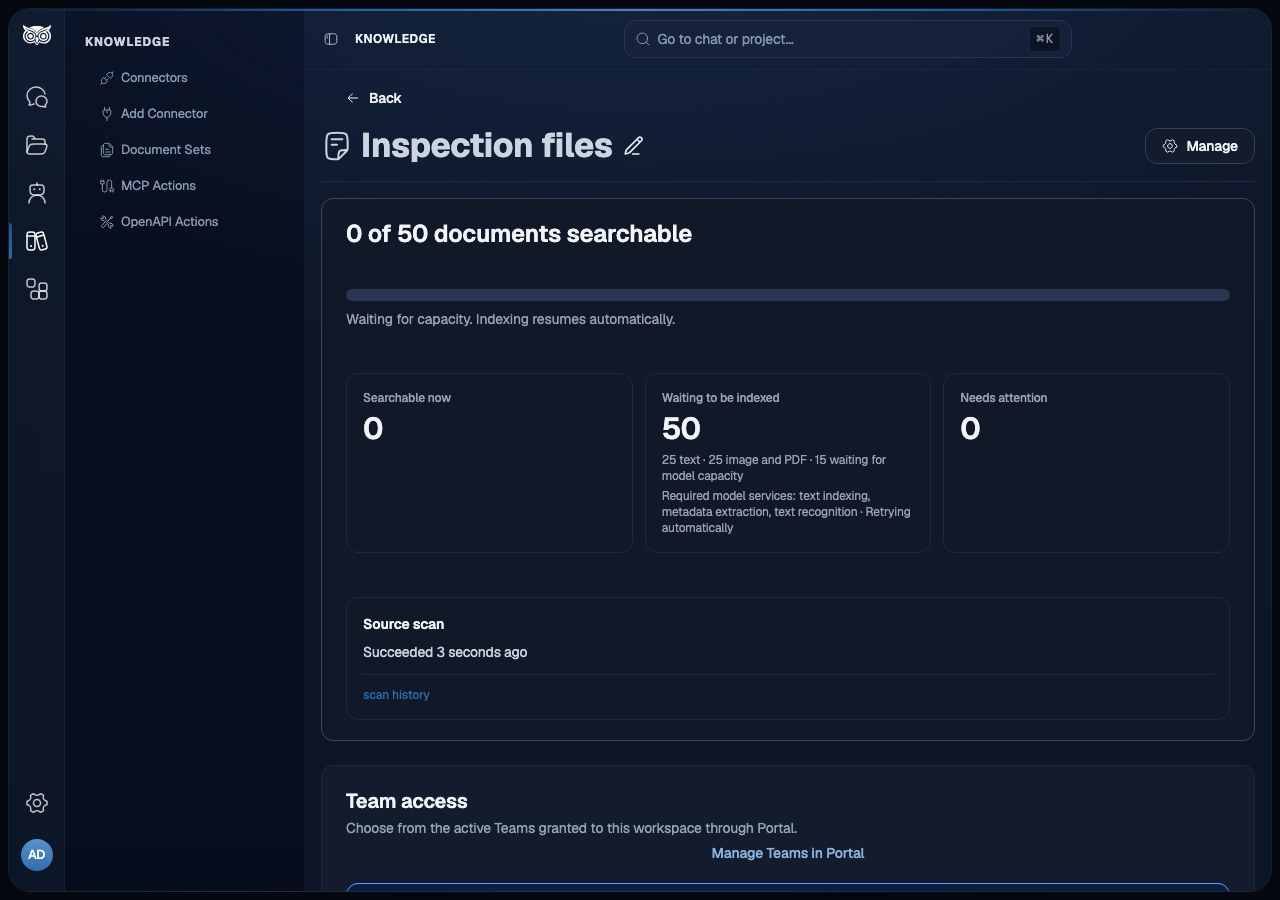
Waiting for indexing capacity
Busy workspaces share indexing time equally. Each workspace shares its time among connectors with work ready to process. A large import does not need to finish before a new connector can start.
When a required AI service is busy or unavailable, affected documents wait and resume automatically from saved progress. Other documents can continue when the services they need are available. Large scanned files may need several processing turns. Their remaining pages, text recognition, visual content, and metadata still need to finish before indexing is complete.
Leave the connector in place while it waits. Repeated restarts or reindexing do not add capacity. Check the document counts and errors on its detail page. If a document reports a failure that needs action, resolve the stated cause before retrying it.
When the detail page says Waiting for model capacity, the pending count shows documents waiting for a shared model service. The page identifies the waiting steps in plain language, such as text indexing, text recognition, or image indexing. Retrying automatically means the connector will continue from its saved progress when capacity returns. Pausing the connector removes that automatic-retry guidance until you resume it.
If a file makes no indexing progress for 14 days while waiting for model capacity, automatic retries stop. Resolve the issue, then retry indexing from the connector page.
Access and sharing
Choose the document access that matches the business need:
| Access | Result |
|---|---|
| Workspace | Every workspace member can search the indexed content. |
| Specific teams | The content is available only to the selected active Portal Teams. |
| Sync permissions | Supported SharePoint and Google Drive credentials copy source permissions into search. |
Manage Team membership in Portal. Manage the connector and its Team bindings in Nous. Choosing Specific teams does not make a connector public. A document set can narrow access, but it cannot bypass the connector access rules. See Document Sets.
For SharePoint, permission sync starts after the first document batch is indexed. It continues in saved batches while content indexing is still in progress. Documents without current stored permission evidence remain hidden. An authorized SharePoint file with a document record and current permission evidence may appear in Knowledge Search while indexing continues, even before its content reaches the search index. When content indexing finishes, Nous runs a final permission pass for files an earlier batch did not cover.
Indexing status and testing
Indexed connections no longer have a shared indexing start date. After the upgrade, connections that used that setting discover older content in the background, within their existing source selection and permissions. You do not need to request a full reindex. This discovery does not force unchanged content to be processed again; subsequent refreshes remain incremental.
Paused connections wait until you resume them. Reconnect invalid credentials before discovery can continue. If a source cannot be fully read, its sync history keeps the failure visible. Correct the source problem and resume the connection to retry. Provider-specific retention and selection rules still apply, and live-app connections are not added to the index.
Open the connector detail page and check:
- the source-sync state;
- the search-indexing state and document counts;
- the last successful refresh;
- the Last completed permission sync when Sync permissions is enabled;
- the Current access in Nous sample for a quick check of stored document access.
Queued means the refresh is scheduled and waiting to begin. It is not a stalled scan, so do not reindex or remove the connector while it is queued. Nous shows a stalled warning only after an older refresh can be confirmed as no longer waiting or running. If that check is temporarily unavailable, the state stays unknown instead of showing a false warning.
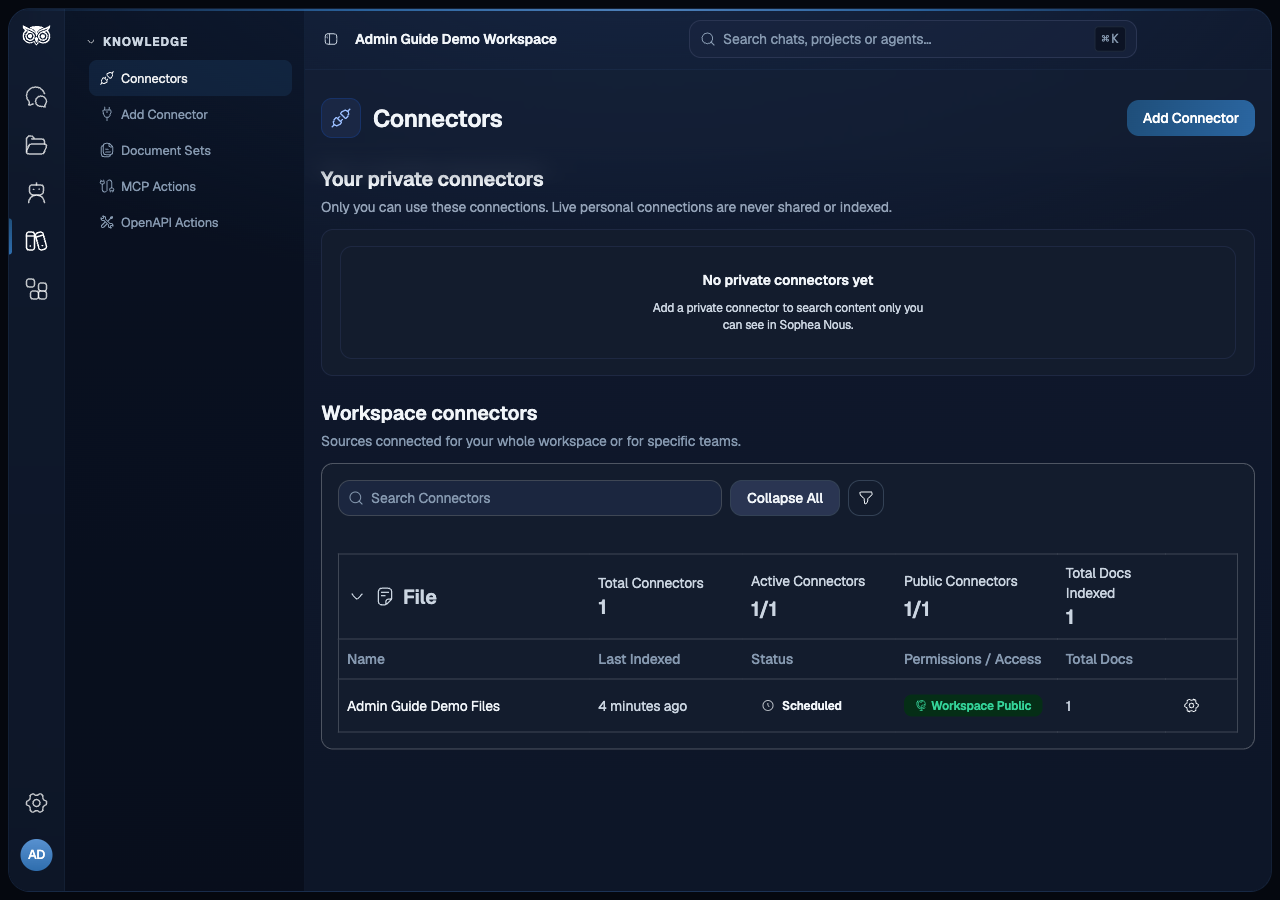
After the states are ready, search for a known item in Knowledge Search. Test once as a member who should have access and once as a member who should not have access. A private connector must fail closed for the second member. For SharePoint, you can also check authorized file matches during an indexing backlog. A file match confirms discovery and location; an answer about its contents requires a separate one-file read.
Connector comparison
This guide describes these 18 sources. The old internal Craft catalog and other legacy source types are outside this guide. Portal’s Add connector list is workspace-dependent: a source appears only when its setup method is enabled for the workspace and the rendered form is complete.
| Guide | Indexed or live | Customer setup |
|---|---|---|
| SharePoint | Sites, libraries, folders, files, and supported pages are indexed. | Sophea-managed OAuth. Your organization’s own client-secret or certificate credential is an alternate path. Sync permissions needs a certificate credential created in Nous. |
| Google Drive | Selected Drive files, folders, shared drives, and shared files are indexed. | Sophea-managed OAuth, your organization’s own Google app, or a Google service account (Workspace credential). |
| Microsoft Teams | The member’s chats and visible team channel messages are searched live for the signed-in member. Nothing is indexed. | Sophea-managed OAuth. |
| Confluence | Pages, attachments, comments, and selected spaces are indexed. | Sophea-managed OAuth, or a pasted Atlassian username and API token. |
| Notion | Authorized pages and child pages are indexed. | Sophea-managed OAuth, or a pasted Notion integration token. |
| Dropbox | Selected Dropbox folders and files are indexed. | Your organization’s own Dropbox app (the only OAuth route). |
| Gmail | Personal mailbox messages are searched live for the signed-in member. They are not copied into the workspace index. | Sophea-managed OAuth. |
| Microsoft Outlook | Personal mailbox messages are searched live for the signed-in member. They are not copied into the workspace index. | Sophea-managed OAuth. |
| Microsoft Outlook Calendar | Personal calendar events are searched live; nothing is indexed. | Sophea-managed OAuth. |
| ClickUp | Tasks and Docs in one personal workspace are read live. Clear current-message requests can directly update supported task and Doc page fields with audit and replay protection; nothing is indexed. | Customer personal API token. |
| Fireflies | Meeting titles and spoken text are searched live for the connecting member, including past meetings. Selected transcripts are opened for spoken evidence; nothing is indexed. | The member’s own Fireflies API key. Private setup only. |
| Jira | Issues, comments, and supported project data are indexed. | Customer Jira account and API token, or a Jira OAuth grant when the provider app is enabled. |
| Linear | Issues, projects, teams, and supported comments are indexed. | Sophea-managed OAuth, or a pasted Linear API key. |
| HubSpot | Personal deals, companies, contacts, and tickets are searched live; nothing is indexed. | Personal Sophea-managed OAuth. |
| Salesforce | Personal accounts, contacts, leads, opportunities, cases, and tasks are searched live. Member-confirmed changes can create or update supported records; nothing is indexed. | Personal Sophea-managed OAuth. |
| Amazon S3 | Objects in the selected bucket and prefix are indexed. | Customer AWS access keys. |
| Google Cloud Storage | Objects in the selected bucket and path prefix are indexed. | Customer HMAC access key and secret. |
| Web | Pages from a public website are indexed. | No credentials. |
Sophea-managed OAuth means that Sophea operates the provider app. The customer authorizes access in the provider consent screen. The customer does not create or paste an OAuth client secret into Nous. Customer credentials mean that the customer creates and rotates the provider credential and enters it in the setup form.
Microsoft Teams, Gmail, Microsoft Outlook, Microsoft Outlook Calendar, ClickUp, and Fireflies are personal live-app connections. They use the signed-in member’s account at question time. They do not add content to the workspace index, Knowledge Search, or document sets.
Connect Fireflies privately
Open Connectors, choose Fireflies, or use /app/connectors?view=setup&source=fireflies. Enter your own Fireflies API key and save the connection. There are no Workspace or Team access options and no indexing settings. The key is structurally checked at setup; Fireflies authentication is checked on the first live read.
Fireflies keyword search matches meeting titles and spoken text, including past meetings. Search results contain metadata and Fireflies-generated summaries, not verbatim speech. Nous opens selected transcripts to read speaker-attributed spoken evidence and returns the provider’s transcript link when available. A live meeting’s transcript is still in progress, not a complete final record.
Date cutoffs apply to transcript creation time, not the last edit or a guaranteed meeting occurrence time. Search reads a bounded provider page, not the complete account history. Fireflies plan permissions and request limits still apply.
Only the connecting member can use the connection in Nous, and its content is not copied into the workspace index, Knowledge Search, or document sets. The API key keeps its Fireflies permissions, including access to meetings shared with its owner. An elevated or Super Admin key may see additional team meetings under Fireflies’s own rules; Nous does not reduce those privileges. Never reuse a workspace or admin key as another member’s personal connection.
An older indexed Fireflies connection requires Remove and reconnect. Remove the old connection and its indexed content before creating the private live connection. Old indexed snapshots can remain available until that removal finishes. Disconnecting a new live connection stops its Nous access; it does not delete meetings in Fireflies.
Connect GitHub to a Digital Employee
GitHub is an optional source and action connection for a Digital Employee. The employee workspace is available with or without GitHub. The connector uses the existing token-entry form. Open Connectors, choose GitHub, or use /app/connectors?view=setup&source=github.
After creating the connector, return to Role & sources, choose Refresh connectors, and explicitly select it for the employee. Connector creation stays outside the hiring wizard. Private access lists your own connectors; Team access lists the selected Team’s available connectors. You can hire with no sources and add them in settings later.
Create a manually entered fine-grained PAT with access limited to the repositories the employee may use. Select those repositories in the GitHub scope picker and grant these permissions:
- Contents: read/write
- Pull requests: read/write
- Issues: read/write
After changing PAT permissions in GitHub, retry the issue action. If the connection still reports insufficient access, reconnect it through this form. A successful pull request does not establish that issue writes are permitted.
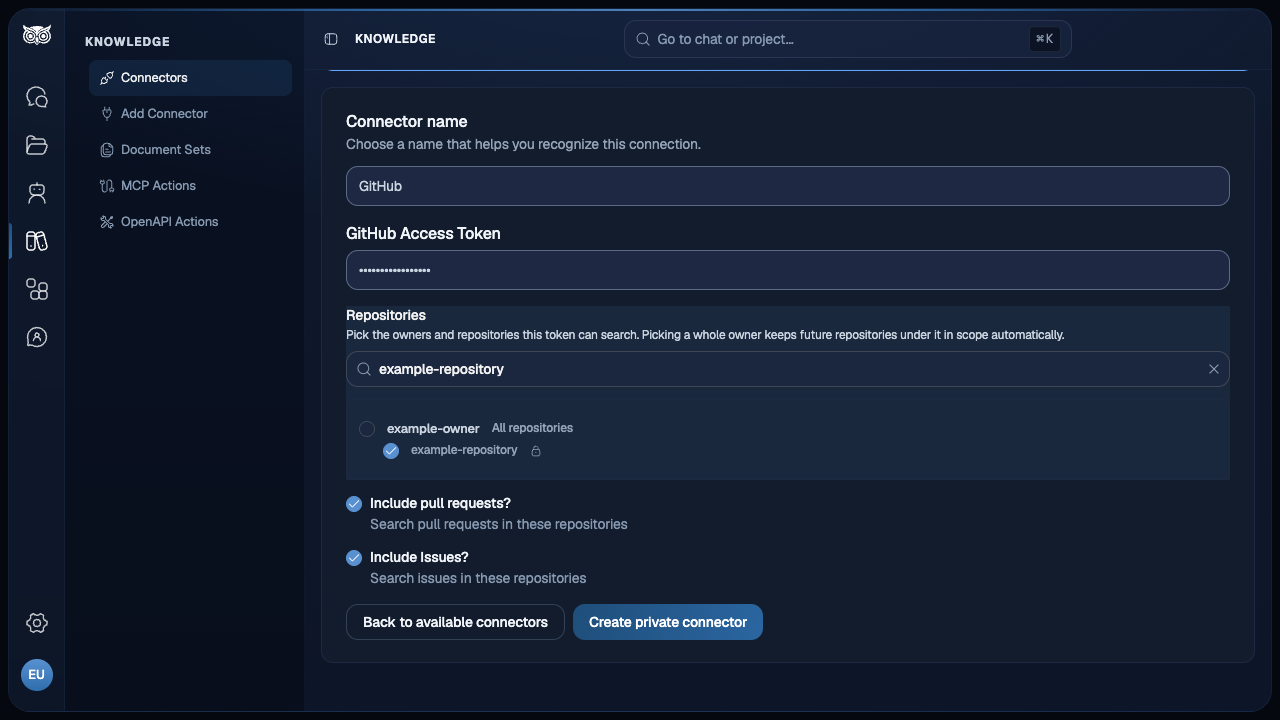
The employee can see the connected account and selected repositories in its Nous dashboard. It does not copy repository content into Knowledge Search, and the PAT stays in the owner’s private Nous connector. It is never configured as an employee secret.
The repository selection is the complete discovery boundary. A Digital Employee can browse the root and nested directories of each selected repository, read bounded UTF-8 text files, and use separate GitHub searches for issues, pull requests, comments, or code. A request may include an optional branch, tag, or commit reference. It cannot open an unselected repository, read binary files, or perform a general download.
If the connection is missing, revoked, or lacks a required permission, the employee dashboard shows the reason and reconnect guidance. Reconnect the GitHub connector with the same account and an explicit repository selection. After reconnecting, refresh the employee’s sources and verify the selected repositories before retrying. Do not broaden the selection to recover an unrelated repository. Write permission is confirmed only when GitHub accepts a requested write, so a connection display alone is not proof that a pull request or issue can be created.
For every write, name the repository in the current chat instruction, such as Open a pull request in acme/project. The connection selection limits which repositories are available; it does not authorize publication by itself. The exact write request still requires approval from the user who initiated the task.
Choose a connector guide
Use the guide that matches the source:
File connectors
A file connector holds documents you upload instead of reading a provider, so it is not in the comparison table above. Both admins and members can create one. Google Sites connectors are created the same way: choose File, upload the site’s .zip export, and enter the live site address so pages link back to the site.
Text in PNG, JPEG, WebP, BMP and TIFF images is extracted for search. Visual indexing is optional and keeps the images available for visual search. Multi-page TIFF files include every page. If an image is damaged, its document shows an error instead of being marked indexed. Each image or TIFF page can contain up to 16,777,216 pixels. If indexing stops during a temporary service outage, it resumes from saved work.
PDFs that require a password cannot be indexed. Upload a copy that opens without a password. Retrying the same protected file will not resolve the error.
Complex CAD drawings
CAD drawings in .dwg and .dxf are supported. An unusually complex drawing may fail during rendering and remain unavailable for search. If that happens, export the drawing to PDF from the source application and upload the PDF instead.
| Role | Where | Access |
|---|---|---|
| Admin | Connectors, then File | Only you, Specific teams, or Workspace |
| Member | Connectors, then File | Private to the member, or shared with Teams the member belongs to |
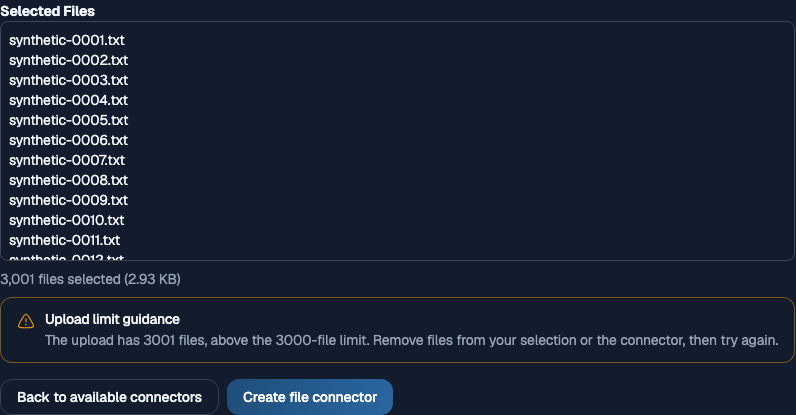
For an admin, Only you keeps the files personal, Specific teams gives access only to the Teams you select, and Workspace lets everyone in the workspace search the files. Only you uses the personal limits below, even for an admin. Team and Workspace connectors do not use the personal quota. All uploads still use the workspace per-file limit and the same PDF and ZIP checks. A ZIP may contain up to 3,000 entries and expand to at most 1 GB. If an archive exceeds a safety limit, extract it on your computer and select the files directly.
A member cannot share a connector with a Team they do not belong to, and cannot make one available to the whole workspace. Ask an admin to create the connector if the whole workspace needs it.
Personal File connectors work within these limits:
| Limit | Value |
|---|---|
| File connectors per person | 10 |
| Files per connector, including extracted ZIP entries | 3,000 |
| Total upload size per person | 1 GB |
Per-file size uses the workspace upload limit in Settings, the same limit as every other upload.
An automation does not check these limits when it adds a file to a connector. The files it added still count: the next time the member adds or removes a file themselves, the 3,000 file limit is checked against everything the connector holds. The total upload size counts only what members upload in Nous.
Each upload sends up to 3,000 selected files in one request. ZIP contents count against the stored-file limit after extraction. The selection shows its file count and total size, with filenames in a scrollable list so the form actions stay reachable. Remove files from an over-limit selection before uploading. For an oversized or unreadable file, choose a smaller or repaired copy; for a protected PDF, choose a copy that opens without a password.

If an upload is interrupted, use Retry without changing the selection. The files are sent again. If the upload had already completed, Retry returns the same result without adding duplicates. Keep the page open to retain that Retry operation. Changing the selection starts a new operation. Upload completion means the files were accepted; indexing can continue before they appear in search.
Add or remove files later on the connector page. Removing a file deletes the stored copy and starts removing its content from search automatically. Search results can take a short time to update. You can add replacement files without recreating the connector. If the update is interrupted, it resumes automatically.
To use uploaded files in a scoped set, add the connector to a Document Set.
Sync and cleanup schedule in Portal
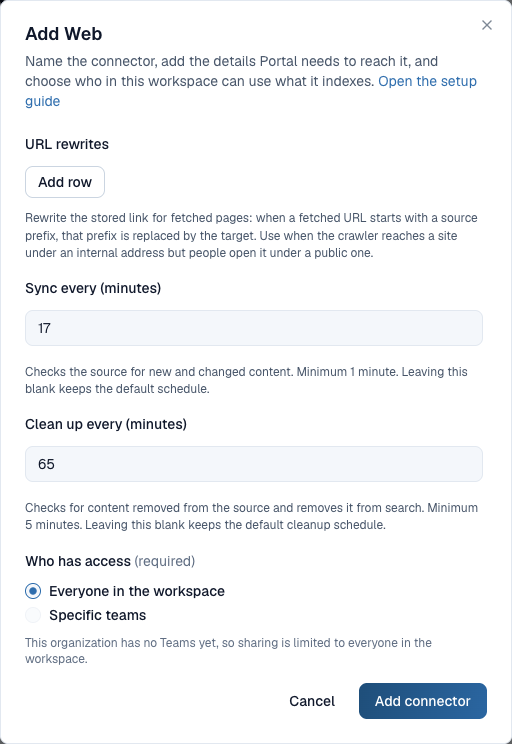
When you add a shared connector that reads an external source from the Portal Connectors page, you can choose how often it checks the source. Choose Show advanced settings in the setup form to see two fields:
- Sync every (minutes) checks the source for new and changed content. The minimum is 1 minute.
- Clean up every (minutes) checks for content removed from the source and removes it from search. The minimum is 5 minutes.
Enter whole minutes, or leave a field blank to keep the default schedule shown in it. Defaults depend on the provider: most sync every 30 minutes, and some, such as Amazon S3, sync once a day. Most clean up every 30 days; Dropbox cleans up once a day. A value below the minimum keeps Add connector unavailable until you correct it.
File connectors and connectors that are searched live have no schedule, so their setup forms do not show these fields.
To change the schedule later, open the connector and go to the Settings tab. The same two fields show the saved schedule.
Workspace file connectors in Portal
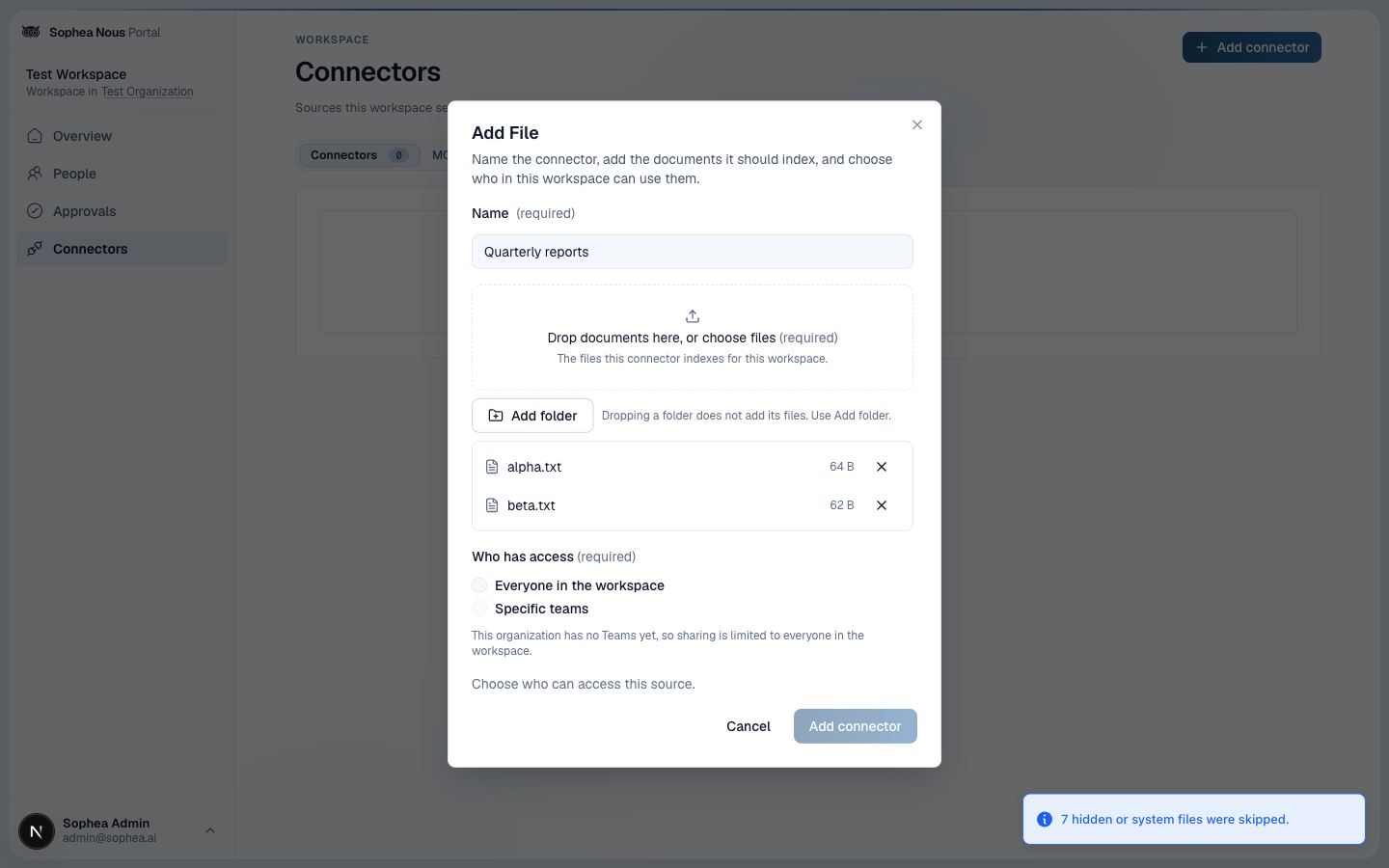
Workspace admins can also create and maintain shared file connectors from the Portal Connectors page. Choose Add connector, then File, name the connector, add the documents, and choose who has access.
To add a whole folder, choose Add folder and select it. Every file inside the folder and its subfolders is added to the selection. Hidden and system files are skipped: anything whose name, or the name of a folder above it, starts with a dot (such as .DS_Store or a .git folder), Thumbs.db, desktop.ini, anything inside __MACOSX, and Office lock files that start with ~$. A notice says how many files were skipped. Dropping a folder onto the upload area does not add its files, so use Add folder for folders.
Files keep only their own names, not the folder they came from. Two files with the same name and size count as the same document, and the second one is skipped with a notice. The 3,000 files per upload limit and the per-file size limit are unchanged.
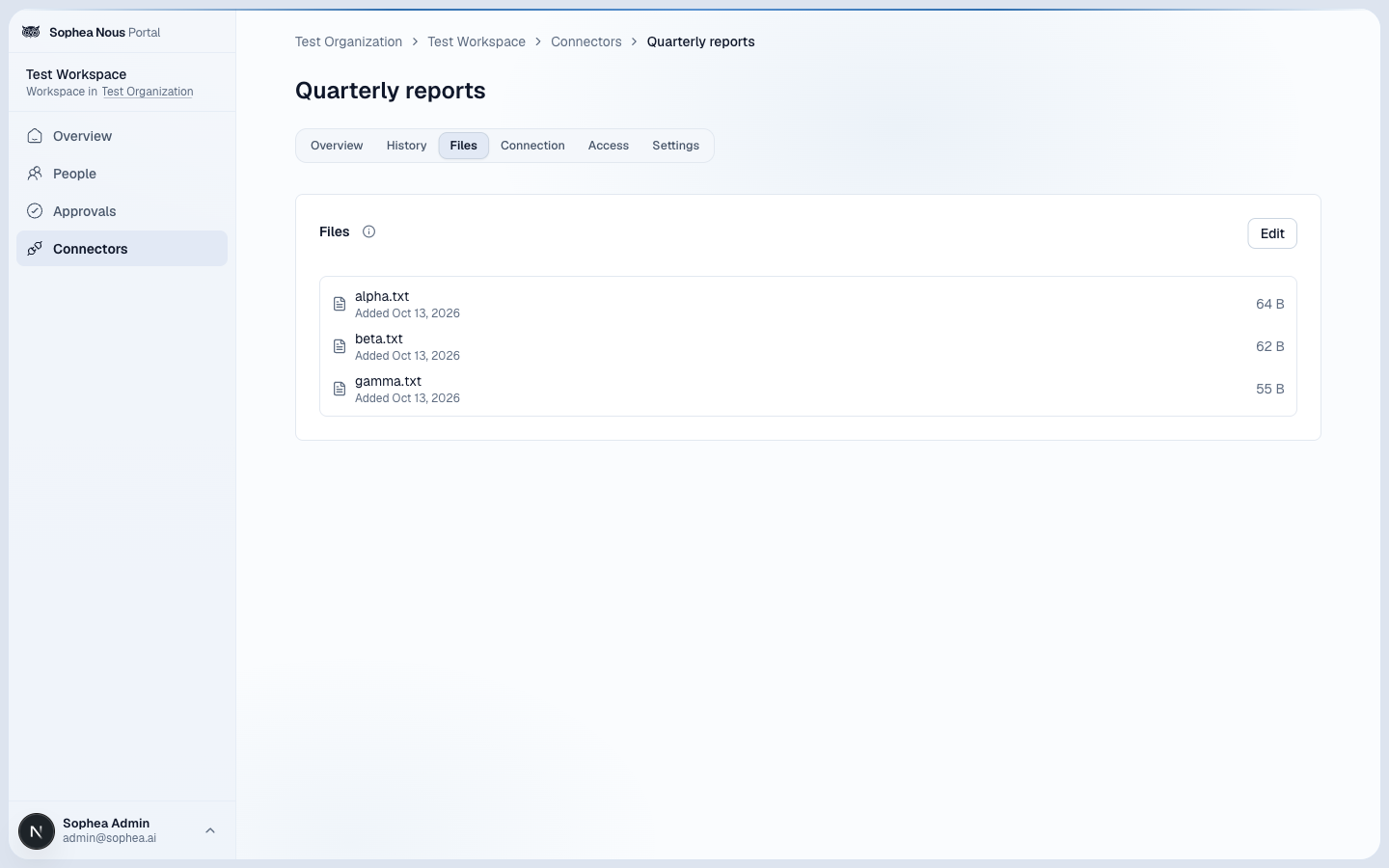
To add more files later, open the connector, go to the Files tab, choose Edit, add files or a folder, then choose Save and confirm with Save changes. Each stored file shows when it was added. That is the upload time, not the time indexing finished; the Overview tab shows indexing progress. A file whose upload time cannot be read shows no date. The tab lists the files 25 to a page, with a Search files box above the table that finds a file by name across all pages. Files you mark for removal stay marked while you search or change page, and Save applies every change.
Sync history and documents needing attention
The Portal connector page keeps the history of every sync, not only the latest one, and lists the documents that could not be added to search.
History shows one row per run: when it started, what kind of run it was, how long it took, how many documents it checked, and the outcome. Read the outcomes this way:
- Succeeded: every document the run checked is in search.
- Completed with errors: the run finished and some documents failed. The row counts the errors that run recorded; the documents that still need attention are listed on the Overview tab, since a later retry can already have fixed some of them.
- Failed: the run itself could not finish. The row carries the reason, for example an expired credential or a source that could not be reached.
- Canceled: something replaced the run, usually a full re-index, or the source’s rate limit paused it. A run paused by the rate limit resumes on its own about 30 minutes later, from where it stopped.
- Running: the run is still going. The Overview tab shows how many documents it has found so far and how far through the source it is.
Documents needing attention on the Overview tab separates two kinds of failure into two lists, and shows a list only when it has something to show. Indexing failed appears when Knowledge Search failures exist, or when that list could not be loaded. Sync errors appears when sync errors exist, or when a search, a page or Show resolved is in use. When both appear they are tabs, and the card opens on Sync errors when the link carries a sync-error search, page or Show resolved choice, otherwise on Indexing failed. When only one appears, it shows on its own, without tabs, and its opening line says which list it is. The card header stays the same whichever list is showing: the title and the line “Documents this connector could not add to search, split by where it went wrong.” Each list opens with a one-line explanation of its own. Counts appear once: on the tabs when both lists show, and not beside a single list, where the Needs attention tile and the page controls carry the total. Not searchable counts documents; Sync errors counts errors, one per sync, so a document that failed in more than one sync counts once on the tile and once per sync on that tab. Searching never changes either count. Each list shows 10 rows per page. Long document names and folder paths are shortened to one line; hover a value, or use the details button at the end of a row, to read it in full.
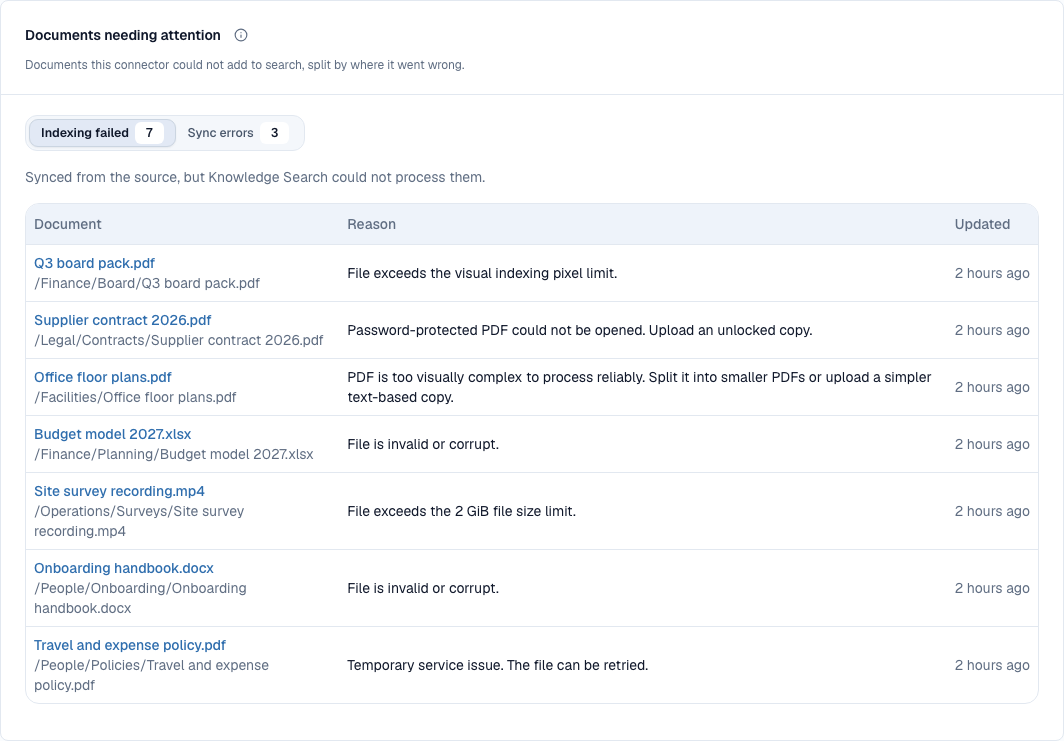
- Indexing failed lists documents that were synced from the source but that Knowledge Search could not process. Each row shows the document, the reason, and when it was last updated. This list has its own page controls and a Search documents box that finds a document by its name or folder path across every page; while you search, the row says how many documents match. It has no Show resolved switch. A search changes only the list: the tab and the Needs attention tile keep the connector-wide count, and a search with no results shows “No documents match” with a way to clear the filters. If the list empties while you page, it shows “No documents failed to become searchable” instead of disappearing. When the connector-wide action is available, the list’s opening line adds “Use Retry indexing in Needs attention to retry them.”; it retries indexing for the whole connector.
- Sync errors lists the errors recorded while syncing documents from the source, with what would fix each one: a full re-index, a correction in the source system, or a closer look. A document that failed in more than one sync appears once per sync. Search document references and Show resolved apply only to this list, and while you search, the row says how many errors match. Turn on Show resolved to also list errors that a later sync or retry has already fixed. A search with no results shows “No documents match” with a way to clear the filters. With Show resolved on and nothing to list, the list shows “No resolved or unresolved errors”. When nothing is filtered and every error has cleared, it shows “No sync errors”. Retry documents with sync errors sits in the same row as the search and Show resolved, and only on Sync errors. It fetches every document with an unresolved sync error and a source reference again, and reports progress while it runs; the card stays on Sync errors until the retry reports its result. It reaches documents outside the page or search, but it does not retry the documents in Indexing failed. A failure without a document reference needs a full re-index.
The Overview tab opens with how many of the connector’s documents search can answer right now, for example “8 of 10 documents searchable”, with a progress bar. The total covers the documents Sophea currently holds for this connector, so a running sync can still add more. Skipped files are not counted in the total. A note above the tiles says how many files have a format Knowledge Search cannot process and are excluded from the searchable-document total. While documents are being processed, the tab also shows an estimate of the time left.
Three tiles under the bar separate documents that only need time from documents that need you:
- Searchable now: documents search can answer. A line under the count shows how many are text and how many are images and PDFs, which tells you whether image processing is what is slow. A document being rebuilt keeps answering search with its previous version until the rebuild finishes, and the tile says how many are being rebuilt.
- Waiting to be indexed: documents that have never been searchable and are queued or will be tried again after a temporary error. Documents that are already searchable, including ones being rebuilt, and documents being removed are not counted here. The tile is titled Waiting for model capacity when documents are waiting for a shared model service; see Waiting for indexing capacity. These documents need no action.
- Needs attention: documents that Knowledge Search could not process, plus documents with an unresolved sync error. The first count follows the list in Indexing failed. The number can show a plus sign, such as 25+, when the list of documents with sync errors has more entries than the page counts. When Documents needing attention lists documents of either kind for this connector, View documents jumps to that card. Retry indexing appears on this tile only when there are failed documents to retry, and processes them again. It is disabled while the connector is paused or a reprocess is running. It also retries documents that failed permanently, for example because Sophea could not read the file at the source, so fix the cause first, such as the file’s permissions in the source system. Files in a format Knowledge Search cannot process are skipped, and documents that already work are not touched.
The three tiles do not have to add up to the total, because some documents, such as ones that are out of date, are in none of them.
For a connector that copies source permissions, Overview also shows Document permissions last completed and Group membership last completed. The Last attempt row summarizes the latest sync, and View history next to it opens the History tab.
To get the full list of documents that are not searchable, open the More connector actions menu (the three dots) on Overview and choose Export not-searchable documents. Your browser downloads a CSV file with one row per document, including its title, source path, status, whether a retry can help, and the reason. The file covers every not-searchable document of the connector, not only the ones on the current page of Documents needing attention or the ones a retry can fix. Downloading the file does not retry anything. The action is available to organization owners and admins when the background counts report at least one not-searchable document; while the counts are being collected, or when there are none, it is shown but disabled and says why. If the download cannot start, the page shows a short message instead of a file; use your browser’s Back button to return to the connector. If it stops partway, your browser lists the download as failed; download it again.
These counts are collected in the background rather than when you open the page, so a connector opened within a minute of being created or changed shows a message that the counts are being collected. The counts and the estimate describe the moment the page loaded; reload the page to update them. The failed-document list is read when the page opens and when you change its page or search, so the Needs attention tile uses its unsearched total instead of the background count. When the two differ, the page says that document failures have changed since the search counts were collected.
Excluded files lists the files the connector saw and deliberately did not index. Its description states how many files were excluded before indexing, for example “3 files were excluded before indexing”, and that they are separate from files Knowledge Search could not process. The title carries no count. These files are separate from the documents in Indexing failed, which Knowledge Search accepted but could not process. Nothing is broken and a retry does not change them; they are outside what the connector can index. Below the description, a Search files or folders box and an All reasons filter sit in one row, above a table with File (its folder shown underneath), Reason and Updated columns. Updated is when the file was last updated. Each file has one reason: an unsupported file type, a file larger than the connector’s size limit, a folder excluded by the connector’s rules, a system file, a file with no readable text, or a document longer than the indexing limit. When a search or reason filter matches nothing, the table says “No files match” and the description keeps the connector-wide count; the description says that no files are excluded before indexing right now only once the connector has none left. The same list appears on the Nous admin connector page under files were skipped. Use it before assuming a document is missing from search: if the file is here, search never received it, and the reason says what to change at the source.
An XLSX workbook can contain up to 1,000,000 stored cells, including empty cells saved with formatting. If it exceeds this limit, split it by sheet or row range, or remove unused formatting, then choose Re-Index. A real value near the end of Excel’s row range can still be indexed without filling the empty rows before it. After three interrupted processing attempts, Nous stops retrying the file; fix or replace the source file, then choose Re-Index.
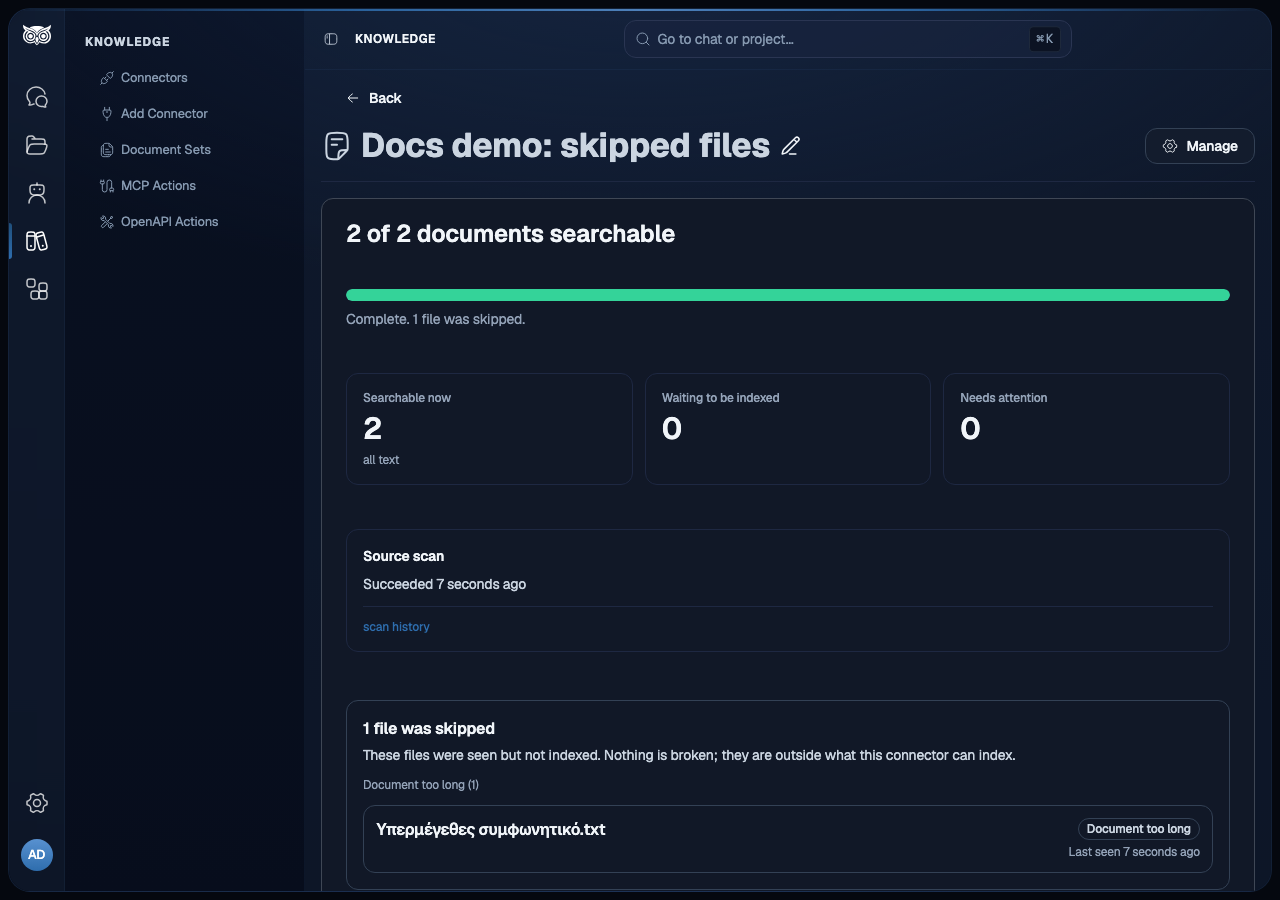
Starting a full re-index cancels a document retry that is running; see Common recovery actions.
Common recovery actions
Full reindex processes missing, failed, and changed content first, then rebuilds healthy unchanged content. This applies to both files and text. Starting full reindex again while it is running keeps the same run and its saved progress. Starting it during a retry of failed or selected documents cancels that retry and preserves work already completed.
After an interruption, processing resumes from saved progress. Some sources need to scan their content again before continuing.
- Reconnect when OAuth authorization expires. Reconnect the same provider account and keep the existing scope where possible.
- Rotate credentials in the provider first. Test the new credential, enter it in the connector (see Replace a credential from Portal), then disable the old credential at the provider according to its security policy.
- Reindex after a provider scope or content selection changes. Reindexing does not grant access that the connector ACL does not allow.
- Remove a connector only after checking document sets, agents, and Teams that use it. Removing it also removes its indexed content from those scopes.
Replace a credential from Portal
Open the Portal connector page: choose the workspace, then Connectors, select the connector, and find the Connection card.
- For an access key, HMAC key, or API token, choose Replace credential. The form shows the same credential fields as the connector’s setup form. Enter the new values and submit. On a connector that can also switch to another saved credential, the card shows Change credential instead; choose it, then choose the update option that names the credential (see Use another credential).
- For an OAuth connector that Portal already manages, Reconnect is the recovery when authorization expires. Sign in with the same provider account.
Connectors with an access key, HMAC key, or API token that were created before Portal stored credentials show a Managed in Nous badge. Nous cannot show you the old secret and you do not need it. Enter a new credential from the provider. When Portal accepts it, the badge changes to Managed in Portal and the card shows a masked credential. The connector keeps its name, indexed documents, sync history, schedule, paused state, and who can access it. Later replacements work the same way.
Older Dropbox and Google Drive connectors that sign in to the provider can move to Portal too. On such a connector, open the Connection tab and choose Reconnect, or, on a connector that can also switch to another saved credential, Change credential and then Sign in again. Sign in with the same provider account the connector uses today. Sophea checks the account before anything changes: a different account is refused, and the connector keeps working with its old credential. When the sign-in is accepted, the badge changes to Managed in Portal, and the connector keeps its documents, sync history, schedule, and who can access it.
- Dropbox: Portal connects Dropbox only through your organization’s own Dropbox app, and a workspace has one. If the workspace has not registered it yet, Portal asks for the app key and secret of the app this connector already uses when you sign in again; add the redirect address Portal shows to the app’s settings in the Dropbox App Console first. A sign-in through a different app is refused, because another app can see different files. Only connectors created with the registered app can move; connectors created with another Dropbox app have to be set up again in Portal.
- Google Drive: Portal connects through Sophea’s Google app, so there is nothing to register. Allow access to your Google Drive files when you sign in; without it the sign-in is refused. If Google blocks the sign-in, ask your Google Workspace admin to allow Sophea.
Before saving, Sophea checks the new values against every connector that uses the credential, the same check it runs when you set up a connector. If the provider rejects them, nothing changes: the connectors keep the old credential and the badge stays. A passing check does not guarantee access later, so still check each connector’s next sync.
The form lists every connector that uses the credential before you save, and replacing it updates all of them.
To move only one connector to a different credential, leave the credential as it is and use Use another credential instead.
Credential-wide actions belong in the Credentials tab because one credential can be shared by several connectors. The connector page shows the credential name and a Used by N connectors link that opens that credential in the Credentials tab. There, each credential’s ⋯ menu lists the actions available for it, such as Rename, Update values, Revoke or Retry revocation. Revoking a credential stops every connector that uses it, so Revoke is not on the connector page. To stop one connector from syncing, pause it. After replacing a credential, disable the old key or authorization at the provider. Portal does not disable it for you. The Credentials tab lists the credentials Portal can manage, which does not include every legacy credential described below.
Under its name, the connector page says who added the connector and when, for example “Added by Maria Papadopoulou on Oct 14, 2026”. The Connection tab says the same for the credential, and the two can differ: after someone replaces the credential or signs in to the provider again, the credential names that person and date, while the connector keeps its original line. The account email on the Connection tab is the account that signed in at the provider, which is not always the person who added the credential. Someone who has since left the Organization shows as “a former member”, and a connector or credential with no record of who added it shows “unknown”.
Some legacy credentials cannot be moved into Portal, and the card says the credential cannot be replaced from Portal. They include legacy sign-ins other than Dropbox and Google Drive, Dropbox or Google Drive sign-ins whose app or permissions Sophea cannot confirm, provider tokens such as a Confluence personal access token, a Notion integration token, or a Linear API key, and legacy Google service-account keys, SharePoint client-secret or certificate sign-in, and Amazon S3 role-based authentication. A legacy credential also cannot be replaced when another connector that uses it is a personal connector, uses Sync permissions, is being removed, or reads a different source. Personal connectors, connectors with Sync permissions, and connectors being removed have no replace action at all. Replacing a credential never changes who can search a connector’s documents. For Amazon S3, the form also offers other authentication methods; choosing one changes how the connector signs in, so keep the method the connector uses today unless you mean to change it. A Google Drive or Gmail connection that uses an organization credential does not become a personal sign-in; see Google Drive for the access options. Manage these connections from the connector settings in Nous.
Rename or update a credential
Open the workspace Connectors page, select the Credentials tab, and open the credential’s ⋯ menu. When the workspace has many credentials, the Search credentials box above the list finds one by its name or source.
- Rename changes the credential’s name everywhere it appears, including on the page of every connector that uses it. Connector names do not change. Every credential in the tab can be renamed, including a revoked one.
- Update values opens the Replace credential form for an access key, HMAC key, or API token that Portal holds and at least one connector uses. The form lists every connector the change affects. Its fields start empty because Portal never shows a stored secret. Saving works exactly as described in Replace a credential from Portal.
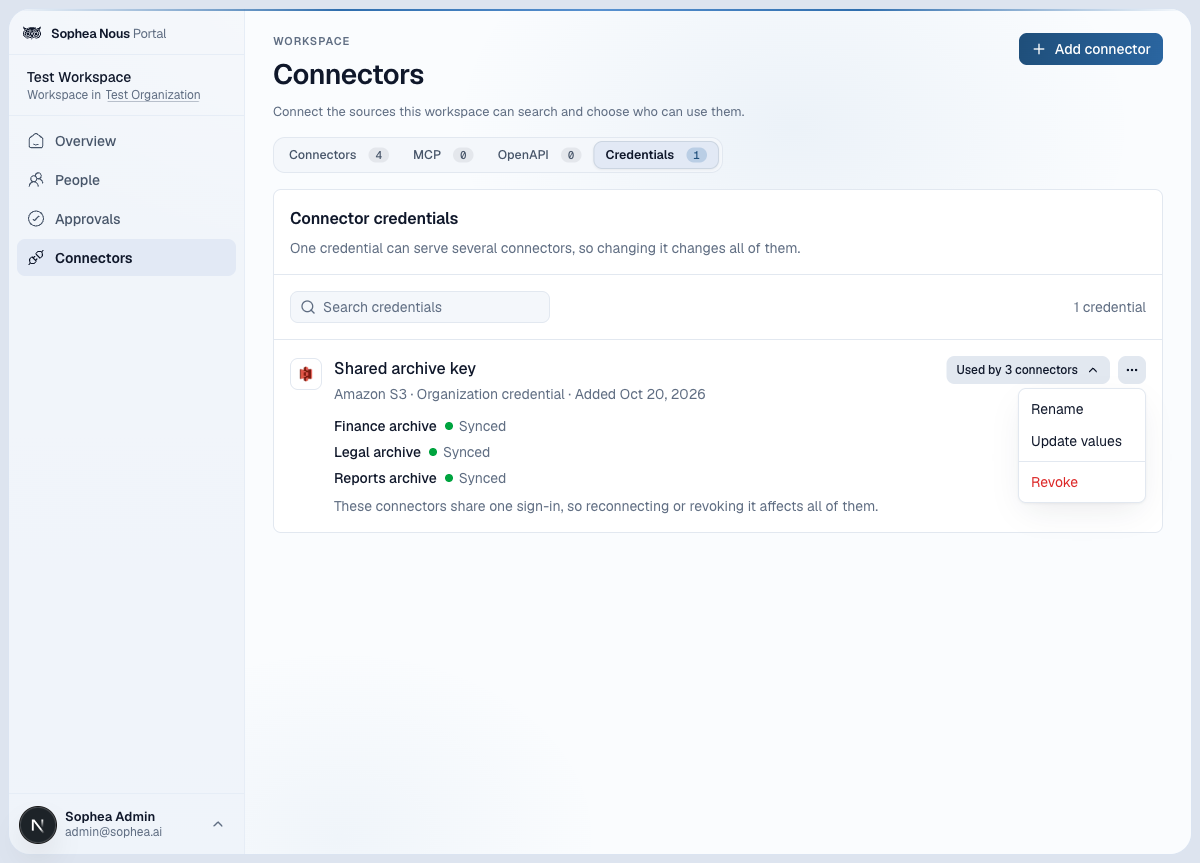
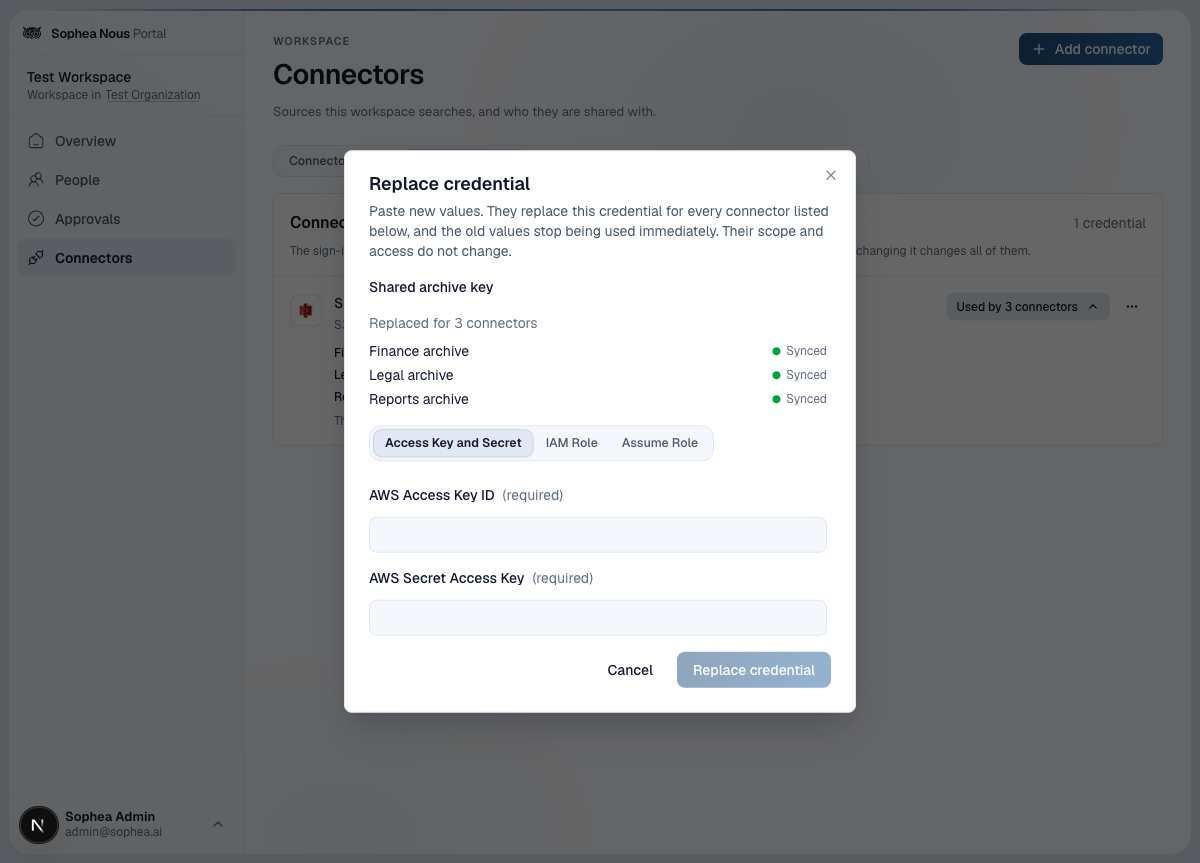
Update values is not offered for a sign-in (OAuth) credential, which you renew with Reconnect on one of its connectors, for a Google service account, which you change by adding the new key and removing the old one, for a credential no connector uses, or while a credential is being revoked. If the connectors that use the credential change while the form is open, Portal asks you to close it and open it again so you can review the new list.
Use another credential
Use this when one connector should sign in with a different credential that the workspace already has, for example after a team changes the key it uses for a source. Open the Portal connector page: choose the workspace, then Connectors, select the connector, and open the Connection tab. Choose Change credential on the card that shows the connector’s credential, then Switch to another saved credential.
Change credential is one entry for every way to change the credential, and the dialog states what each choice affects. Switch to another saved credential changes only this connector. For a pasted key or token, Update followed by the credential’s name changes the values for every connector that uses it, and Sign in again does the same for an OAuth sign-in that has expired. Connectors that cannot switch credentials keep the single Replace credential or Reconnect button.
The picker lists the workspace’s other shared credentials for the same source. Each row shows the credential’s name, the date it was added, and how many connectors use it. Choose one and confirm. Only this connector switches.
- The connector keeps its name, indexed documents, Teams access, and schedule.
- A full re-index runs with the chosen credential, so content that only the new credential can see is picked up. Documents that have not changed are skipped, and the connector’s History shows the run as Full re-index.
- The previous credential is not changed. It keeps working for every other connector that uses it.
- A paused connector stays paused. It syncs with the new credential after you choose Resume.
Before switching, Sophea tests the chosen credential against this connector, the same check it runs when you set up a connector. If the provider rejects it, nothing changes: the connector keeps its current credential and Portal tells you why. A passing check does not guarantee access later, so still check the connector’s next sync.
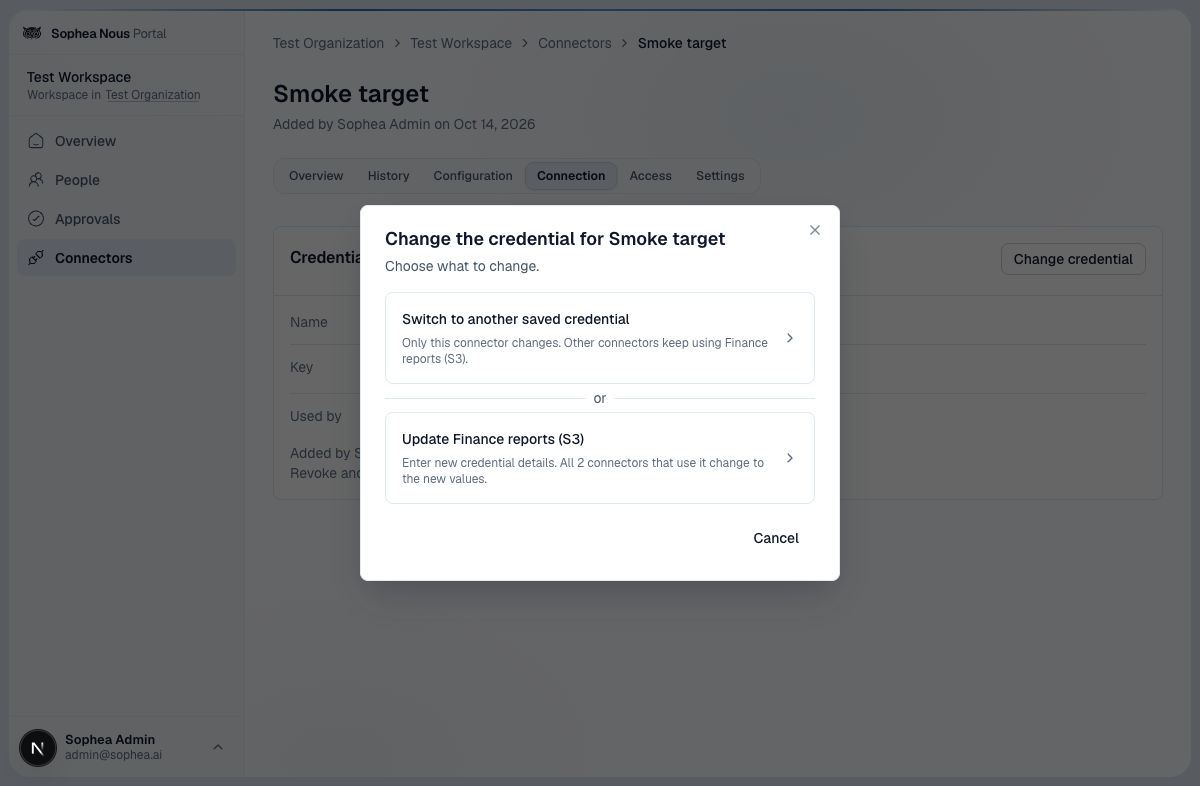
Switch to another saved credential is not offered for:
- SharePoint connectors that use Sync permissions, because their permission sync needs a certificate credential that Portal does not hold
- personal (member-private) connectors and credentials
- credentials from other workspaces
For Google Drive, the picker follows what each credential can read. A person’s sign-in reads only that person’s Drive. A Google service account reads every employee’s Drive in your Google Workspace.
- A connector that uses Sync permissions can switch only to another Google service account of this workspace, because permission sync needs one. After the switch, Sophea fetches the file permissions again with the new service account. Until that finishes, the connector’s permission sync shows as not synced yet, and search keeps the permissions fetched with the previous credential.
- A connector that signs in as a person cannot switch to a service account: with the same settings it would read every employee’s Drive and show those files to everyone the connector is shared with. To index company-wide, create a new connector with the service account and choose Sync permissions.
- A connector that does not use Sync permissions and already uses a service account can switch to another service account or to a person’s sign-in.
Switching differs from updating a credential or signing in again. Those change the credential itself, so every connector that uses it is affected. Switching changes which credential one connector uses and leaves the credentials untouched. After switching, disable the old key or authorization at the provider only if no other connector still uses it.
Personal connection pause and resume
A personal (member-private) connection, such as a personal Sophea Meet connection, pauses automatically after five sync failures in a row. In Connectors, the Your private connectors table shows the connection as Paused together with the last sync error. Only the connection’s owner sees the Resume action. Resume releases the pause and requests an immediate sync; it does not wait for the next scheduled refresh. If the source still fails, the connection pauses again after another five failures; fix the cause before resuming again. Raw provider error details are never shown to members; the error line always carries a reviewed safe message.
If a provider rejects the connection, open its dedicated guide for the exact permission and recovery action.
Personal connector search index rebuild
The owner of a personal File connector can rebuild its search index from the connector’s own page. Open Connectors, select the connector in Your private connectors, and choose Rebuild search index. Confirm the action. Your files stay in place; search results from that connector may be incomplete until the rebuild finishes, and the connector shows an indexing status while it runs. Starting a rebuild while one is already running keeps the current run and its progress. Workspace admins do not see this action for connectors they do not own.
Retry failed files in a personal connector
If an indexed personal connector has files that failed during processing, open Connectors, select it in Your private connectors, and choose Retry failed files. Confirm the action. Only failed files are retried. Source files and files already searchable stay unchanged. This is narrower than Rebuild search index, which rebuilds the connector’s index. The request may be queued or already running; the confirmation does not report a completed file count. Only the connector’s owner can use this action. It is unavailable for live connections and connections that require reconnecting.