30  Search Verification and Troubleshooting

Two inspection tools let you verify what was actually indexed and which documents users find useful: the Document Explorer and the Document Feedback page. Both are reachable by workspace admins from the Knowledge area and require no platform-admin access.

30.1 Document Explorer

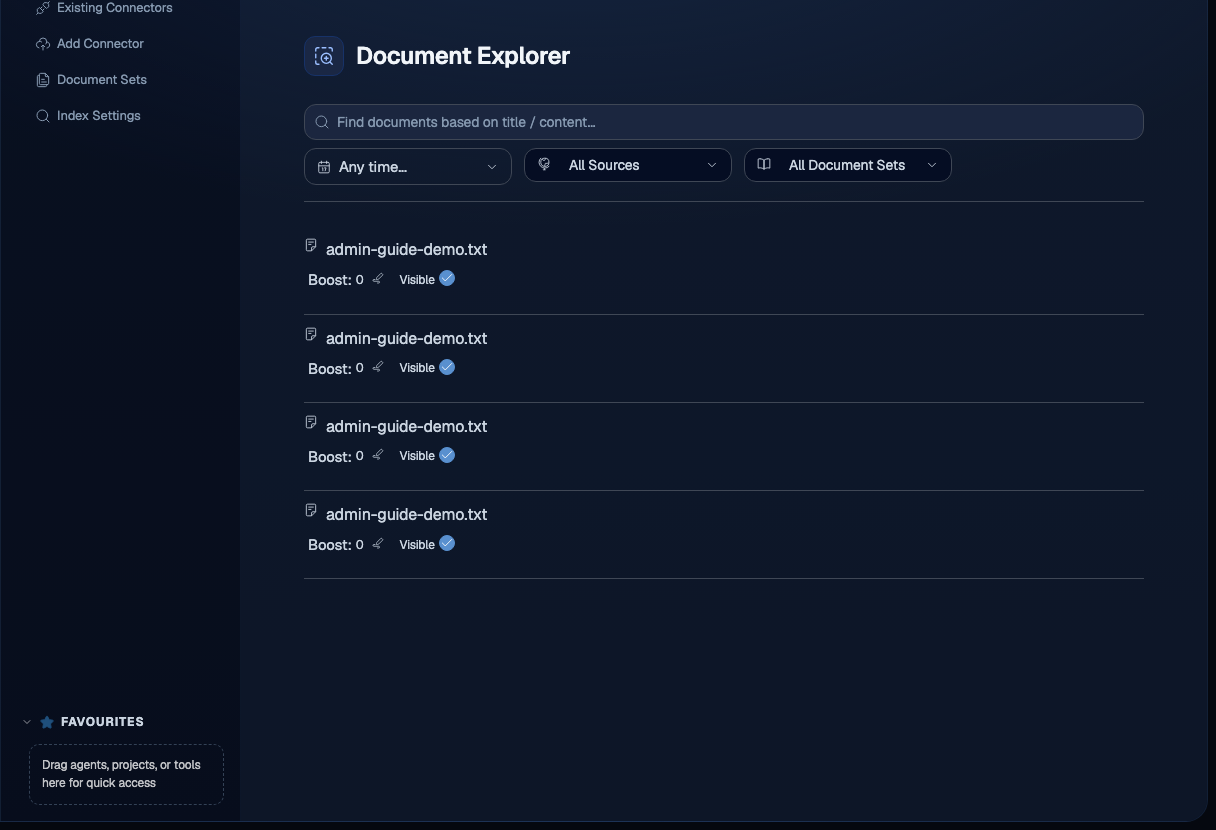
The Document Explorer at /app/admin/documents/explorer lets you search the indexed corpus directly, without going through a chat. Use it to confirm that a specific document was indexed and to see how it is filtered by source and time. Any workspace admin can open it from the Knowledge area.

Document Explorer search field with Any time, All Sources, and All Document Sets filters

Document Explorer page with a search field, an Any time filter, an All Sources filter, and an All Document Sets filter above an empty results area

To inspect the index:

  1. Open the Knowledge flyout and select Document Explorer, or navigate to /app/admin/documents/explorer.
  2. Type a title or content fragment into the Find documents based on title / content field.
  3. Narrow the results with the filters above the field:
    • Any time scopes results by indexing or document date.
    • All Sources scopes results to one or more connector sources.
    • All Document Sets scopes results to a specific document set.

Each result row shows the document and whether it is currently searchable. If an expected document is missing here, it was never indexed: check the connector on the Existing Connectors page.

Tip

The Document Explorer is the fastest way to answer “is this document even in the index?” Reach for it before assuming a search complaint is a retrieval problem, because no retrieval behavior can surface a document that was never indexed.

30.2 Document Feedback

The Document Feedback page at /app/admin/documents/feedback ranks documents by the thumbs-up and thumbs-down votes users give to answers that cite them. It is a workspace-admin view of which sources are helping and which are hurting answer quality.

Document Feedback page with Most Liked and Most Disliked tables and Document Name, Is Searchable, and Score columns

Document Feedback page showing a Most Liked table and the start of a Most Disliked table, each with Document Name, Is Searchable?, and Score columns

The page has two tables:

  • Most Liked: documents whose citations received the most positive feedback.
  • Most Disliked: documents whose citations received the most negative feedback.

Both tables share the same columns:

  • Document Name: the indexed document, linked to its source.
  • Is Searchable?: whether the document is currently retrievable (Visible) or has been hidden from search.
  • Score: the net feedback score for that document.

Use the Is Searchable? control to hide a document that consistently produces poor answers without deleting it from the connector. A hidden document stays indexed but is excluded from retrieval, so you can reverse the decision later.

Note

Feedback scores accumulate only as users vote on answers in chat. A new workspace will show empty or low-signal tables until enough usage builds up. Treat these tables as a long-running quality signal, not a one-time check.

30.3 Portal: the Documents tab

Organization owners and admins reach equivalent functionality without leaving Portal. Open the workspace’s Connectors page and select the Documents tab. The tab needs the Connectors product switched on for the workspace; if it is not, the tab explains that instead of showing content.

The tab holds two cards: Indexed documents, which searches and curates, and Document feedback, a read-only report.

30.3.2 Boost

Boost… on a row opens a dialog that sets how strongly the document ranks in the workspace’s ordinary search results, the kind people see day to day when they search or ask a question. A positive boost makes the document easier to find; a negative boost makes it harder to find; 0 is normal. Boost does not change the order of results in this tab’s own search, which always ranks purely by relevance.

A document can already carry a nonzero boost that no admin set. People in the workspace endorse or reject documents from search results, and that accumulated feedback moves the stored boost value up or down on its own. Finding a boost you did not set is expected, not a sign of a stray setting.

30.3.3 Hide and unhide

Hide… removes a document from the workspace’s search results. The confirmation states the consequence before you confirm: nobody in the workspace will find the document in search. Hiding does not delete anything and is reversible at any time with Unhide….

A hidden document still turns up when you search for it from this tab, marked with a Hidden from search badge. That is deliberate: it is the only way to find a hidden document again in order to unhide it.

30.3.4 The feedback report

Document feedback lists documents that have received at least one endorsement or rejection from search results, most feedback first, with an endorsed count and a rejected count for each.

These counts are counts of the feedback that currently stands, not counts of people. Sophea keeps one endorsement or rejection per document per search result: rating the same result the same way again changes nothing, and rating it the other way replaces the earlier answer instead of adding to it. So one person can add to a document’s counts several times over different searches, but cannot raise a count by rating the same result twice. A high count is still not proof that many different people responded, and a count of zero does not mean nobody has access to the document or nobody has seen it: it only means nobody has endorsed or rejected it in search yet.

There are no comments, no submitter names, and no timestamps on this report. That is deliberate: the underlying feedback data does not carry them. The report itself is read-only; to act on a document that keeps being rejected, search for it under Indexed documents above and boost or hide it from there.

The report carries no total count, so it pages with Previous and Next instead of a page count.

30.3.5 A current limitation on some connectors

Boost and hide are not available yet for a document whose identifier contains a slash. Today that affects documents indexed from Jira, Drupal Wiki, GitLab, and the Web connector, because those connectors build a document’s identifier from a URL or a path rather than a plain id, and Sophea’s backend cannot currently route a boost or hide request for an identifier shaped that way to the right document. Google Drive, SharePoint, Confluence, and Gmail documents are unaffected.

This is a real, temporary limitation, not a design choice. The Boost… and Hide… controls on an affected row are disabled and explain why. Search is unaffected: you can still find and inspect these documents in the Documents tab and in the feedback report; boost and hide become available once the limitation is resolved.

30.4 Troubleshooting search quality

Use this sequence when search results look wrong:

  1. Confirm the connector finished indexing: Knowledge flyout > Existing Connectors.
  2. Confirm the relevant document set is Up to Date if you are scoping by document set.
  3. Use the Document Explorer to confirm the specific document is actually in the index and is marked searchable.
  4. Check Document Feedback for documents that users have flagged, and hide any that consistently degrade answers.

Most search complaints resolve at step 1 or step 3.