3 Organizations and Workspace access
Portal is the source of truth for Organization membership, Teams, direct Workspace collaborators, and invitations. Use the People page on each Workspace to add people and to understand who can open the Workspace and why. In an Organization with a single Workspace, People & Teams inside that Workspace replaces the Workspace People page; see One-workspace organizations.
3.1 Understand the scopes
An Organization contains its people, Teams, Workspaces, and billing. A Workspace contains the Nous experience, data, products, and Workspace-specific settings.
Organization and Workspace roles are separate:
| Role | What it grants |
|---|---|
| Organization owner | Manages Organization people and Teams, receives owner access to every Organization Workspace, and can create Workspaces in the hosted invite-only platform. |
| Organization admin | Manages Organization people and Teams and receives admin access to every Organization Workspace. It cannot create a Workspace in the hosted invite-only platform. |
| Organization member | Belongs to the Organization. In an Organization with several Workspaces, a member receives no Workspace access automatically, and a direct grant or Team grant is required. In a one-workspace Organization, membership gives access to the Workspace. |
| Workspace admin | Manages one Workspace and can add people who are already in the Organization to it from the Workspace People page. Inviting people from outside the Organization and resending invitations stay with Organization owners and admins. This role does not grant authority over Organization people or Teams. In a one-workspace Organization there is no separate Workspace admin: the Organization owner and admin roles manage the Workspace. |
| Workspace collaborator | Uses one Workspace without Workspace administration rights. |
Always include the scope when assigning an admin role. An Organization admin and a Workspace admin have different authority.
When an Organization owner or admin invites someone new to a Workspace inside an Organization, that person also becomes an Organization member once they accept; see Add people to a Workspace. The Workspace role you choose on that invitation, Member or Admin, applies only to that Workspace and never raises the invitee’s Organization role. A Workspace Admin invitation never makes someone an Organization Admin.
3.2 One-workspace organizations
Most Organizations run a single Workspace, so there is no need to add a person to the Organization and then again to the Workspace. An Organization is a one-workspace Organization when its Workspace limit is 1 and it has one Workspace that is not deleted and whose setup did not fail. A Workspace that is still being set up counts. Organizations with a higher limit, or with more than one Workspace, are unchanged and work as the rest of this page describes.
In a one-workspace Organization:
- People & Teams is inside the Workspace. Open the Workspace and select People & Teams in its sidebar. It has the same People and Teams segments, the same Pending invitations, and the same Team pages as the Organization version, and it is available to Organization owners and Organization admins only. The Organization sidebar no longer has People & Teams, and the Workspace People page is gone: its address opens People & Teams.
- The Workspace role is the Organization role. Organization owners and admins manage the Workspace, and Organization members use it. Set the role once, on the person’s Organization role. Workspace admins who were also Organization members became Organization admins when the Organization moved to this layout, so nobody lost authority. They now also see billing and People & Teams.
- Joining the Organization gives access to the Workspace. Whether you invite someone by email, invite them through a Team, or add a person who already has an account, they can open the Workspace once they are in the Organization. This also applies while the Workspace is still being set up. The Organization invitation email names the Workspace.
- Every Team has access to the Workspace. A new Team gets it automatically. The Team page has no Access tab, the Teams list has no Workspaces column, and Team access to the Workspace cannot be removed there. The Workspace category in the bulk bar and the Workspace filter on People are not offered either, because there is nothing to choose.
- Digital Employees is inside the Workspace. Open the Workspace and select Digital Employees in its sidebar. The Organization sidebar no longer has this entry, and the Organization Digital Employees and hire addresses open the Workspace ones. Hiring starts and ends inside the Workspace, and the hire page names the Workspace instead of offering a choice. Where the product is off, Digital Employees is hidden at both levels. See Digital Employees.
- Old addresses keep working. An Organization People & Teams or Team address opens the Workspace one, with your filters and page kept, and the Workspace People address opens People & Teams on the People segment. Once the Organization has a second Workspace, the same addresses lead back to the Organization pages.
Seats follow who has access to a Workspace, so adding a person to the Organization can add a seat. The same applies when you delete a Workspace and that leaves the Organization with exactly one Workspace and a limit of 1: every Organization member then gets access to the remaining Workspace. The delete confirmation says so, naming the number of members and the remaining Workspace and adding This can add seats. Read it before you confirm.
Creating a second Workspace switches the Organization to the multi-workspace layout as soon as it is created, even while the new Workspace is being set up. People & Teams returns to the Organization sidebar, the People page returns to each Workspace, and access people already have is kept. If the second Workspace’s setup fails, or you delete it, the Organization switches back and everyone gets access to the remaining Workspace again.
An Organization that has no Workspace yet keeps People & Teams at Organization level until its first Workspace exists.
3.3 Manage Organization people
Organization people and Teams share one page, People & Teams, with two segments, People and Teams. It is available to Organization owners and Organization admins only. In a one-workspace Organization the page sits inside the Workspace, as described above; everything below applies to both places. Every other member gets no entry for it and no page: Portal is the administration console, and the Organizations list links only each Organization’s name, with its Workspace and member counts as plain text.
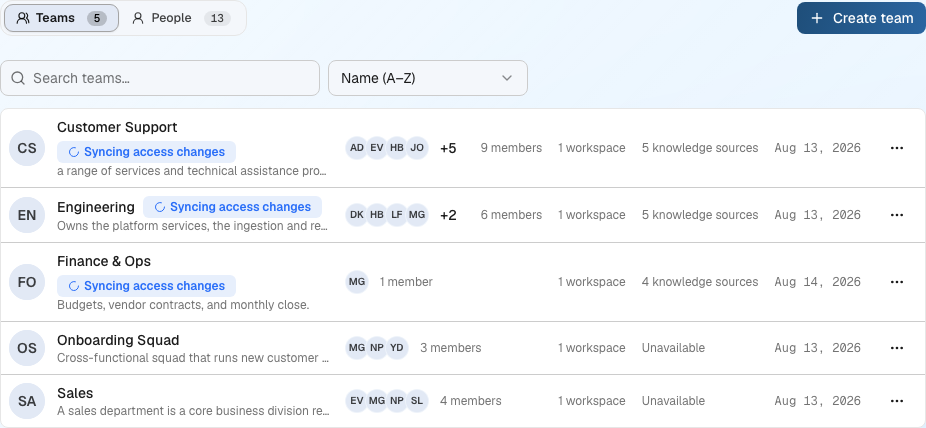
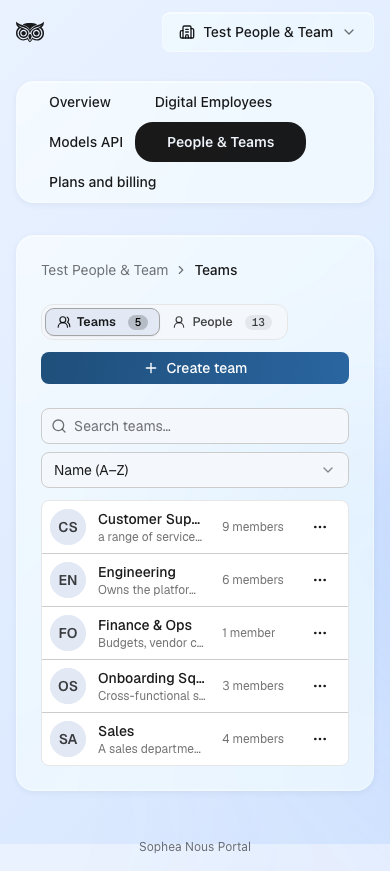
On a narrow screen the same page keeps each Team’s name and member count and drops the columns that do not fit; the Workspace and knowledge-source counts stay on the Team’s own page.
- Open Organizations in Portal and select the Organization.
- Open People & Teams and select the People segment.
- Click Add people.
- On Invite by email, type a name or an email address. Names that match people already in the Organization appear under Directory marked Already in organization and cannot be added again. To invite someone new, type their full address and press Enter (or end it with a comma or a space) to put it on the list as a new invitation. To add several people at once, paste addresses separated by commas, spaces, or new lines. A line above the list sums up a paste, for example “18 added · 1 duplicate removed · 1 address isn’t valid”.
- Check the Recipients list. Each person has an Organization role control: choose Member or Admin per person, or use Set all to for everyone whose role you have not changed by hand. Someone who is already in the Organization is marked Already in organization · not counted, keeps their current role, and is not invited again. Use the remove button on a row, or Remove all, to take people off the list.
- Click Send invites (N), where N is the number of people who will be added or invited. The button stays disabled while the list is empty or holds an address that is not valid.
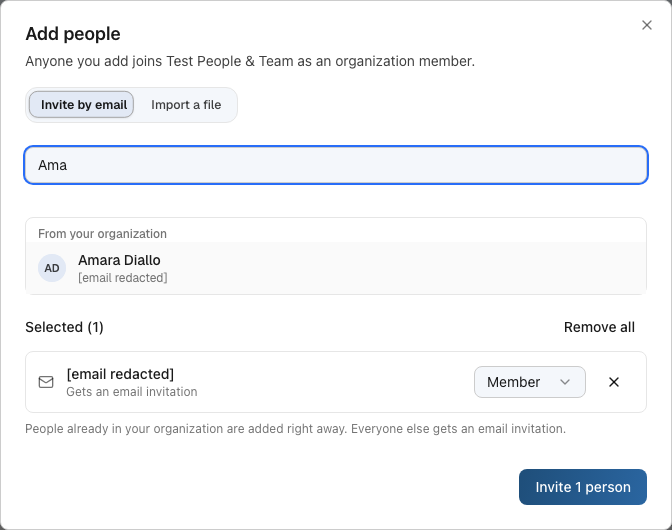
To add many people from a spreadsheet, use the Import a file tab. Drop a .csv or .xlsx file with one email address per row in the first column onto the drop zone, or click Choose file; Download template gives you the expected shape. Portal reports how many addresses it found and how many rows it skipped (blank, repeated, or not an address) instead of rejecting the file. In the Organization and Workspace dialogs, one role applies to everyone in the file, and you can still change any person’s role in the list afterwards. A Team has no role, so its dialog shows no role control on this tab. Click Import to append the file’s addresses to the list. The dialog then returns to Invite by email so you can review the list before you send it. One batch holds up to 100 people, whether typed, pasted, or imported, and the summary line says how many addresses were left out when a batch goes over the limit.
The People segment lists the active members, with a Pending invitations section under the roster. An Organization invitation can also carry Workspace access, and such an entry carries an Also grants line naming each Workspace and Team it carries.
The roster also shows an Added column, the date the person was added to the Organization, and a Workspaces column, listing which Workspaces the person can reach. An Organization owner or admin reaches every Workspace, so that row reads All workspaces instead of listing them one by one. A member’s row lists the Workspaces reached through a Team or a direct grant, and is empty when the member has no Workspace access yet.
A Workspace filter sits above the roster next to the existing search box and Team filter, narrowing the list to people who can reach a chosen Workspace. Clear filters resets all three at once.
Export to Excel downloads the roster as an .xlsx file. The download includes everyone who matches the filters currently applied, not only the rows visible on the page, and the export is recorded in the Organization’s audit trail.
An invitation stays in Pending invitations until it is accepted or revoked, including after it expires. An expired invitation shows the Expired state instead of Pending. The list is ordered by expiry, soonest first, so expired invitations come first, followed by the ones about to expire. The pending invitations of a Team and of a Workspace’s People page follow the same order.
Portal also closes an invitation on its own, in one case: when the person it names already holds everything it would grant. That happens when access arrives by another route, such as making them an Organization owner or admin, adding them to a Team that already has the Workspace, or granting the Workspace directly. There is then nothing left for the invitation to give, so Portal revokes it, stops offering Resend, and sends no further email about it. The entry leaves Pending invitations without anyone having accepted it, and the closure is recorded in the Organization’s audit trail. An invitation that carries more than the person already holds is untouched and stays listed, resendable and revocable.
An Organization owner or Organization admin can use Resend and Revoke on any listed invitation, expired ones included, and can change an active member’s Organization role. The owner role is the exception: only an Organization owner can make somebody an owner, change an owner’s role, or remove an owner. An Organization admin manages admins and members, and on an owner’s row the role is shown as plain text with no Remove, with the reason on hover. Nobody can change or remove themselves, so an Organization always retains at least one owner. To hand over ownership, make the other person an owner first, and they can then remove you. Revoke asks for confirmation first and names the Workspace access and Team membership the invitation carries, because revoking withdraws all of it and not only the Organization membership.
Bulk actions build on the same roster. Each row carries a checkbox, and a header checkbox above the table selects every row on the page at once. Some rows are left out of that selection because they cannot be acted on, and the checkbox says why on hover: you cannot select yourself, and an Organization admin cannot select an owner’s row, only an Organization owner can.
Selecting one or more people opens a bar above the table naming how many are selected, with a Change role to… control and Remove. Change role to… offers Member and Admin, and Owner only when the signed-in person is an Organization owner, the same rule the roster already applies row by row. Remove asks for confirmation first, naming how many people are about to leave the Organization and listing them. Removing someone from the Organization also removes every Workspace access that came from that membership, direct grants and Team grants alike.
When the Organization has at least one active Workspace and is not a one-workspace Organization, a Role/Workspace control appears before the role picker, choosing what the bar acts on. Role keeps the Change role to… control described above. Workspace replaces it with a Workspace picker and a Member/Admin picker for that Workspace, and a Grant access button applies the chosen access to everyone selected. Granting access this way has two refusals of its own: an Organization owner or admin cannot be selected, because they already reach every Workspace, and the message names them; someone who already has that Workspace role, or a higher one, is refused by name as well. Either way the selection stays exactly as it was, so unselect the named people and try again.

A bulk action on the People roster is all or nothing: if anything in the selection cannot go through, nothing at all changes, and the message names the people to unselect before trying again. There is no partial result to untangle. The selection itself clears whenever the underlying list changes, on a page turn, a filter change, or once an action completes, so it can never end up naming somebody the roster no longer shows.
Every invitation expires 14 days after it is sent. Resend gives the invitation a new 14-day expiry and sends a fresh email. Inviting the same address again reaches that same invitation instead of creating a second one. Portal sends another email when something about the invitation has to change, such as an expired invitation or a different role, and sends nothing when the invitation is already current. The confirmation reads the same either way, so use Resend when you need to be certain that an email went out. After a send, Resend is unavailable for a short period and states when it becomes available. That period is longer when Portal could not confirm what became of the email: the invitation is saved, and the confirmation reports the delivery as unconfirmed rather than as a success or a failure, because an email that may already have arrived must not be sent a second time. Inviting the address again or using Resend while that longer period is still running names the same wait.
Bulk actions are available on Pending invitations as well. Each entry carries a checkbox, the checkbox above the list selects every invitation on the page shown, and selecting one or more opens a bar naming how many are selected, with Resend and Revoke. Revoke applies to the whole selection or to none of it, the same way the People roster’s bulk actions do: if one selected invitation cannot be revoked, nothing is revoked, and the message names the invitations to unselect before trying again.
Resend reports each invitation on its own, because it sends an email and an email that has already gone out cannot be taken back. One action can therefore report some invitations sent, some still inside the wait that follows their last send, some whose email Portal could not confirm, and some changed since the page was loaded, such as one that somebody else has already resent or revoked. Read the result rather than assuming that every selected invitation went out; an invitation still inside its wait can be resent once that wait elapses. Resend covers at most 25 invitations in one action, because each one is an email to a person. Select more than that and Resend turns unavailable and says so, rather than letting you confirm a send that would be refused; Revoke stays available, up to 100 at a time.
Pending invitations shows 25 invitations per page, with page controls under the list. A search box above it narrows the list by email address across every pending invitation, not only the page shown, and the matches are split into pages the same way. The checkbox above the list selects only the invitations on the page shown, so select all stays within the 25 that Resend accepts. Turning the page or changing what you search for clears the selection rather than leaving it holding invitations the list no longer shows, and the checkboxes are unavailable for a moment while a new search loads.
3.4 Add people to a Workspace
Any Workspace admin can add people who are already in the Organization to a Workspace from its People page, whether or not they are an Organization owner or admin. Only Organization owners and admins can invite people from outside the Organization, and only they can resend invitations. Adding someone gives them access to that Workspace only. A one-workspace Organization has no Workspace People page: add people from People & Teams, as described in One-workspace organizations. The rest of this section applies to Organizations with several Workspaces and to personal accounts. In a personal account the page carries the same People name, but it only sends email invitations and has no member search. The Workspace admin invites and resends there as before, and an invitation grants Workspace access only.
- Open the Organization and select the Workspace in the Workspaces list.
- Select People in the Workspace navigation.
- Click Add people.
- On Invite by email, type at least two characters of a name or an email address in the Add by name or email field. People already in the Organization are offered under Directory, each marked Member of the Organization, and someone who already has access to this Workspace is marked Already has access. To add several people at once, paste addresses separated by commas, spaces, or new lines. A batch holds up to 100 people. An Organization owner or admin can also invite someone who is not in the Organization yet: type their full address and press Enter to put it on the list. It becomes an invitation when you send the list.
- In the Recipients list, choose Member for a Workspace collaborator or Admin for a Workspace admin on each person’s own Workspace role control, or use Set all to for everyone whose role you have not changed by hand. The role sets the Workspace role only. Someone who already has access to the Workspace is shown as Already has access · not counted, keeps their role, and is not invited again.
- Click Send invites (N) to submit, where N is the number of people who will be added or invited. After a paste, a line above the list reports how many addresses were added, how many duplicates were removed, and how many are not valid.
The Add by name or email field searches the Organization’s members by the start of a name or an email address and shows up to eight people. It is the only place where a Workspace admin who is not an Organization owner or admin can see the Organization’s member list, and Workspace members who are not admins cannot search it at all.
For a Workspace admin who is not an Organization owner or admin, the dialog reads “Add people who are already in your organization. To invite someone new, ask an organization owner or admin.” If their batch includes an address that is not in the Organization, the dialog refuses the whole batch and names those addresses: “Only organization owners and admins can invite people from outside the organization. Ask one to invite: …”. The same refusal applies to an address that already has a pending invitation, because inviting it again would send another email. Organization owners and admins can mix both kinds of people in one batch.
When you submit, Portal names each person with their outcome:
- Added: the person is already an Organization member, so they have access to the Workspace right away, with the role you chose. They receive one email that names the Workspace and their role.
- Invited: the address is new to the Organization, and an Organization owner or admin submitted it. The person receives an invitation email and, on accepting, joins the Organization as a member with the Workspace role you chose. An invitation sent here never makes someone an Organization admin.
- Someone who already has access, or already holds a pending invitation, is reported as already invited or already having access. A member who held a lower Workspace role than the one you chose is raised to it and shown as Role changed.
Portal treats an address as an existing Organization member only when it is that member’s confirmed email address. Any other address, including one that matches only an unconfirmed email, counts as outside the Organization: it receives an invitation when an Organization owner or admin submits it, and is refused when another Workspace admin does.
Invitations sent before this change stay valid. Every invitation expires 14 days after it is sent, whether it is for an Organization, a Team, or a Workspace. An invitation email names the Workspace it was sent from. When the same invitation also gives access to other Workspaces, the email lists all of them under Workspaces.
This is the same Add people dialog, with the same Invite by email and Import a file tabs, that Organization People & Teams and a Team’s Members tab open, illustrated above. Only the role control differs. Here it sets the Workspace role and never offers the Organization Admin role, while on People & Teams it sets the Organization role, so that is the place to invite someone as an Organization Admin. A batch holds up to 100 people in all three places.
Pending Workspace invitations appear under Pending invitations on the same People page and stay listed after they expire, with the Expired state. Any Workspace admin can revoke them, expired ones included, and can change their role the same way. In an Organization, only Organization owners and admins can Resend them. A Workspace admin who is not one sees no Resend, and a note under the list reads “Ask an organization owner or admin to resend these invitations.” In a personal account the Workspace admin can resend. Where Resend is available, it is offered on most entries; the two entries further down that withhold it say so and explain why. Resend issues a new email and a new 14-day expiry date, and is unavailable for a short period after each send. As on the Organization People & Teams page, that period is longer when Portal could not confirm what became of the email. Such a send still gives the invitation its new expiry date, and is reported as unconfirmed rather than as a success or a failure; using Resend again before the period elapses names the wait instead.
An address that cannot receive email stays in the Add people list as a red row marked Not a valid address, and nothing is sent until you correct it with Edit or remove it; this covers reserved domains such as .local or .test. When the email for an accepted address still cannot be delivered, the confirmation message names that address and the entry is listed as Not confirmed or Not delivered instead of Pending, with a note under it. Not confirmed means no email is known to have left for the address, most often because the address itself was rejected; Resend would meet the same answer, so revoke the entry and invite the address again, corrected if it was mistyped. In an Organization, an Organization owner or admin invites it again. Not delivered means an email was attempted and did not arrive; Portal tries again on its own, Resend is available as soon as no send is under way, and the entry returns to Pending when the email goes out.
Each kind of email keeps its own wait. The Organization email and the Workspace email are sent separately, so a wait shown on one entry does not silence the other. Someone you add to an Organization and to a Workspace within the same few minutes therefore receives both emails. Both carry the same invitation, so accepting either one is enough.
To change the role on a listed Workspace invitation without inviting the address again, use the role selector on the row and choose Member or Admin. Choose Revoke to open the confirmation dialog. Revoke cancels the whole invitation, so its link stops working and no Organization membership is created, when it carries nothing beyond this Workspace. An invitation that also carries access to another Workspace, a Team, or the Organization Admin role stays pending, with only this Workspace’s access withdrawn. The new role applies when the invitee accepts. Changing it sends no email and does not change the invitation’s expiry date.
Workspace invitations differ from Organization invitations in one way. The rest of this paragraph describes what an Organization owner or admin, or a Workspace admin in a personal account, can do: a Workspace admin who is not an Organization owner or admin cannot invite an address that already holds a pending invitation. Inviting an address that already holds a listed Workspace invitation never sends a new email, not even when that invitation has expired; Portal reports the address as already invited instead. If the role you choose differs from the role on the listed invitation, the invitation takes the role from the new batch, whether that raises it to Admin or lowers it to Member, and the confirmation message names the change. Use Resend for those, or revoke the invitation and then invite the address again. Revoking and inviting again produces a new invitation only when the invitation carries nothing beyond this Workspace: one that still carries active access to another Workspace, a Team, or that also carries an Organization Admin invitation, stays pending after you revoke its Workspace access. Inviting the address again then restores that access on the same invitation and sends the invitation email again, unless it grants the Organization Admin role, in which case the access is restored without a send from here.
One entry behaves differently. Making someone an Organization Admin is managed from Organization People & Teams, so this entry is not managed like an ordinary Workspace invitation. When an Organization Admin invitation also carries access to this Workspace, the entry here is marked Organization admin invitation. The Organization email and the Workspace email are sent separately, so an address invited to a Workspace and then made an Organization Admin within the same few minutes can receive both, each keeping its own wait.
Resend on such an entry resends the Organization invitation, exactly as it would on the Organization People & Teams page: it applies the Organization expiry period and sends the Organization email, because that is what the recipient accepts. It is therefore offered only to Organization owners and admins, as is every Resend on a Workspace invitation in an Organization. A Workspace admin who does not hold one of those roles sees no Resend on this or any other entry, and a note under the list says so; sending or resending an invitation that grants the Organization Admin role stays under organization management, even from a Workspace’s own People page.
Changing the role and revoking are Workspace work and are available to any Workspace admin. Changing the role is managed here, because the role belongs to the Workspace access rather than to the Organization Admin invitation. Revoking here withdraws only the Workspace access; the Organization Admin invitation stays pending on the Organization People & Teams page, and the entry is removed from this People page. When an Organization owner or admin invites the same address to this Workspace again, it restores the Workspace access on that same invitation, and the confirmation message names the restoration and the role the address now holds. Both the revoke and the restoration are recorded in the Organization’s audit trail.
A second entry withholds Resend, and it is marked Sent from another account. It appears when a Workspace has changed hands: invitations sent before the move still carry access to the Workspace, but they belong to the account that sent them, and only that account can resend one. A note under the list says so. Changing the role and revoking remain available, because both act on this Workspace’s own access. Revoking such an entry withdraws that access and nothing else; when the invitation carried no other access, it is closed as well, and that closure is recorded in the audit trail of the account that sent it rather than in yours.
The invitee must open the invitation, sign in with the invited email, and click Accept invitation. Opening the link without accepting it does not grant access.
3.5 Use Teams for repeatable access
A Team groups active Organization members. Team membership has no role by itself. The role is assigned when the Team receives access to a Workspace.
To create and grant a Team:
- Open the Organization, open People & Teams, and select the Teams segment.
- Click Create team, give it a recognizable name, and add a description if it helps. The description is optional. Create team stays disabled, with the hint “Enter a team name to continue.”, until the name has text, and Cancel closes the dialog without creating anything (Portal asks you to confirm if you already typed something). Team names are unique inside an Organization regardless of capitalization, so a second
Financeis refused rather than merged into the first. - Open the Team, and on Members click Add members. This uses the same dialog as the Organization, with the same Invite by email and Import a file tabs. Someone who is not yet in the Organization gets an Organization role control (Member or Admin), while a person who already holds an Organization role keeps it and sees it as a fixed label. Someone already on the Team is marked Already on team. A Team itself never grants an Organization role.
- Open Access and select a Workspace under Workspace access.
- Choose the Member or Admin role and click Grant. To change an existing grant, choose the new role on its entry, or select the Workspace again and click Update.
In a one-workspace Organization, skip steps 4 and 5: the Team already has access to the Workspace, and the Team page has no Access tab.
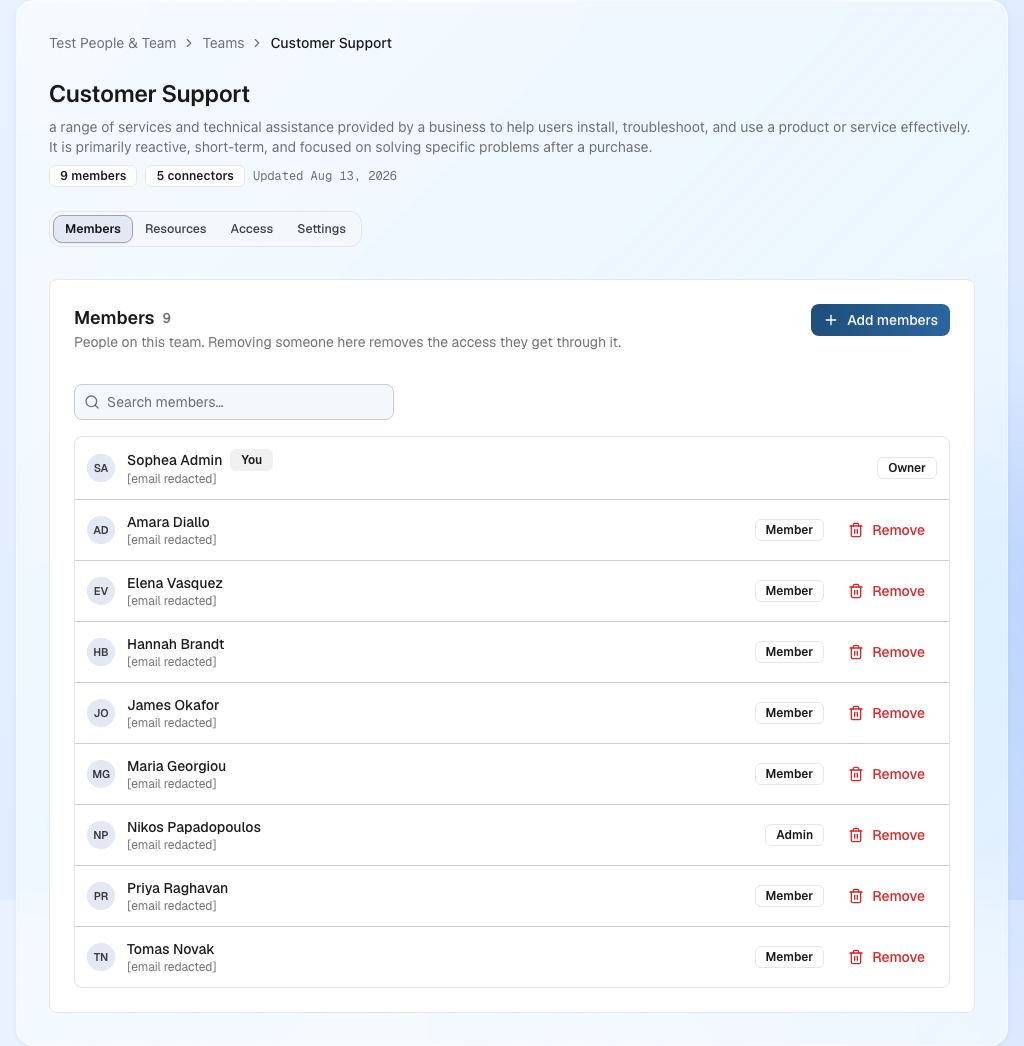
A Team has four tabs, or three in a one-workspace Organization, where there is no Access tab:
- Members holds the people on the Team and the Team’s own invitations.
- Resources is read-only. For each granted Workspace it lists the Connectors, Projects and Document Sets that Workspace shares with the Team, with an Open connectors link into the Nous screen where they are managed, and the Digital employees in the Workspaces the Team can reach. Each Connector says who added it and when, and every reason the Team can reach it: Shared with this Team, Available to everyone in this Workspace, or through a named Document Set. A kind with nothing in it says so rather than disappearing, so an empty list and a missing one never look the same.
- Access is the only place where the Team’s Workspace grants are made, changed, and revoked.
- Settings holds the Team name and description, and Delete team.
Deleting a Team removes it for everyone and revokes the access it grants. Members keep their accounts, and access they hold through another Team or a direct grant is unaffected. The confirmation names the Team and counts the memberships and Workspace grants it is about to withdraw. There is no restore, so re-create the Team and grant it again if you need it back.
Digital Employees attached to a Team inherit that Team’s Workspace knowledge access. The Team’s Resources view shows this inherited knowledge as read-only. Revoking the Team’s Workspace grant denies access to attached employees, but does not change their lifecycle. Regranting the Team’s Workspace access restores their access. Portal blocks Delete team until every attached Digital Employee is fully deleted.
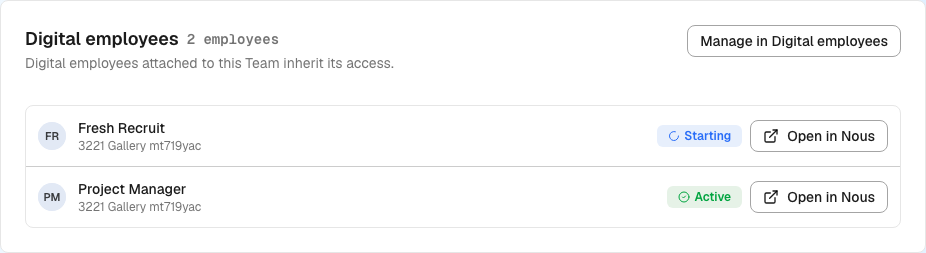
Every active Team member receives the Team’s role for that Workspace. A Team can have different roles in different Workspaces. When someone must accept an invitation before becoming an active Team member, the Members tab shows a Pending invitations control with the number waiting, and opens that list in a dialog. The control is absent when nothing is pending.
Team invitations behave like Organization invitations. An expired one keeps its place in the list with the Expired state, stays resendable and revocable, and is refreshed and sent again if you add the same address to the Team a second time.
Use Teams when access follows a stable business group, such as Legal, Finance, or Customer Support. Use a direct grant for an exception that applies to one person.
3.6 Review effective access
The Workspace People page separates active access from invitations. A one-workspace Organization has no such page: everyone in the Organization has access to the Workspace, and People & Teams lists the people and their pending invitations.
- People lists everyone who can currently open the Workspace, with every source of that access in the Access sources column.
- Teams lists Teams that grant a Workspace role. It appears for Organization Workspaces.
- Pending invitations lists invitations that have not been accepted, including expired ones. It appears for Workspace managers.
Each tab has its own search and count. Searching one tab leaves the others unchanged. A filtered count shows how many entries match out of the total; Clear search restores the list. Invitations do not count as active access, and matching people keep all their source badges visible.
A person can have several active sources at once:
- Organization authority
- A direct Workspace grant
- One or more Team grants
Portal uses the highest active role across those sources. The order is owner, then admin, then member. A direct Member grant does not reduce an Admin role received from the Organization or a Team.
Before removing access, review the person’s source badges on the People tab. Removing a direct grant does not remove a Team or Organization grant. Removing someone from one Team does not remove access granted by another Team.
3.7 Change or remove access safely
For a direct grant, change the person’s role with the role control on their row of the People tab, or choose Remove access. Removal asks for confirmation. Owner and self-change protections still apply. Removing a direct grant this way removes only this Workspace’s access; the person’s Organization membership, and any access they hold through a Team, is unaffected.
Choose the action that matches the source:
| Access source | Where to change it |
|---|---|
| Organization role | Organization People & Teams, People segment |
| Direct Workspace grant | Workspace People |
| Direct Workspace access for an existing member | Workspace People, Add people, or the Workspace category in the Organization People & Teams bulk bar, Grant access |
| Team membership | Organization People & Teams, then open the Team and use Members |
| Team-to-Workspace role | Organization People & Teams, then open the Team and use Access |
| Pending Organization invitation | Organization People & Teams, People segment |
| Pending Workspace invitation | Workspace People for the role and Revoke, available to any Workspace admin. Resending is for Organization owners and admins |
| Pending invitation granting Organization Admin access | Workspace People for the Workspace role and to withdraw Workspace access. Resending is available on either Workspace People or Organization People & Teams, to Organization owners and admins only |
An ordinary pending Workspace invitation to an Organization Workspace also carries Organization membership at the Organization member role once accepted. Resending it is for Organization owners and admins, as for an invitation that grants the Organization Admin role in the row above; a Workspace admin can still revoke it or change its role.
In a one-workspace Organization, the rows for Workspace People and Team Access in this table do not apply. Change a person’s role or remove them in People & Teams, and manage pending invitations in the People segment.
After a change, return to the People tab to confirm the result. Access changes can show a short synchronization state before they are available in Nous.
3.8 Management access and document access are different
Workspace roles control who can enter and administer a Workspace. They do not automatically make every private connector, document set, Project, or other shared resource searchable.
Use the sharing controls for each resource to make it workspace-wide, assign a named Team, or set another supported private scope. This separation lets a Workspace admin manage the Workspace without silently receiving access to every private document.
See Connectors for connector document access and Team sharing.
3.9 Switch Workspace inside Nous
Open the user menu from the avatar at the bottom of the left rail in Nous. The Workspace block there names your Organization, the Workspace you are in, and your role in it. If you can reach more than one Workspace, the block opens a list grouped by Organization.
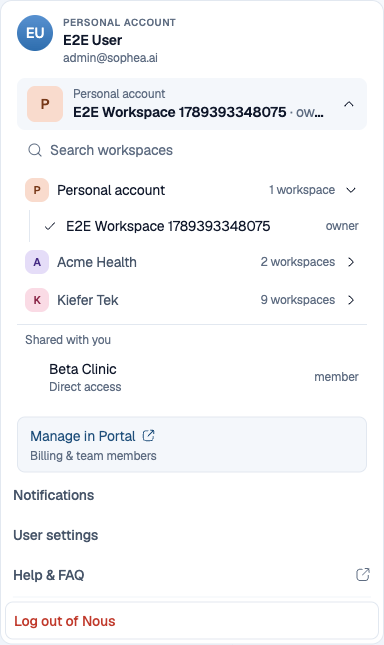
Selecting an Organization only opens or closes its list. Only selecting a Workspace switches: Nous reloads chats, Projects, agents, and connectors for that Workspace and lands you on a new chat. A Workspace that is still being created or whose setup failed stays in the list with the reason shown and cannot be opened.
If you have typed a message you have not sent, Nous asks you to confirm before switching, because the message is not carried across.