27 Searching Your Knowledge Base
Nous exposes connected content through Knowledge Search, which is always on in chat. It has no switch in the composer’s + menu (Add to message) and no scope to pick: when a question needs it, the model searches across every eligible source the current user and agent can access, so users do not need to turn anything on before asking a knowledge question. In a project chat, the chat answers from the project’s files (Add from project files).
27.1 How Knowledge Search is used in chat
Open a chat, type the question and send it. Nothing needs to be switched on first.
Knowledge Search covers All sources: every eligible source the current user and agent can access, while the model decides whether to search. The composer cannot narrow it to a document set or a connector source, so it is never an ordered tool step and does not count as an agent. A non-default agent searches the knowledge assigned to that agent. If a user’s earlier saved preference had turned Knowledge Search off, the composer turns it back on before the next message is sent.
Create a document set when an agent needs a stable, named scope, and attach it in the agent’s Knowledge section. A document set is optional for broad search: content from a searchable connector is available through All sources.
Deep Research runs alone for its message and does not use Knowledge Search. Knowledge Search is available again for the next message once Deep Research is turned off.
27.2 Understand answer timings
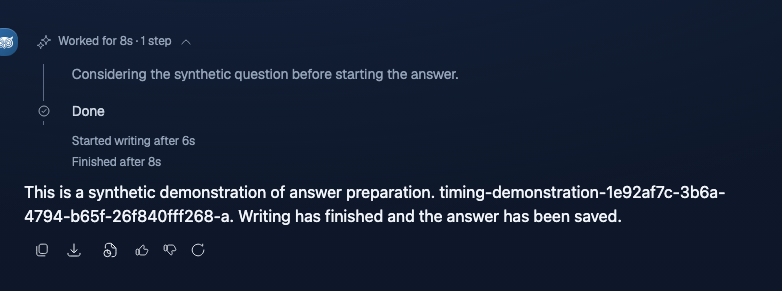
Each answer shows one timing line in its collapsed header. Expanding the header shows the steps, if any, and for a completed answer two short timing lines.
Collapsed header
- Worked for appears after the answer has completed successfully. It is the server time for the whole answer, followed by the number of steps when there are steps. The time covers preparation, writing the answer and preparing it to be saved, measured before final save confirmation. It excludes that confirmation, later service work, transfer and display; it is not the HTTP roundtrip time.
- Answer started after appears when the first answer text was available but completion has not been confirmed, for example while the answer is still finishing or after it failed. A stopped answer keeps its interrupted header.
- Recorded duration retains a recorded number whose preparation or completion scope was not separately identified. Do not interpret it as a reconstructed answer-start or completed-response duration.
- Response details is the neutral heading when no positive measured number is available. Unknown and measured zero values are not replaced with browser estimates.
Expanded timing lines
- Started writing after is the server time until the first answer text was available. It includes tools, waiting for the model and reasoning, and also writing when the answer is published in one piece. Delivery to your device is not included.
- Finished after is the same time as Worked for: it also includes writing the full answer and preparing it to be saved, on the server.
The two lines appear only after successful completion has been confirmed, and only when they show different times. When both show the same time (durations are rounded up to whole seconds), the header’s Worked for already says everything, so nothing extra is shown, and an answer without steps has nothing to expand. Answers that are still finishing, failed, or have only a recorded duration show no timing lines; their header already carries the one measured value.
While you wait, Waiting for answer (approx.) is a browser estimate, not a saved server measurement. Nothing is inferred from your browser clock.
An answer with no steps shows the header only when it carries a new measurement and was not stopped. Older saved answers with only a legacy recorded duration and no steps show no header. Reopening a saved conversation and shared chats show the same timings as the live answer. Published agents can show their own neutral activity summary, and Deep Research retains its separate plan/report timing; neither shows the expanded timing lines.
27.3 Citation reveal
Answers grounded in retrieved passages show source citations inline. An indexed file inventory may instead show filenames and metadata without passage citations. Click a citation chip in an answer to open the Cited Sources panel.
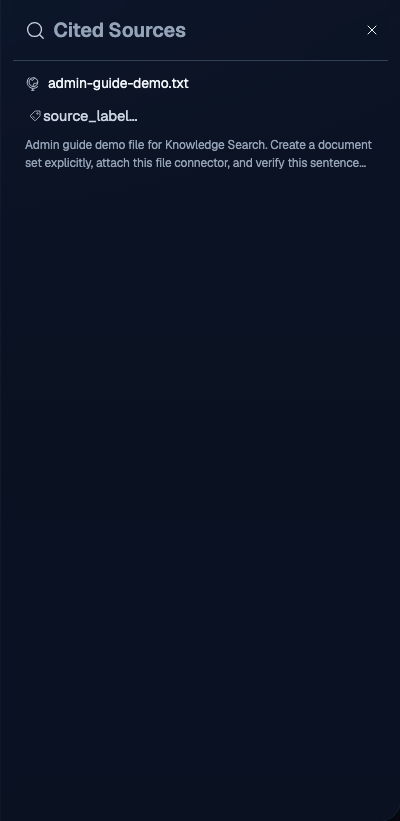
Each citation shows:
- the source filename and connector
- available page or chunk metadata, such as a page number or source label
- the raw text excerpt when content was retrieved; meeting inventories show dates and source metadata, not transcripts
When a source file contains separately identified documents, citations keep the original filename and distinguish Main document from Attachment N. A title taken from that member’s source text and available original page or section identify the cited part. Page numbers refer to the original file, not a newly numbered attachment.
These parts remain within one original source file. They share that source’s permissions, replacement and deletion; they are not separately uploaded files. The same cited part is retained while the answer streams and when you reopen the saved chat. If its source generation has retired, the citation is unavailable rather than redirected to a replacement document.
Use the citation panel to check the evidence behind a claim. The answer text can paraphrase, but a retrieved excerpt shows only what the search returned for that citation, not every field in the original file. A citation to the wrong document can result from retrieval or from answer/source selection. Check the cited excerpt, the document set and the connector before changing a prompt.
When you are verifying a brand-new set, expand each citation and confirm the chunk text matches what you expect from the source file. Title-only matches can be misleading: two files with similar titles can collide, and the excerpt tells you which one was actually retrieved.
The original filename identifies each source, including images and spreadsheets. Spreadsheet row citations are labelled as such; a visual workbook preview may instead show a page number. Worksheet names and row details, when available, add context beneath the filename. An invoice amount supported only by a workbook is not independently verified against an invoice document, and the answer should say so. PDF citations show available source page numbers; a workbook preview page or worksheet position is not a PDF page. If a search fails, the step in the answer timeline shows the failure and its reason.
27.4 SharePoint files during indexing
While a SharePoint connector is still discovering or indexing files, Knowledge Search can show up to 25 authorized matches from Microsoft search next to its indexed evidence. The numbered matches show names, sites, and folders. Their contents have not been read, so a title alone is not evidence for an answer.
If you name one exact file and the search finishes checking the selected scope, chat can read that file and answer from it in the same turn. If several files match, choose a number or say “summarize the second one.” That choice still works after you reopen the chat. The answer cites the selected SharePoint file when its text could be read. A scanned, oversized, unsupported, changed, or slow file can remain in the result list while the answer says its current contents could not be checked. Any indexed evidence used for that question must come from the same file.
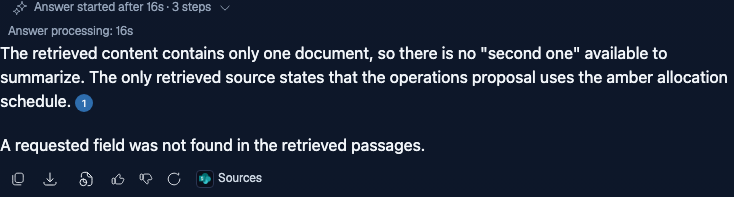
An all-sites connection may not finish checking every library within a chat request. The answer then says that some sites or libraries were not checked, without claiming that no files exist. Narrow the request to a site or library for a more complete check. Do not interpret an incomplete result as proof that a file does not exist. For connectors using Sync permissions, a file is not shown until Nous has current access evidence for that file and connection, even if Microsoft search finds it.
27.5 Whole-workbook questions
When Knowledge Search checks candidate documents, the chat timeline shows Checking documents. If a check is interrupted, it shows Document check interrupted; retrying once while it retries. Keep the same chat turn open. If the connection drops, the saved result appears in that turn when it is ready; do not send the question again while the turn is still working.
If a document cannot be confirmed, the answer should keep verified findings, name the coverage gap, and mark lists or totals as provisional. It must not present an incomplete check as a complete result.
27.5.1 Listing, counting, and totalling documents
Questions that ask for every document of a kind, such as “list all invoices for July 2026”, “how many contracts did we sign in 2025”, or “total of the inbound invoices to KIEFER for July, with amounts”, are answered from the document catalog rather than from the most relevant extracts. Name the kind of document (invoice, contract, report, technical specification, or application), the period, and, for inbound or outbound documents, the company they were issued to or by. A period may span at most twelve months.
The answer contains the document list, a total where one can be confirmed, and the coverage gaps. When the list names invoice spreadsheets, a separate spreadsheet section can follow. Ask about the contents of one document, such as what an invoice was for, in a separate question.
For inbound invoices or expenses, a shorter name for the receiving company also finds invoices whose printed recipient starts with that name. For outbound invoices or income, the same applies to the issuing company. “EXAMPLE” then finds “EXAMPLE AE” and also its sister company “EXAMPLE SERVICES AE”, and the full name “EXAMPLE AE” leaves the sister company out. A question that names a company without asking for inbound or outbound documents can still match both. Companies that you list as your own, and companies Knowledge Search works out as your own from your documents, must match the full name, apart from punctuation, capitalization, and spacing.
Name a currency such as USD when the question concerns only that currency. The list and subtotal include only documents whose currency can be confirmed; documents with unknown currency remain a coverage gap.
Invoice totals include verified credit notes as deductions, whether the printed credit amount has a minus sign or not. The answer states how many credit notes were subtracted; they do not rank among the largest charges. Counts refer to distinct business documents, not uploaded copies. File inventory counts original files separately: one file can contain a main document and several attachments. Each listed document keeps a citation to its part of that file.
Only an accepted separation into independently identified documents changes the whole-file count and total. Each separated document needs its own verified business identity; sharing a source file does not merge siblings. Files that cannot be separated keep the existing whole-file counting, totals and duplicate-copy handling, including files without a verified document number. An unresolved separation does not mean the file is excluded or confirmed to contain just one document. An unnumbered copy that resembles a numbered invoice keeps the result provisional.
Catalog-confirmed files can contribute even when no searchable text is available. A request that needs details the catalog cannot confirm remains provisional rather than inventing them.
Count coverage and amount coverage are separate. A confirmed invoice can contribute to a count even when its price or currency is missing, provided the other requested facts are confirmed. A complete count does not establish a complete total for the documents whose amounts could be verified.
The answer lists the confirmed documents with their dates, parties, and amounts, and gives one total per currency. When an invoice’s total cannot be verified directly, an independent AI reading checks the printed amount, currency and whether it is payable or a refund. Disagreement leaves it out of the sum. If the only gaps are unreadable totals, a short note names up to five affected documents and gives the number of others. The total includes only documents with a confirmed amount; this does not claim that excluded amounts are zero. Other coverage gaps keep the coverage statement below. When the confirmed documents name more than one company in the role the question is about, each currency total is followed by one subtotal line for each of those companies priced in that currency. The role is the recipient for inbound documents and the issuer for outbound documents. For other questions it is the one company the question names; no company lines appear when the question names both an issuer and a recipient, or neither.
When shown, the coverage statement is one of:
- COMPLETE means all documents relevant to the request are accounted for without a coverage gap. Count coverage and amount coverage are reported separately; only a complete amount check supports a complete total.
- PROVISIONAL names each gap: documents the catalog could not place, files still indexing or failed, spreadsheet rows that could not be matched to verified documents, unread spreadsheets, or documents that could not be checked. Missing or unsearchable content, details that cannot be confirmed from unreadable content, missing or legacy records of a file’s parts, and unfinished permission changes also prevent a complete aggregate. Missing records of the parts alone do not remove an otherwise confirmed whole-file contribution. Treat the list as a lower bound and the totals as subtotals of the confirmed documents.
- BLOCKED means the request exceeded the answer’s document or scan bound. If too many documents match, narrow the period or name the document kind. For invoice and expense totals, the completeness check scans every visible document in the selected search scope, including files outside the requested period or kind. A scope with more than 50,000 documents or 250,000 indexed points cannot yield a complete total; ask from a project chat or an agent whose knowledge is a document set. A shorter period alone does not reduce this full-scope scan. BLOCKED also appears when the document catalog is not complete for the current extraction rules, for example after an update to how document details are read. The catalog becomes complete again only when the affected documents are processed again; the answer does not show whether that has started. It does not mean that no matching documents exist.
When no document can be confirmed and the catalog is not complete, a request with a period also lists the folders named for that period that hold the requested documents, with the number of indexed files in each (“at least” when the folder scan reached its limit) and a few example files you can open. The counts are file counts and the examples are a sample; neither is a confirmed list or total.
Missing or ambiguous evidence stays unresolved. For example, a readable amount beside an unreadable grand total cannot establish the document’s total, and conflicting issue dates cannot establish its period. Documents without readable text also remain unresolved when their metadata cannot answer the request.
For invoice and financial-document lists, the answer checks rows in accessible invoice spreadsheets against distinct, verified indexed documents. A matching row does not add another invoice or amount to the total. Unmatched or ambiguous rows are named as coverage gaps; the spreadsheet alone does not establish an invoice. Other spreadsheet questions can be answered in a separate spreadsheet section. Unread spreadsheets remain a coverage gap even when their names or metadata do not identify the requested period or document kind. Partial lists, counts and subtotals can still be returned with their gaps. Only complete coverage for the relevant measure establishes a full list, count or total; a relevance-ranked answer can omit documents.
27.6 Historical meeting lists
Ask Knowledge Search for completed Sophea Meet meetings in a date range, for example, “List all meetings from 10 through 25 August, with dates and sources.” Both dates are included in your local timezone. The list uses accessible indexed meetings, not a relevance-ranked transcript search or the first page of the live app.
Each result keeps its meeting date and source citation. Lists return the oldest 500 matching indexed meetings at most. If the answer says results are partial, narrow the date range; the returned count is not the total. Older records without a known meeting date appear after dated meetings only when you ask for all history, labeled “Date unavailable”. They are not included in date-range searches. An empty range means no matching accessible indexed meetings, not that the meeting never happened.
For what was said, ask a transcript-content question. For today’s schedule or current meeting status, use the connected live app instead.
27.7 Recently changed documents
Ask Knowledge Search which documents changed recently, for example, “Summarize my recent documents” or “What documents changed this week?” The answer lists up to 20 documents you can access, newest first. Each entry shows its last-change date in your local timezone, its name, its folder when known, and a source citation. You can also ask for a date window. Both dates are included in your local timezone, as in meeting lists.
The date is the source’s last-modified time for connector documents and the upload time for uploaded files. Documents without a known change date are not listed, including files uploaded before this release, and the answer says that undated documents are not included. Meetings are not part of this list; for meetings, use a historical meeting list. If more than 20 documents match, the answer says the result is partial; narrow the date range to see the rest. An empty window means no accessible documents changed in that period. The list covers fully indexed documents only, so documents still being indexed are not shown. It is not a relevance search and does not read document text.
To learn what a listed document says, ask about that document.
27.8 Permissions model
Knowledge Search evaluates the requesting user’s workspace identity and active Portal Team principals on every query. An agent’s knowledge scope can narrow eligible content, but it cannot bypass an ACL.
Current indexed visibility comes from:
- connector access set to Workspace, or a public document set
- supported direct user principals
- active Portal Teams bound to a private connector or compatible document set
- source-system document permissions for SharePoint and Google Drive connectors configured with Sync permissions
Sharing a compatible private document set with a Team can add that Team to the eligible ACL for its connector documents without making the content workspace-public. This is different from using a document set as an agent’s knowledge scope: the scope only narrows the request and never grants access or bypasses the resulting ACL.
Provider-native per-document permissions are not a general Nous search ACL path. They are mirrored only for supported SharePoint and Google Drive connectors configured with Sync permissions. Other sources continue to use the connector and document-set access paths above. A private document without a supported Nous principal is excluded from results rather than exposed publicly.
If one member can retrieve a file and another cannot, compare their active Portal Teams and the connector or document-set access bindings in Nous. Also check whether the member still has another workspace access source after a recent Portal change.
27.9 Troubleshoot missing results
When search returns nothing, work through the list in order. Stop at the first step that resolves the issue.
- Search indexing. Open the connector detail page and check the Search indexing panel. Confirm the expected files are counted as Searchable and review any Needs attention categories. Workspace administrators can retry failed documents from Needs attention; rows that remain after the retry need action in the source.
- Agent knowledge. If the chat uses an agent with its own knowledge, confirm its Knowledge section includes the expected connector source or document set. Ask the same question in a chat with the default assistant, which searches all sources, to tell an agent scope mistake from an ingestion problem.
- Document set configuration. If you selected a document set, confirm it is Up to Date and includes the expected connector.
- Query specificity. Re-ask with an exact filename, title, or quoted phrase you know exists in the source.
- Permissions. For a Sync permissions connector, check the source grant and Last completed permission sync. For other connectors, check whether the connector or compatible document set is workspace-public or Team-shared, and whether the affected member belongs to an active attached Team. Credential ownership alone does not grant search access.
- Recent reindex. A connector that recently finished a full reindex can return stale or empty results until the reindex fully completes. Open the connector from the Connectors page and check whether an indexing job is still running.
If none of those steps resolve the issue, capture the query, the agent in use, and the expected filename, then raise the issue with platform support.
27.10 Where to go next
- Document Sets for creating, sharing, and editing the sets you searched here.
- Agents for wiring a verified document set into a guided assistant so users do not have to pick the set manually.
- Search Verification and Troubleshooting for the Document Explorer, Document Feedback, and a troubleshooting sequence for missing or wrong results.