31 Sophea Agent CLI
Sophea Agent CLI is a terminal client for working with a Sophea workspace from outside the browser. It gives you an interactive coding-agent session anchored to a local project, one-shot prompts for scripts and CI, and direct access to the workspace agents published through Nous, including private knowledge search.
This page covers install, login, workspace selection, interactive sessions and models, one-shot prompts, workspace agents and their artifacts, and the trust restrictions the CLI enforces. Use the CLI when you want a fast verification path that does not depend on opening the web app.
31.1 Install
The private Kiefer-Tek/sophea-cli repository owns the CLI source and installer. You need access to this private repository before cloning it. The installer requires Bun 1.3.14 or newer on the machine.
git clone git@github.com:Kiefer-Tek/sophea-cli.git
cd sophea-cli
./install.sh
The installer stages the CLI under ~/.local/share/sophea-cli, installs its pinned dependencies there, and writes a sophea launcher into ~/.local/bin (set SOPHEA_INSTALL_BIN_DIR to choose a different bin directory). The launcher always runs the installed copy, never the source checkout. Confirm the install with:
sophea --versionsophea 0.1.0The installer is idempotent: rerun ./install.sh to move to a newer checkout or to repair an install. A failed update rolls back and leaves the previous install working.
31.2 Log in (device auth)
Run sophea login to start the device-auth flow against Sophea Portal.
sophea loginOpen the following URL in a browser and enter the code:
https://portal.example.com/auth/device
Code: BXKR-7Q2M
Waiting for approval...Open the printed URL in a browser. Portal shows the Authorize Coding Agent page. Enter the code printed by the CLI into the Verification code field and click Authorize Access.
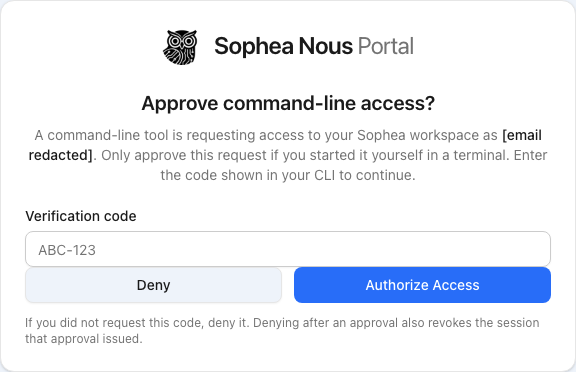
The CLI polls Portal until you approve the code, then stores the credential in its protected profile and prints the workspace list.
The Portal URL is resolved in this order: the --portal-url flag, the SOPHEA_PORTAL_URL environment variable, then the URL saved by a previous login. The CLI only prompts for a URL on an interactive terminal.
31.3 Log out / status
sophea status shows the current login, active workspace, and active model. Add --json for a machine-readable single JSON object on stdout.
sophea statusSigned in as: Demo Workspace Admin
Portal: https://portal.example.com
Workspace: Admin Guide Demo Workspace
Model: <workspace default model>sophea logout revokes the credential on the Portal side and then removes it from the local profile. Use it before handing a shared machine to another operator.
sophea logoutSigned out.If Portal cannot be reached, the logout fails safely: the local credential is kept, the command exits nonzero, and you are asked to retry. After a successful logout, every other subcommand exits with code 2 and asks you to run sophea login again.
31.4 Pick a workspace
If your Portal account belongs to more than one workspace, the CLI needs to know which one to act against. Run sophea workspace to see the list and pick one interactively, or pass an id or name directly to switch.
sophea workspace
sophea workspace "Admin Guide Demo Workspace"
Switching the workspace rotates your credential to the new workspace and ends any active interactive session. Start a new session after switching.
31.5 Interactive sessions
Running sophea (or sophea chat) opens an interactive coding-agent session anchored to the current working directory. The agent can read and edit project files, run shell commands, and call your workspace agents, under the boundaries described in Trust restrictions below.
cd /home/demo/projects/admin-guide
sophea
Passing a prompt directly to sophea is not supported; use sophea run "<prompt>" for non-interactive prompts.
Session flags:
| Flag | What it does |
|---|---|
--cwd PATH |
Anchor the session to a different working directory. |
--add-dir PATH |
Give the agent access to an additional directory (repeatable). |
--model ID |
Start on a specific workspace model instead of the default. |
--thinking LEVEL |
Set the reasoning effort for models that support it. |
--hide-thinking |
Hide reasoning output in the session. |
--no-title |
Skip automatic session title generation. |
--continue / -c |
Reopen the most recent session. |
--resume / -r / --session [ID] |
Pick or name a saved session to resume. |
Sessions are saved automatically and are bound to the Portal account and workspace that created them. You can resume a session only while logged in as the same account in the same workspace; after switching workspace or re-logging in as a different account, older sessions are refused (exit code 3) instead of being silently mixed.
Inside a session, the Sophea-specific slash commands are:
| Slash command | What it does |
|---|---|
/sophea-agents |
List the live workspace agents. |
/sophea-agent <slug> <prompt> |
Run a workspace agent. |
/sophea-agent-artifacts <slug> <operation-id> |
List the artifacts of an agent run. |
/sophea-agent-download <slug> <operation-id> <artifact-id> [relative-path] |
Download one artifact. |
/sophea-workspace |
Show the active workspace. |
/sophea-status |
Show login, workspace, and model status. |
/sophea-logout |
Revoke the credential and sign out. |
Standard session navigation and model-selection commands are also available; see the in-session help.
31.6 Models
The model list is your workspace’s live catalog from Sophea Portal, fetched fresh before every launch. The first catalog entry is the default model. --model <id> is validated against the live catalog before anything runs; an id that is not in the current catalog is rejected. If a saved session or previous selection names a model that is no longer published, the CLI switches to the workspace default and tells you.
31.7 Run a one-shot prompt
sophea run "<prompt>" runs a single prompt non-interactively and prints the answer to stdout. Use this for scripted checks and for piping into other tools.
sophea run "Summarize the README of the project in the current directory."Options: --cwd PATH to pin the working directory, --model ID to override the model, --agent SLUG to route the prompt through a specific workspace agent, --operation-id ID to set an explicit idempotency key for an agent run, and --json for machine-readable output.
With --json, the command writes exactly one JSON value to stdout on success or failure; all progress and status messages stay on stderr, so piping into tools like jq is safe.
31.8 Workspace agents
sophea agents list prints the agents enabled for the active workspace. The list is fetched live from Nous and reflects what your workspace can actually use, including the nous-rag knowledge-search agent when your administrator has enabled it.
sophea agents listSLUG NAME DESCRIPTION
nous-rag Knowledge Search Searches the workspace knowledge base.
my-research-agent My Research Agent Researches a topic across workspace sources.
legal-summarizer Legal Summarizer Summarizes contracts and clauses.sophea agents run <slug> "<prompt>" starts an agent run:
sophea agents run my-research-agent \
  "Find the most recent contract that mentions Vendor X and quote the renewal clause."
Each run is idempotent. The CLI prints an operation id before the run starts; pass the same id back with --operation-id and a repeated command returns the original run’s result instead of starting a duplicate. If you interrupt a run with Ctrl+C, the CLI cancels the remote run; rerunning with the printed operation id resumes tracking it.
All agents subcommands accept --json for the single-JSON-value stdout contract described above. When you interrupt an operation-scoped command such as agents run, agents artifacts, or agents download, that one JSON value includes the operation id. For example, Ctrl+C returns {"ok":false,"exit_code":130,"operation_id":"agent_9f2c41ab07e3d5126b48f0a1"}. An interrupted agents list command has no operation id.
31.9 Agent artifacts
Some agents produce files such as reports, exports, or generated documents. List them with sophea agents artifacts and fetch them with sophea agents download:
sophea agents artifacts my-research-agent agent_9f2c41ab07e3d5126b48f0a1
sophea agents download my-research-agent agent_9f2c41ab07e3d5126b48f0a1 vendor-x-report.pdf
Downloads land under .sophea-artifacts/<operation-id>/ in the current working directory by default. Use --output <relative-path> to choose a different location inside the project. Downloads never overwrite an existing file, refuse unsafe paths, and reject files larger than 100 MiB.
31.10 Tools and skills in interactive sessions
Inside an interactive session, the coding agent can call four Sophea tools on your behalf:
sophea_agents: list the live workspace agent catalog.sophea_run_agent: run a workspace agent by slug.sophea_agent_artifacts: list the artifacts of an agent run.sophea_download_agent_artifact: download one artifact into the project.
Two built-in skills guide the agent: nous-workspace-agents teaches it how to pick the right workspace agent, run it, and verify results, and nous-knowledge-search teaches it when to answer from local files and when to search your private workspace knowledge through nous-rag.
You do not need to install or manage these; they ship inside the CLI package.
31.11 Exit codes
| Code | Meaning |
|---|---|
0 |
Success. |
1 |
Local usage error or a failure while running. |
2 |
Authentication required or expired; run sophea login. |
3 |
Workspace unavailable, or a session/account/workspace mismatch. |
4 |
Unknown, disabled, or failed workspace agent. |
130 |
Interrupted with Ctrl+C (SIGINT). |
143 |
Terminated by SIGTERM. |
31.12 Trust restrictions
The CLI limits its models, loaded tools, and remote workspace identity. It does not sandbox the local shell:
- Only models from your workspace’s live Portal catalog can be used.
- Allowed tools run automatically, without an approval prompt. This includes shell commands, file writes and edits, workspace agent runs, and artifact downloads.
- The CLI does not load extensions, plugins, MCP servers, skills, or commands from your machine or from the project; the only tools and skills available are the ones shipped inside the CLI package.
- The built-in file tools block access to the CLI profile, installation, and legacy credential file. These checks do not apply to shell commands and are not a shell sandbox.
- Shell commands run with your local user’s filesystem access. They can access paths outside the project when your user can access them.
- Agent runs are authenticated as you and scoped to your active workspace; private knowledge search through
nous-raguses your own document permissions.
31.13 Current limitations
- Nous personas are not available through the CLI in this release; use the workspace agents listed by
sophea agents list. - Standalone image generation is not available through the CLI.
- The CLI is installed locally from the Sophea repository; an npm package or standalone binary distribution is not available yet.
For the bigger picture on how the CLI relates to Knowledge Search and workspace agents, see Knowledge Search and Agents.