5 Chat Model Governance
This chapter covers which chat models are visible to your workspace and which one is selected by default.
LLM provider keys (OpenAI, Anthropic, Bedrock, Vertex, and so on) are managed in Sophea Portal, not in Nous. The Nous admin panel never asks you for an API key for chat models.
5.1 Workspace chat model
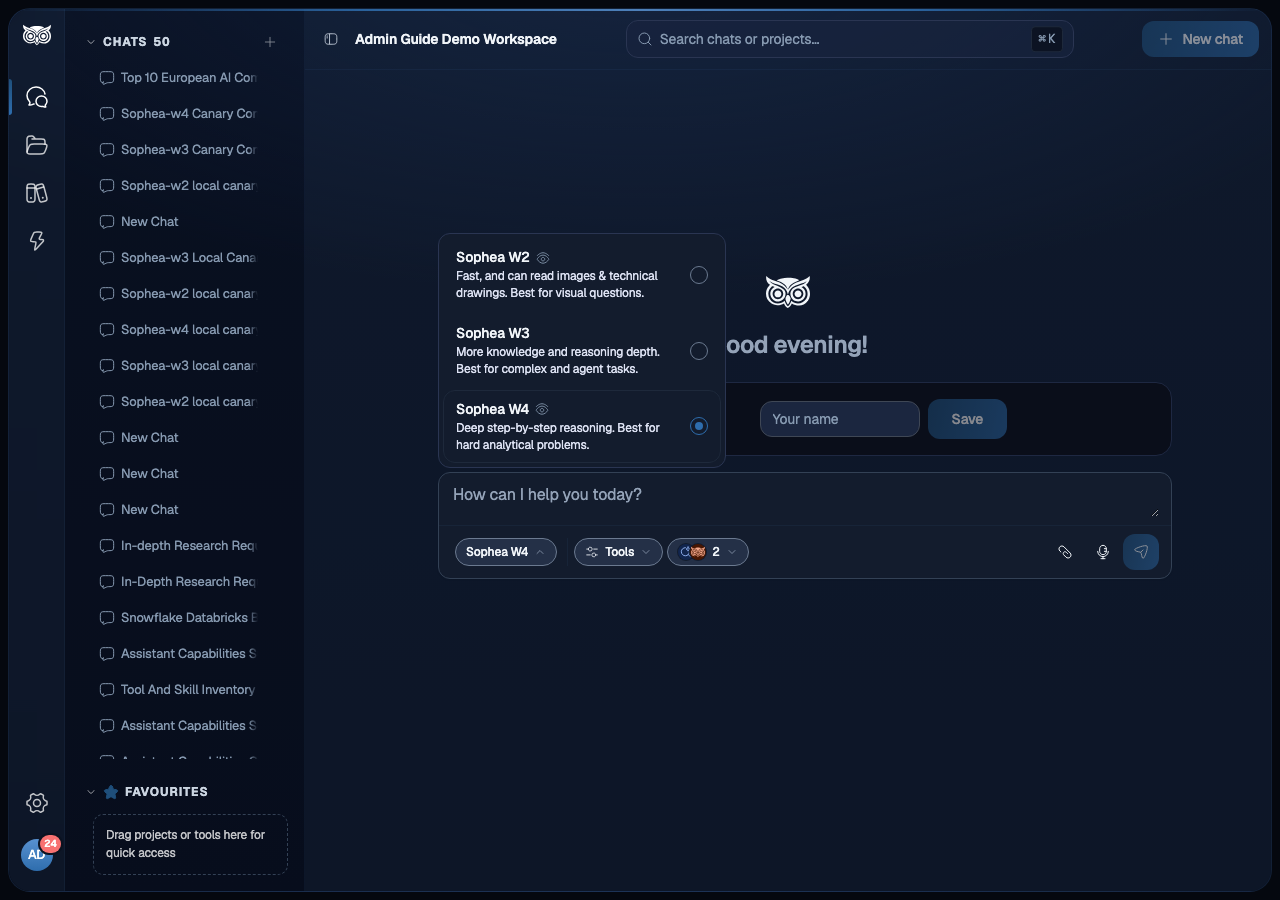
The visible CHAT models and the default selected for this Workspace are the only model authority for Nous chat. A platform administrator with the models:write permission can change the existing Workspace default or hide a model on the LLM Models page in Portal. Account-level defaults affect newly provisioned Workspaces only unless an administrator explicitly applies the change to existing Workspaces.
Nous loads the accessible model list and Workspace default together. A new chat stays disabled until both are current, so it never briefly selects the first model in the list. If a saved chat, agent, or personal preference names a model that is no longer visible, Nous uses the current Workspace default. If no accessible default exists, chat remains disabled and shows a safe configuration message.
5.2 What this page does not control
Workspace chat model visibility and defaults control which model answers a chat message. They do not control:
- how documents become vectors, how the search index is built, or which reranking model or advanced retrieval options apply. Embedding and reranking configuration is platform-owned and is not exposed in the Nous admin UI.
- which provider keys are used (Portal-managed)
- which users can see which documents (see Users and access and the permissions model in Knowledge Search)
- which document sets exist (see Document Sets)
5.3 What to check next
After the chat model list looks right:
- Start a new chat and confirm the expected default model loads.
- If an expected model does not appear, confirm your Portal administrator has enabled it and applied it to this Workspace.
- Add one small File connector through the Knowledge flyout > Add Connector, then confirm it reaches Indexed and returns results in Knowledge Search.
See Connectors for the connector workflow and Document Sets for how to group indexed content for chat.