34 Digital Employees
Digital Employees are autonomous Workspace workers with dedicated instructions, a persistent employee workspace, tasks, and optional source connections. Managers configure them in Portal, and authorized Workspace members assign work and continue tasks in Nous.
Digital Employees is currently a Beta product and must be enabled for each Workspace by a Sophea platform administrator.
34.1 Open Digital Employees
For an Organization Workspace in Portal:
- Open the Organization.
- Select Digital Employees in the account navigation.
- Find an active Workspace where the product is Enabled.
- Click Open.
You can also open a Workspace from its row on the account Overview, or under Shared with me for workspace-only access, and select Digital Employees in the Workspace navigation. Controls remain unavailable until Workspace setup finishes and the product is enabled.
In a one-workspace Organization, Digital Employees lives only inside the Workspace: open the Workspace and select Digital Employees in its sidebar. The Organization sidebar has no Digital Employees entry, and the Organization address for it opens the Workspace page.
In Nous, select Digital Employees from the main navigation to see employees available in the current Workspace.
34.2 Know what each role can do
| Role | Portal management | Nous chat |
|---|---|---|
| Organization owner or Organization admin | Can manage employees in Organization Workspaces through their effective Workspace authority | Can chat with active employees |
| Workspace admin | Can create, edit, activate, deactivate, and delete employees in that Workspace | Can chat with active employees |
| Workspace collaborator | Read-only employee view | Can chat with active employees |
Managing an employee does not grant extra document-search permission. When an employee uses Workspace Search, results are limited by the access of the person using the chat.
Portal shows your Private employees while you have Workspace access, and Team employees when you actively belong to their Team and it has Workspace access. Organization owners and Workspace admins follow the same rule.
A Team Digital Employee belongs to one immutable Team. A Private employee belongs only to its owner and has no Team. The current management view shows the Team and the inherited knowledge access as read-only. Revoking the Team’s Workspace grant denies the employee access, but does not change its lifecycle. Regranting the Team’s Workspace access restores the employee’s access. Portal blocks Team deletion until every attached Digital Employee is fully deleted.
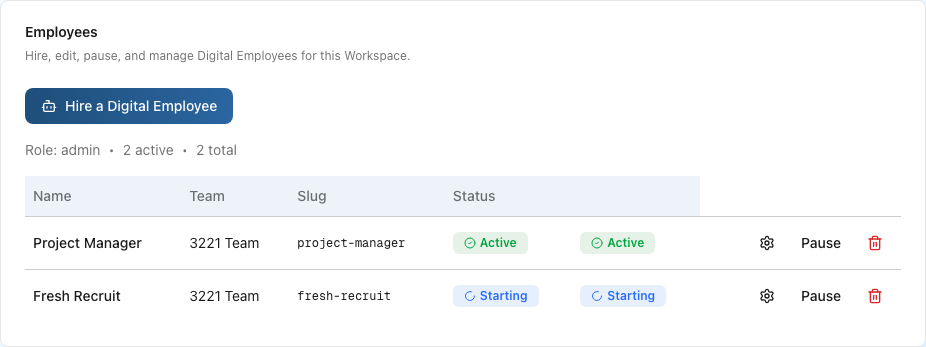
The management table lists each employee with its Team, Connected apps, Last activity, and Status, and the row actions. The employee’s role description appears under its name. If Portal cannot read the employee list, for example during a service interruption, the page says This list could not be read and keeps Hire a Digital Employee available. Refresh to try again.

34.3 Create an employee
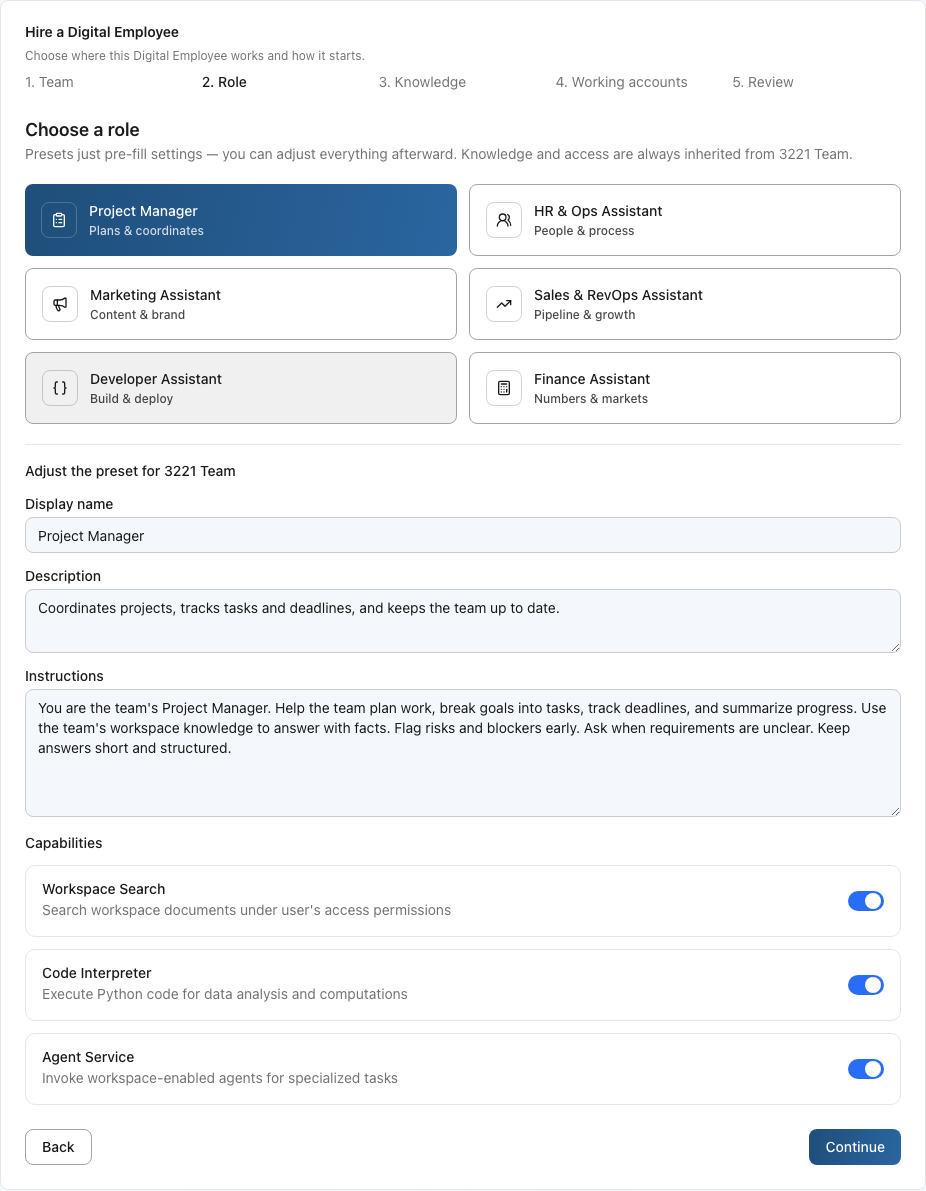
On the Workspace’s Digital Employees page in Portal, use Hire a Digital Employee and complete three steps:
- Access: choose Private, only me for an owner-only employee without a Team, or Team and select one of your Teams with current Workspace access.
- Role & sources: choose a starting role and edit its name, description, and instructions. Select existing source connections from your own inventory for Private access, or from the selected Team’s available connections. Sources are optional. Unavailable connections are disabled with a reason. Use the connector-management link in a new tab to create or reconnect a source, then choose Refresh connectors.
- Review: check the access, Team when applicable, starting role, selected sources, inherited Team document sets, and the included employee workspace.
In a one-workspace Organization the hire page opens inside the Workspace and shows the Workspace name as text, because there is nothing to choose. In an Organization with several Workspaces, the hire page also asks which Workspace the employee belongs to.
Access cannot change after hiring. The starting role supplies persona defaults and remains as read-only hiring history. After hiring, settings can change the employee’s name, description, instructions, and selected sources.
Portal derives the slug automatically from the display name.
New employees show a setup state before they are ready. They appear in Nous after the Workspace change finishes applying.
34.4 Use the employee workspace and sources
Every Digital Employee includes a persistent, isolated workspace for creating files, writing programs, running tests, and processing information. This workspace is available to Private and Team employees even when no source connection is selected.
Work that uses the workspace belongs to a task. If an ordinary conversation first needs to run a program or create files, Nous creates or reuses the conversation’s task automatically. Two tasks can run at the same time. They share the employee’s files, so avoid asking both tasks to overwrite the same shared file.
Choose Stop on a task to stop only that task. Other work continues. Continue work starts another turn on the same task and keeps its files. Pausing an employee stops its active workspace while preserving files; deleting the employee removes the workspace.
Source connections are separate from the workspace:
- A selected indexed source can contribute search results.
- A selected live source can expose only the read or action operations supported by that connector.
- Removing or revoking one source blocks that source without disabling local workspace work or another source.
- Team document sets remain inherited independently of selected sources.
The employee never receives connector credentials. It cannot call arbitrary Internet addresses from its workspace. External reads and actions pass through Sophea’s connector services and current access checks.
34.5 Use GitHub as a source and action connection
GitHub is one optional connector. Selecting an eligible GitHub connection can let the employee read an allowed repository, place its files in the task workspace, run local checks, and propose an issue or pull-request action. It does not enable coding, because every Digital Employee already has the employee workspace.
Open Connectors, choose GitHub, or use /app/connectors?view=setup&source=github to enter the token and select repositories. The token remains in Nous and is never copied into the employee workspace or employee secrets. Fine-grained tokens used for writes require the repository permissions shown by the connector setup page.
The employee can discover only repositories explicitly selected in this GitHub connection. It can browse a selected repository’s root and nested directories and read bounded UTF-8 text files. When you need a particular version, include an optional branch, tag, or commit reference in the request. Binary files and general downloads are unavailable, and an unselected repository cannot be opened through another path.
GitHub search is split into separate searches for issues, pull requests, comments, and code. Choose the search type that matches the question instead of treating repository files as indexed Workspace content.
Before an external write, Nous shows the exact connection, action, target, and proposed content in the task conversation. You authorize that write from the task conversation: a clear approval in your next reply publishes it, and Approve on the approval surfaces does the same. A reply that is not a clear approval is refused, so the employee asks you to confirm again. Only the person who initiated the Team task may authorize the write, and their access is checked again before the provider call. Any change to the proposed content requires another approval. If a write does not publish, it returns to the employee’s Activity feed as a request that needs your input, so you can settle it before asking the employee to try again. Retries reconcile the same provider operation and do not silently switch to another connection.
GitHub source snapshots and patch records keep their existing bounded retention. Files in the employee workspace remain until the employee is deleted. Repository browsing is limited to the selected source and bounded text reads; general downloads remain unavailable.
34.6 Understand the fixed model policy
Sophea manages the Digital Employee model centrally. Workspace and employee model choices do not change this runtime. This keeps capabilities, image input, reasoning, billing attribution, and support behavior consistent for every employee. Keep role-specific behavior in the employee instructions.
34.7 Activate, pause, edit, or delete
Workspace admins can manage each employee from its Portal row:
- Pause pauses new chat work without deleting the employee.
- Resume makes a paused employee available again after the change finishes.
- Delete removes an employee that is no longer needed.
- Settings opens the employee’s detail page. Its Edit configuration tab changes the display name, description, instructions, or selected sources. The starting role is shown as read-only hiring history. The slug stays fixed after creation.
Changes can briefly place the employee in a setup or updating state. Wait for a ready state before testing it in Nous.
34.8 Manage recurring schedules
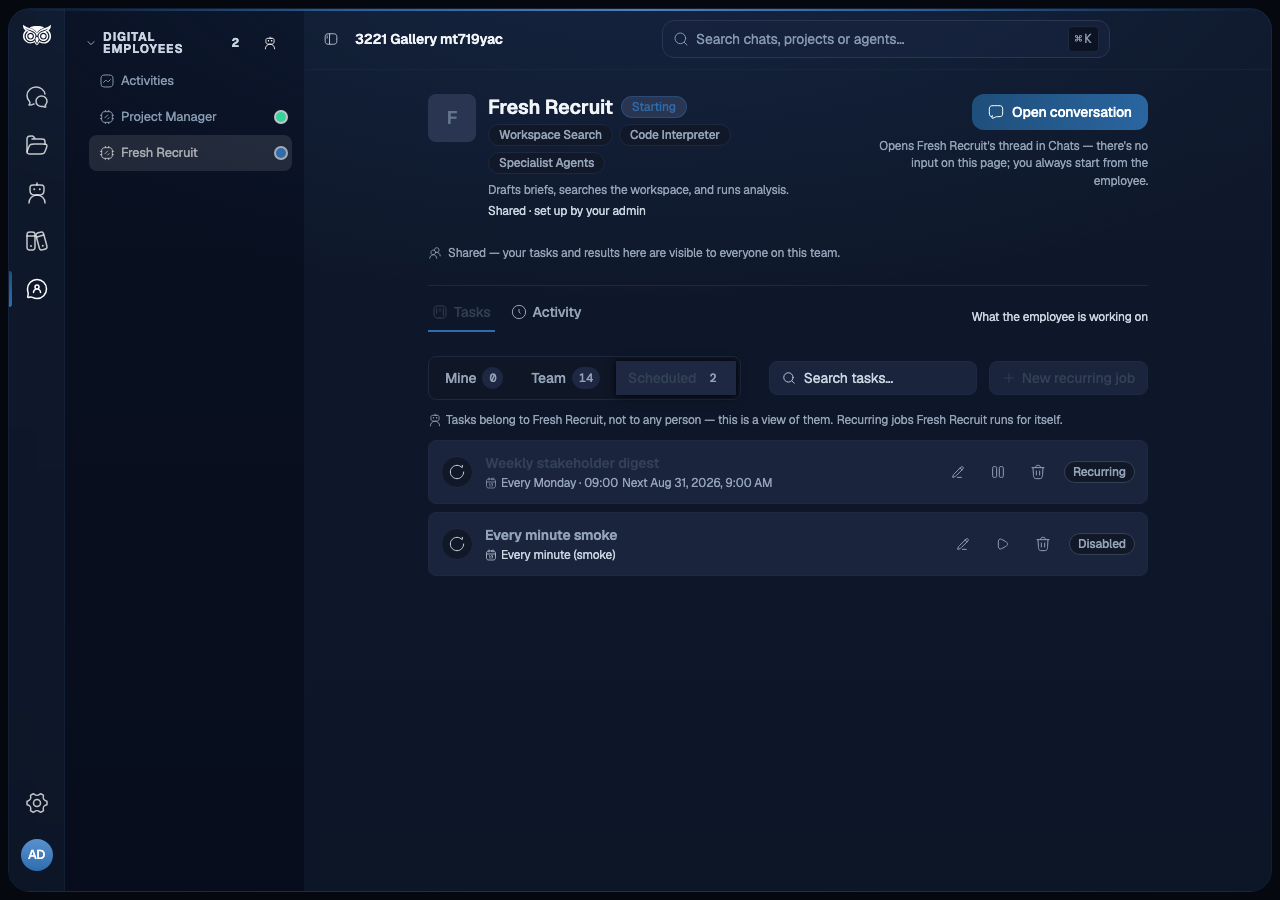
A recurring schedule fires a task for the employee on a fixed cadence, for example a digest every weekday morning. Each fired task appears on the employee’s board like any other task.
Create a schedule from the employee’s dashboard in Nous:
- Open the employee and switch to the Scheduled segment.
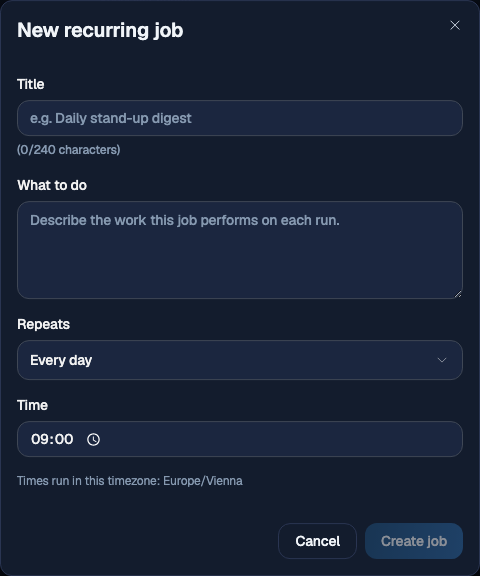
- Select New recurring job.
- Enter a title and the work to perform, pick a cadence (Every day, Weekdays, Every week, or Every month) and a time, and save.
The dialog notes the detected timezone: schedules always run at that clock time in the creator’s timezone.
Each row shows the cadence and the next run. The cadence label renders in the reader’s own interface language; a schedule saved as a custom cron expression keeps its author-written label instead.
Row actions:
- Edit changes the title, the work to perform, or the cadence.
- Disable pauses firing without deleting the schedule. Enable starts it again, and the next run counts from that moment.
- Delete removes only the schedule. Tasks it already fired stay on the board.
34.9 Understand employee status
Nous presents product-language status labels:
| Status | Meaning |
|---|---|
| Ready | The employee is available for chat. |
| Starting | Setup is still finishing. Wait before sending work. |
| Paused | The employee is inactive and cannot accept new chat work. |
| Suspended | The employee is temporarily unavailable. Ask a Workspace admin to review it. |
| Needs attention | Setup or availability failed. A Workspace admin should review the employee in Portal and contact support if it does not recover. |
34.10 Chat with an employee in Nous
- Open the correct Workspace in Nous.
- Select Digital Employees.
- Choose a Ready employee.
- Review its description, access, and selected sources.
- Enter a request or select a suggested starter prompt.
The dedicated chat shows the response as it is produced and identifies workspace or source activity when the employee uses a tool. If the employee is not ready, the composer explains why it is unavailable.
For Workspace Search, test with a document the current user is allowed to find. A successful result for a Workspace admin does not prove that a Workspace collaborator can retrieve the same private content.
34.10.1 Chats and tasks
A chat is a conversation, not a work item. Starting a chat, asking a question, or searching the Workspace posts nothing to the employee’s board.
A conversation reaches the board when you select Add to Tasks, or automatically when the employee first uses its workspace to run a program or create files. Search-only questions remain ordinary conversations.
A chat carries at most one task. Automatic workspace promotion reuses that task across later turns, so continuing the work never creates duplicate cards. Once the task exists, the thread shows its title and a Posted to Tasks receipt, and the card appears on the employee’s board.
Chats are private to the person who started them. Tasks and results from a Team Digital Employee are visible to authorized Team members. Private tasks and activity remain visible only to the owner.
Each person can hold several chats with the same employee. Select Start fresh in the thread, or start a new chat from the sidebar, to begin another one.
The sidebar initially shows five chats per employee. Select View all to expand the remaining loaded chats in that group, then select the conversation you want to reopen.
34.11 Review approval requests
An approval request attaches to a task and records a human decision. Connector write approvals are enforced: the employee cannot publish until the initiating user approves the exact connection, action, target, and proposed content, either with Approve on the approval surfaces in Nous or with a clear approval in their next reply in the task conversation. General task approvals continue to record a decision for the team without automatically executing another action.
Request an approval from a completed task’s conversation in Nous:
- Open the completed task’s conversation.
- Select Request approval.
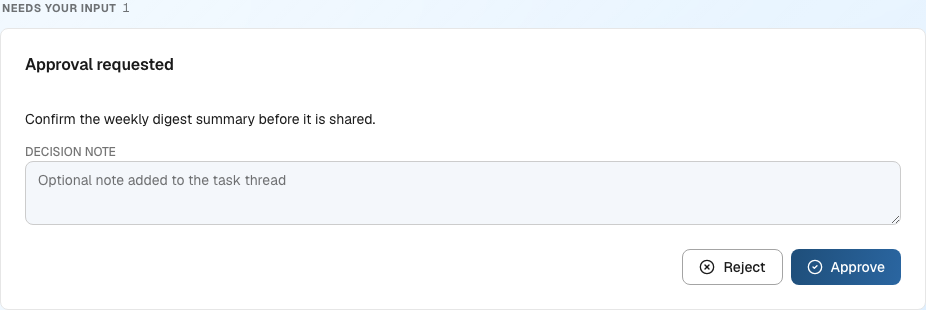
While a request is pending, watchers of the employee see a Needs your input strip on the employee’s Activity feed in Nous.
Decide an approval request in either place:
- In Nous, open the task’s conversation and choose Approve or Reject, optionally adding a note. The note posts to the task conversation under the decider’s own name. Approve here publishes a connector write.
- In Portal, open the employee’s Activity tab and use the pending approvals section. This records the decision; a connector write is published from the task conversation or from Nous.
Replying in the task conversation is the other way to authorize a connector write. The employee shows the connection, action, target, and proposed content in the conversation, and a clear approval in your next reply publishes it. A reply that is not a clear approval publishes nothing and the employee asks you to confirm again or describe the correction. If a write does not publish, it returns to the employee’s Activity feed in Nous as a request that needs your input, so you can check what was proposed before you confirm again in the conversation.
A task carries at most one pending request at a time. General task approvals follow the existing Team decision rule. A connector write may be authorized only by the user who initiated that task, and current access is checked again before the write.

34.12 Troubleshoot availability
If Digital Employees is unavailable:
- Confirm that the correct Workspace is selected.
- In Portal, confirm the Workspace is Active and Digital Employees is Enabled.
- Confirm your role. Workspace collaborators can chat but cannot create or change employees.
- If an employee is Starting, wait for setup to finish and refresh Nous.
- If it is Needs attention or remains unavailable, ask a Workspace admin to review it in Portal and contact Sophea support.
For role and access-source details, see Organizations and Workspace access.