22 Salesforce Connector
Salesforce is a private live connection. It searches the signed-in member’s Salesforce org when a question is asked, and it can create or update a record after the member confirms the exact change in chat. Salesforce records are not copied into the workspace search index.
22.1 What is indexed or searched live
Nothing is indexed. Nous can search and open accounts, contacts, leads, opportunities, cases, and tasks. A keyword search matches record text, and a search without keywords returns the most recently changed records. A search returns at most 25 records.
Nous reads only what the connected Salesforce user can read. Record sharing, object permissions, and field-level security all apply. When a field is hidden by the member’s permissions, the answer names the field without showing a value, so a hidden field is not mistaken for an empty one.
Salesforce updates its search index a short time after records change. A record created or edited a moment ago may not appear in a keyword search yet. Open it by link or ID, or search again shortly.
22.2 Administrator role and authentication
Sophea manages the Salesforce app that members authorize. Each member connects one Salesforce user from the personal connector catalog. A Salesforce administrator controls which users may authorize the app in the org’s app access policy.
The grant requests API access and a refresh token, so the connection keeps working without signing in again. Salesforce expires an unused refresh token after 30 days without use. The member then reconnects. There is no username, password, security token, client secret, refresh schedule, or object-indexing form in Nous.
22.3 Provider setup and permissions
- Confirm that the Salesforce user can read the records and fields the member needs. To make changes through Nous, the user also needs create or edit permission on those objects and fields.
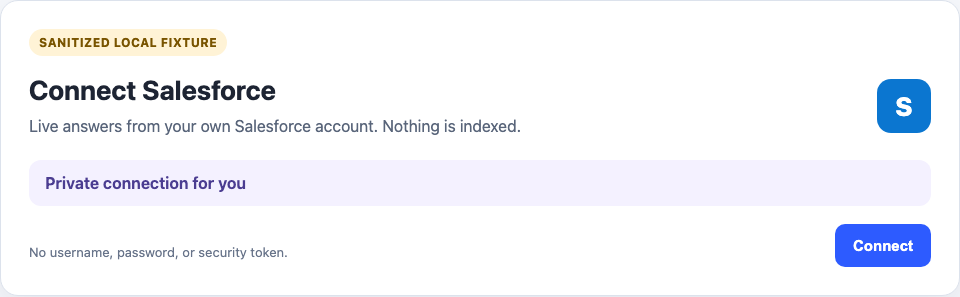
- In Nous, open Connectors and choose Salesforce.
- Select Connect and finish the Salesforce sign-in and approval flow.
- Return to Nous and confirm that the connection shows the member’s email.
22.4 Setup form fields
There are no manual setup fields. The Salesforce org, user, email, and the org’s API address are read from Salesforce after OAuth. The member email is shown as the account label.
There are no refresh, pruning, indexing, workspace-access, or Team fields.
22.5 Workspace and Team access
The connection belongs to one member. Other members must connect their own Salesforce users. An administrator cannot make it public, assign it to a Team, add it to a document set, schedule scans, pause it, or reindex it.
Changes are made as the connected Salesforce user, so the Salesforce audit history names that member and not a shared integration user.
22.6 Supported confirmed changes
A member can ask Nous to create or update an account, contact, lead, opportunity, case, or task. Nous checks the request against the member’s Salesforce permissions first. It refuses a change the member cannot make, such as editing a record they can only read, before proposing anything.
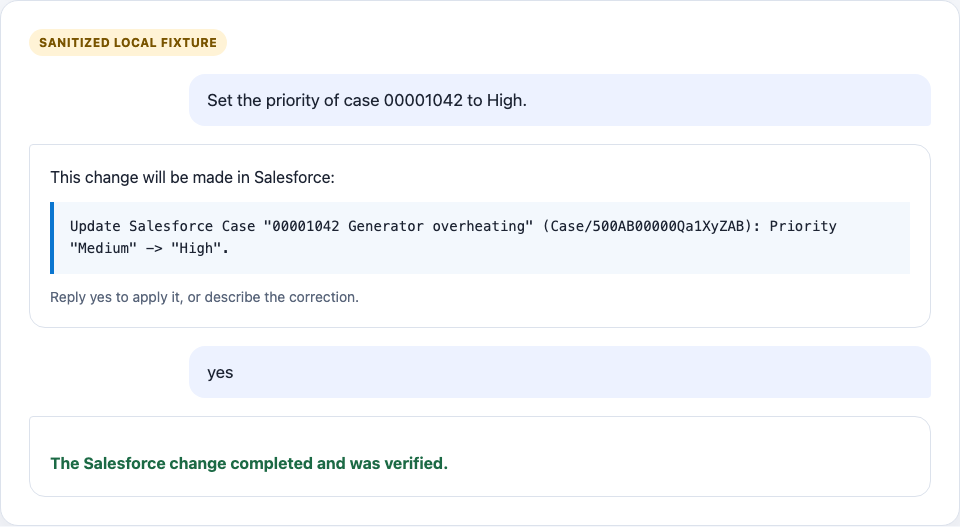
Nous then replies in the normal chat with the exact change: the record, each field, and its current and new value. Salesforce is unchanged at this point. The member confirms with a plain reply such as Yes or Go ahead. Nous applies the change once and returns the verified record link. Repeating the confirmation does not make a second change. A reply such as No leaves Salesforce unchanged.
If the record changes in Salesforce between the proposal and the confirmation, Nous does not overwrite it. It reports that the record changed and proposes the update again from the current values.
Supported changes are limited to common business fields on these six objects, such as names, contact details, stage, amount, close date, status, priority, subject, description, due date, and the related account or contact. Nous cannot delete records, convert leads, change record owners, or edit other objects.
22.7 Supported links and testing
Test with non-sensitive records that the connected member can open:
- Search each object type by keyword and without keywords.
- Open a record by its Lightning URL and by its 15 or 18 character ID.
- Open a record whose fields are partly hidden from the member and confirm that Nous names the hidden fields.
- Connect a second member with narrower permissions and confirm that each member sees only their own records.
- Ask for a change to a disposable record, reply No, and confirm that Salesforce is unchanged. Ask again, reply Yes, and check the record history in Salesforce.
- Try a link for another Salesforce org and confirm that Nous rejects it before any provider request.
The images on this page use deterministic, sanitized local fixture data. They show the product contract, not proof from a real Salesforce org. Real-provider proof is recorded separately during release verification.
22.8 Common errors
| Error | Action |
|---|---|
| The app is not approved for this user | Ask a Salesforce administrator to allow the user in the app access policy. |
| The connection expired | Reconnect the same Salesforce user. This is normal after 30 days without use. |
| A record is missing | Check the user’s record sharing, then open the record by link or ID. New records can take a short time to appear in keyword search. |
| A field is reported as hidden | The user’s field-level security hides it. Change the permission in Salesforce if the member needs it. |
| A change is refused | The user lacks create or edit access on that object, field, or record, or the field is not supported. |
| The record changed before confirmation | Review the new proposal and confirm again. |
| A link is rejected | Use a record link from the connected member’s own Salesforce org. |
22.9 Reconnect, rotate, and remove
Use Reconnect after the grant expires or the member changes Salesforce user. Removing the private live connection revokes the grant in Salesforce and disconnects it. There is no indexed Salesforce content to remove.
An older Salesforce connector that indexed records with a username, password, and security token shows Reconnect required. Remove it and create a new private live connection.