8 Chat Preferences
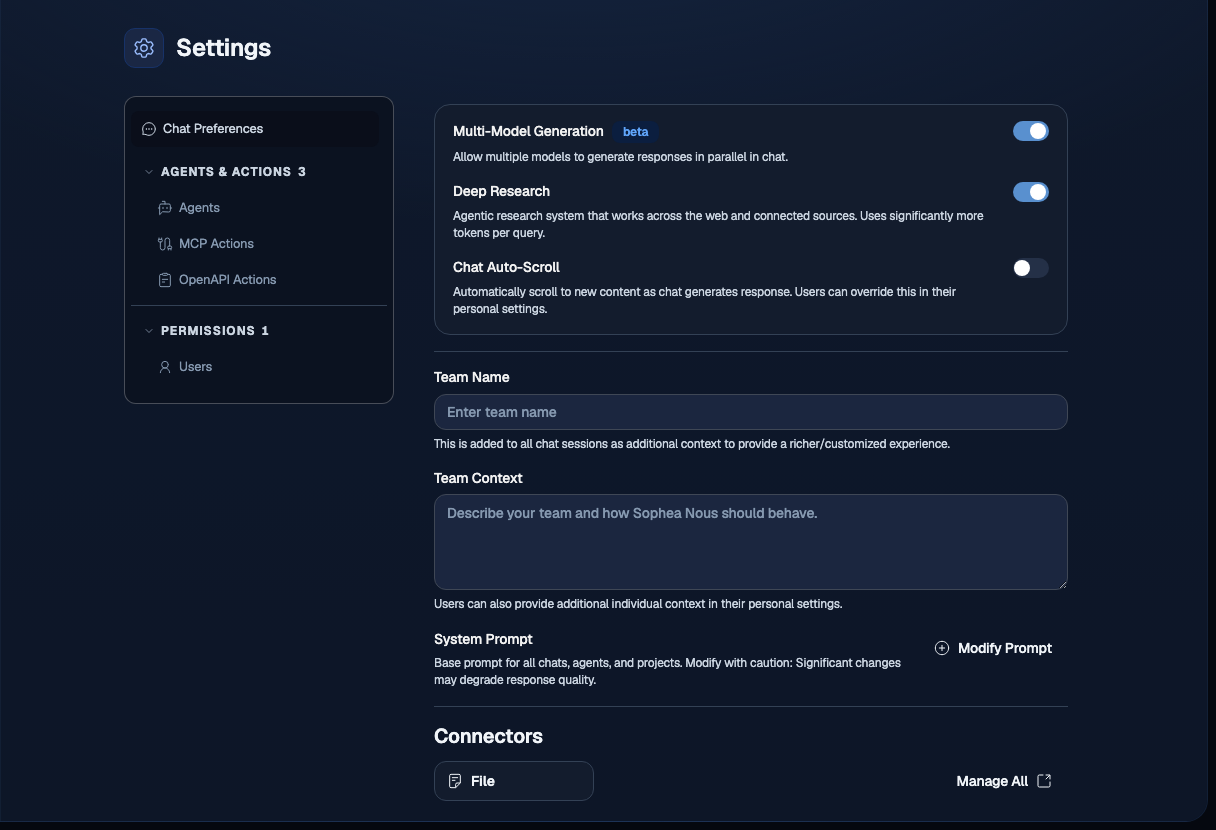
This chapter covers the Chat Preferences admin page. Use it to customize how the workspace is presented to users in chat, set an org-level system prompt, control which tools are available during chat sessions, and toggle the Deep Research beta feature.
8.1 Navigate to Chat Preferences
Click the Settings gear in the left sidebar, then select Chat Preferences under Settings. The page is at /app/admin/configuration/chat-preferences.
8.2 Team Name and Team Context
Two fields near the top of the page let you tailor how the workspace is identified inside chat conversations.
Team Name A short label for your organization or team. Nous surfaces this name in the chat welcome experience and in onboarding prompts shown to new users. Keep it to a recognizable name your team actually uses.
Team Context A brief description of what your team does. This text is passed to the LLM as workspace context so responses can be grounded in your organization’s domain without you having to repeat it in every chat. Example: Customer success team at Acme Corp, focused on enterprise SaaS support.
After updating either field, click Save to apply the change. The new values take effect on the next chat session each user opens.
8.3 System Prompt
The System Prompt field sets an org-level instruction that Nous prepends to every chat conversation across the workspace. Use it to enforce a tone, restrict topic scope, require citation formats, or set any standing instruction that should apply to all users by default.
Click Modify Prompt to open the editor, write or paste your instructions, and save. Users cannot see or override the system prompt from the chat interface.
8.4 End-user personalization and memory
Each user has separate stored information in each workspace. Saved by you contains up to 10 memories that the user adds or explicitly asks Sophea to save, correct, or forget. Learned from chats contains at most 100 active facts that Sophea can learn automatically from the user’s own eligible messages.
Learned facts are copied from one exact user-message evidence span. Sophea keeps only clear personal preferences, profile details, goals, and temporary context. Uncertain statements are dropped. Passwords, tokens, identity and sensitive details, assistant or tool output, operational data, and information about other people are excluded. Workspace and document facts remain in Knowledge Search. Raw prior user and assistant message pairs never enter a new prompt as remembered context.
Saved memories can personalize future answers only while Use saved memories is on. A memory enters the saved list when the user adds it on this page or explicitly asks Sophea to save or remember it. Sophea corrects or forgets a memory only when the user explicitly asks.
8.5 Published agent artifacts
Chat Preferences does not control the availability of published agents. Portal administrators manage that policy under external_agents. When a published agent creates a chart or presentation, the chat displays a separate artifact card: charts provide a PNG preview plus JSON, SVG, and PNG downloads, while presentations provide available slide thumbnails and PPTX or PDF downloads.
Artifacts are retained for 30 days. An expired artifact link cannot be restored from Chat Preferences; ask Sophea to generate the artifact again. Chart and Presentation are enabled by default for workspaces that inherit the platform agent policy. Sophea uses them when a request calls for a chart or a presentation. When a connected app, such as Gamma through Zapier, could also do the work and the user did not say which to use, Sophea asks which one before it starts. Both agents stay out of the agent picker, so users do not select either agent in the composer. A Portal administrator can still disable either agent globally or for a workspace.
Immediately after Sophea creates a chart, users can ask for a presentation about “it” or “that chart.” Presentation reuses the exact chart data and visual from the preceding turn. If the chart is no longer available or cannot be used safely in the current workspace, Sophea asks the user to create or provide the chart again instead of producing a deck from incomplete data.
Two independent controls create four states:
| Use stored information | Learn from my chats | Result |
|---|---|---|
| Off | Off | No retrieval and no automatic learning |
| Off | On | No retrieval and no automatic learning |
| On | Off | Use saved memories and learned facts, but do not learn new facts |
| On | On | Use stored information and learn clear facts automatically |
Turning either control off does not delete stored information. Users can open Manage in every state, including when both controls are off and both lists are empty.

The management dialog keeps the two lists separate. Every learned fact shows its category, source, date, and expiry when applicable. A source link appears only while the current user can still access that chat. Deleting a source chat removes an unedited learned fact; a fact the user edited is preserved without the source link. Users can edit or permanently delete every learned fact even while retrieval or learning is off.
Temporary context expires 90 days after its source message. Editing temporary context confirms it and restarts the 90-day period. The one-time historical backfill covers only the fixed 30-day window and uses the same eligibility, safety checks and processing as live learning.

Saved memories remain limited to 200 characters each. Reaching the 10-item limit does not evict an older memory. Concurrent edits fail closed and reload the authoritative list instead of overwriting another session. A memory that repeats an existing one, ignoring letter case, is not added again; Nous reports that it is already saved.
When Sophea changes a saved memory after an explicit request, the conversation timeline reports the result without repeating private memory text.

8.6 Actions and Tools
The Actions & Tools section controls which capabilities are available in chat. Toggling a tool off removes it from the chat composer for all workspace users. These settings do not affect agent runs.
These workspace controls are the outer availability boundary. When a capability is available, each user still chooses which apps to use in the Connectors panel of the composer’s + menu (+ > Connectors). The built-in actions have no per-user switches: they are always on in chat whenever the workspace makes them available. Enabling a capability here does not turn on the corresponding user app or force the model to call it. A user cannot enable a capability that the workspace has turned off.
The composer has no switches for Knowledge Search or the built-in actions. Knowledge Search, Web Search, Open URL, Code Interpreter, Image Generation, and File Reader are always on in chat for the default assistant, and the Chart and Presentation agents are always on where the workspace publishes them. Knowledge Search always searches over all sources the user and agent can access, with no scope to pick; a project chat answers from the project’s files. If a user’s earlier saved preference had turned one of these tools off, the composer turns it back on before the next message is sent. Workspace-created agents make available exactly the built-in actions their creator switched on in the agent editor, and the model decides when to use an attached tool. MCP apps for the default assistant are not configured on this page: an accessible MCP app appears directly in the composer’s Connectors panel (+ > Connectors), on the Personal tab (each user signs in with their own account) or the Shared tab (shared by the workspace), and remains off until the user switches it on for the chat (up to two apps at a time). That selection makes the app’s enabled actions available but does not guarantee a call. It stays on after completed, failed, and cancelled responses until the user turns it off or starts or switches chat context. Manage MCP registration, authentication, and Private, Team, or Workspace access under MCP Actions.
8.6.1 Attach files in chat
Attach files from Add (plus icon) > Upload files in the composer, or paste or drop them into the chat. Send stays unavailable until every file has finished uploading.
Chat and project attachments support Excel (.xls, .xlsx) and PDF files, including scans with readable text. Access follows the chat, project or agent permissions.
Some files, such as scans and older .xls workbooks, can only be read once processing finishes. While such a file is processing, its chip in the message box shows Processing, and opening the chip explains that its contents can’t be used yet. You can still send the message. If you attach such a file to a message while it is still processing, the assistant and the agents that read attachments say which file is not ready yet when your question depends on it, and answer from what is available. Ask again once processing finishes, without uploading the file again. If processing fails and no readable text could be obtained, the file is reported as unreadable. A presentation created from the chat lists the attached files it could not use.
If an upload is rejected, the file stays in the message box with its reason, and a notice above the message box says how many files could not be added. The message cannot be sent until every rejected file is removed: remove them one by one or with Remove failed, and retry a file that failed for a temporary reason. Removing a rejected file does not attach it, and other attachments stay in place. Fix the file as the reason suggests: remove a document password, choose a smaller file, split an image-heavy PDF, or check that the file opens correctly and contains readable content, then attach the corrected copy. If processing fails and the file has no usable text, remove it and upload a corrected copy. Scans with no recognized text can fail processing even when their page images are intact.
8.6.2 File limits
Under Advanced Options, two limits apply to files attached in chat and projects and to members’ own files:
- File Size Limit (MB): the largest file a member can upload. The page shows the maximum your deployment allows. This limit also caps the total size of files Code Interpreter can return in one run.
- File Token Limit (thousand tokens): the most extracted text a file may contain. Leave it empty for no limit. Spreadsheets over the limit are still kept and read on demand instead of being rejected. A scanned PDF is checked before its text is recognized, at about 3,000 tokens per page; if its recognized text turns out larger than the limit, the file is still kept and used.
Use Restore default to go back to the platform default. Your Sophea administrator can also set these limits for your workspace. Each page saves only the setting you change, so a change made in one place is kept when someone edits a different setting in the other.
8.6.3 Internal Search
Enables the connected knowledge base as a tool the model can query during chat. When on, the model can search through your organization’s indexed documents and connectors to ground answers in internal content.
Turn this off if your workspace uses Nous purely for LLM access and you do not want the model to pull from indexed content automatically.
8.6.4 Image Generation
Enables image generation during chat sessions. When on, users can ask the model to generate images using the configured image generation provider.
8.6.5 Web Search
Enables real-time web search as a chat tool. When on, the model can query the web for up-to-date information and include results in its responses.
8.6.6 Open URL
Enables the model to fetch and read the content of URLs mentioned in chat. When on, users can paste a link and ask the model to summarize or analyze the page.
8.6.7 Code Interpreter
Enables the code interpreter tool during chat. When on, the model can write and execute code to answer quantitative questions, process data, or generate charts inline in the conversation.
Nous loads task-specific guidance only when it is needed. Curated workflows cover spreadsheet, Word document, PDF report, presentation, data-quality, financial-model, energy-analysis, and transcription-comparison requests. Generated files are reopened and checked against their requested structure, including sheet names, formulas, numeric cells, document headings, PDF pages, presentation slides, tables, links, and package integrity. Domain-specific validation also separates supplied inputs from assumptions and distinguishes measured metrics from estimates.
An execution that fails, times out, exceeds the file-size limit, or does not pass structural validation produces no downloadable files. Users should retry the request after correcting the input or execution error rather than treating a partial file as complete.
8.6.8 Exporting a chat answer as CSV or Excel
Separate from Code Interpreter generation, every assistant answer carries an Export action that downloads that single stored answer directly, with no new model or retrieval call and no Code Interpreter involvement. The menu always lists Markdown, Word Document, CSV and Excel Workbook; choosing a tabular format on an answer that holds no table returns a short message asking for a table instead of downloading an empty file.
- CSV downloads a single table. If the answer holds more than one table, CSV asks the user to pick the Excel workbook instead (or narrow to one table), because one CSV file holds one grid.
- Excel Workbook writes one table per sheet, so a multi-table answer keeps every table.
Direct export preserves header order, row order, Unicode text (including Greek), quoted commas, embedded line breaks, empty cells, and leading-zero identifiers such as barcodes. Values that look like spreadsheet formulas are stored as text so they cannot execute. A note on re-import: CSV is text, so a spreadsheet app re-opening it applies its own column detection and may not preserve leading zeros or Greek encoding on every locale; the Excel workbook carries real cell types and is the safer choice when those matter. Excel limits each cell to 32,767 characters and shows numbers beyond 15 significant digits at reduced precision, so very long identifiers in an answer are kept as text in the workbook rather than converted to numbers. Heavily malformed Markdown tables are exported as parsed and may differ from the rendered chat view.
8.7 Beta Features
8.7.1 Deep Research
Deep Research enables the Deep Research agent feature. When on, users can invoke a research workflow that plans a multi-step investigation, searches internal and external sources, and synthesizes a cited report.
Because Deep Research makes multiple search and fetch calls per session, it consumes significantly more tokens per query than a standard chat turn. Inform your team before enabling it so they understand the cost profile.
Deep Research always runs on the platform research model, regardless of which model a user picked in the chat composer. The composer keeps showing the user’s own choice, which still applies to every ordinary chat turn in the same conversation. If the research model is not available to your Workspace, Deep Research reports that it is not configured instead of falling back to another model, because a model that cannot sustain a long report produces an unusable one. Contact your platform administrator if you see that message.
8.8 Chat Auto-Scroll
Chat Auto-Scroll controls whether the chat window scrolls automatically as the model streams its response. When on, the viewport follows the latest output. Users can override this in their personal settings, so the admin toggle sets the workspace default rather than a hard lock.
Turn it off if your users typically scroll up to re-read earlier parts of a long response while generation is still running.
8.9 Save your changes
Each setting on this page takes effect immediately when toggled. Fields that require explicit submission (Team Name, Team Context, System Prompt) show a Save button. Settings that do not show a Save button apply on toggle.