10 Google Drive Connector
Use this guide for a workspace Google Drive connector. Google Drive content is indexed and is available to Knowledge Search after indexing completes.
10.1 What is indexed or searched live
Nous can index My Drive files, shared drives, selected folders, and files shared with the connecting account. Google Drive permission sync is available only with a customer service-account credential and domain-wide delegation. A Sophea-managed OAuth connection uses delegated access from the account that authorizes it.
10.2 Administrator role and authentication
Sophea manages the OAuth app. The connecting Google account must be allowed to read the required Drive content. A Google Workspace super administrator must also approve domain-wide delegation when you use permission sync.
You do not create a Google OAuth client for the standard customer path. The consent request uses drive.readonly and drive.metadata.readonly.
10.3 Provider setup and permissions
For standard OAuth, confirm that the account can open every folder or shared drive you plan to index. For permission sync, create a service account in Google Cloud, enable the Drive and Admin SDK APIs, and authorize the service account client ID in Admin console > Security > Access and data control > API controls > Manage Domain Wide Delegation. Add these read-only scopes:
https://www.googleapis.com/auth/drive.readonlyhttps://www.googleapis.com/auth/drive.metadata.readonlyhttps://www.googleapis.com/auth/admin.directory.user.readonlyhttps://www.googleapis.com/auth/admin.directory.group.readonly
10.4 Setup form fields
The Portal form has these common fields:
- Name: a unique name for this workspace connector.
- Who has access: choose Everyone in the workspace or Specific Teams. Permission sync is shown only for a supported service-account credential.
The Google Drive scope fields are:
| Field | What to enter |
|---|---|
| How should we index your Google Drive? | Choose General or Specific. |
| Google Drive content | In General, choose all accessible Drive content or selected folders. |
| Include shared drives? | Include all shared drives visible to the connected account. |
| Include My Drive? | Include all files in the connected account’s My Drive. |
| Include All Files Shared With You? | Include files shared directly with the connected account. |
| Shared Drive URLs | In Specific, enter comma-separated shared-drive URLs. |
| Folder URLs | In Specific, enter comma-separated folder URLs. Subfolders are included. |
| My Drive Emails | In Specific, enter comma-separated account emails whose My Drive should be indexed. |
| Specific User Emails | In advanced settings, limit indexing to files visible to these users. |
| Hide domain link-only files? | Hide files that need a link even when shared to the domain or public. |
Leave a scope empty only when you intend to use the broader default. Set Who has access and any Portal Team assignments in the common connector form.
10.5 Use the organization’s own credential
Portal asks how this workspace connects before it shows the connector form. Sign in with Google connects as the person who clicks Connect. Use your organization’s Google app connects with an app of the organization’s own. Use a Google service account connects as a Google service account that the organization created.
Choose the organization’s credential for a shared connector. It reaches what the organization allows rather than what one person can see, and it keeps working when that person leaves. A personal sign-in stops working when the account that authorized it goes away.
The credential form asks for two things:
| Field | What to enter |
|---|---|
| Google service-account key | The JSON key file Google produced when the service account was created. Drag it onto the field or click to browse. |
| Delegated Workspace admin email | The Google Workspace admin the connector acts as. What that admin can reach in Drive is what Sophea can find. |
Create the service account and authorize domain-wide delegation with the read-only scopes in Provider setup and permissions before you fill this in. Sophea checks the key with Google while you wait. A key Google rejects is reported in the form, and Sophea keeps nothing.
The key file is write-only. Sophea stores it securely and never shows it again, not in this form and not in the credentials list. To connect again later, your organization supplies the key file again.
When the workspace already holds credentials, the form lists them instead. Choose one, or choose Add a new credential to supply another.
This method has no folder browser. Signing in lets Portal list your Drive folders because it holds that person’s Google session. A service account holds no session, so Google Drive content is a plain box you type links into, one per line. Leave it empty and Sophea indexes everything the credential can reach. Fill it in when the connector should cover less than that.
Credentials this workspace holds are listed under Connector credentials in the Credentials tab of the workspace Connectors page. Each row shows the credential’s name, the date it was added, and how many connectors use it. Select Used by N connectors to list those connectors; each name opens that connector’s page. The credential’s ⋯ menu holds Rename, which changes the name shown on every connector that uses it, and Remove, which deletes the credential. A credential that a connector is using cannot be removed: open each connector from the list, delete it from its Settings tab, then remove the credential. A connector’s own page shows the credential name and a Used by N connectors link that opens the credential in the Credentials tab with its connectors listed.
10.6 Workspace and Team access
Use Everyone in the workspace only for content that every member may find. Use Specific Teams for a smaller audience. Team membership is managed in Portal. With permission sync, Google Drive users, groups, inherited folder access, and supported public grants are mirrored. A document without a known permission remains hidden.
10.7 Test the connection
- Save the connector and wait for source sync and search indexing to finish.
- Open the detail page and check the document count and last refresh.
- Search for a known file name and a phrase from that file.
- Test as an intended Team member and as a member outside the Team.
- If permission sync is enabled, check Last completed permission sync and repeat the two-user test after that run completes.
10.8 Common errors
| Error | Action |
|---|---|
| Drive scope is empty | Check the selected folders, shared drives, and account access. |
| Permission sync is not available | Recreate the connector with a service account and domain-wide delegation. |
| Admin Directory scope is missing | Add both Admin SDK directory read scopes, then reconnect or recreate the credential. |
| A file is missing | Confirm that the connecting account can open it and that it is not link-only when that option is enabled. |
10.9 Reconnect, rotate, and remove
When Google permanently rejects a standard OAuth credential, Nous stops the first failed indexing attempt and shows the reconnect warning. Use Reconnect. After the new credential is saved, indexing resumes from the saved checkpoint instead of starting over.
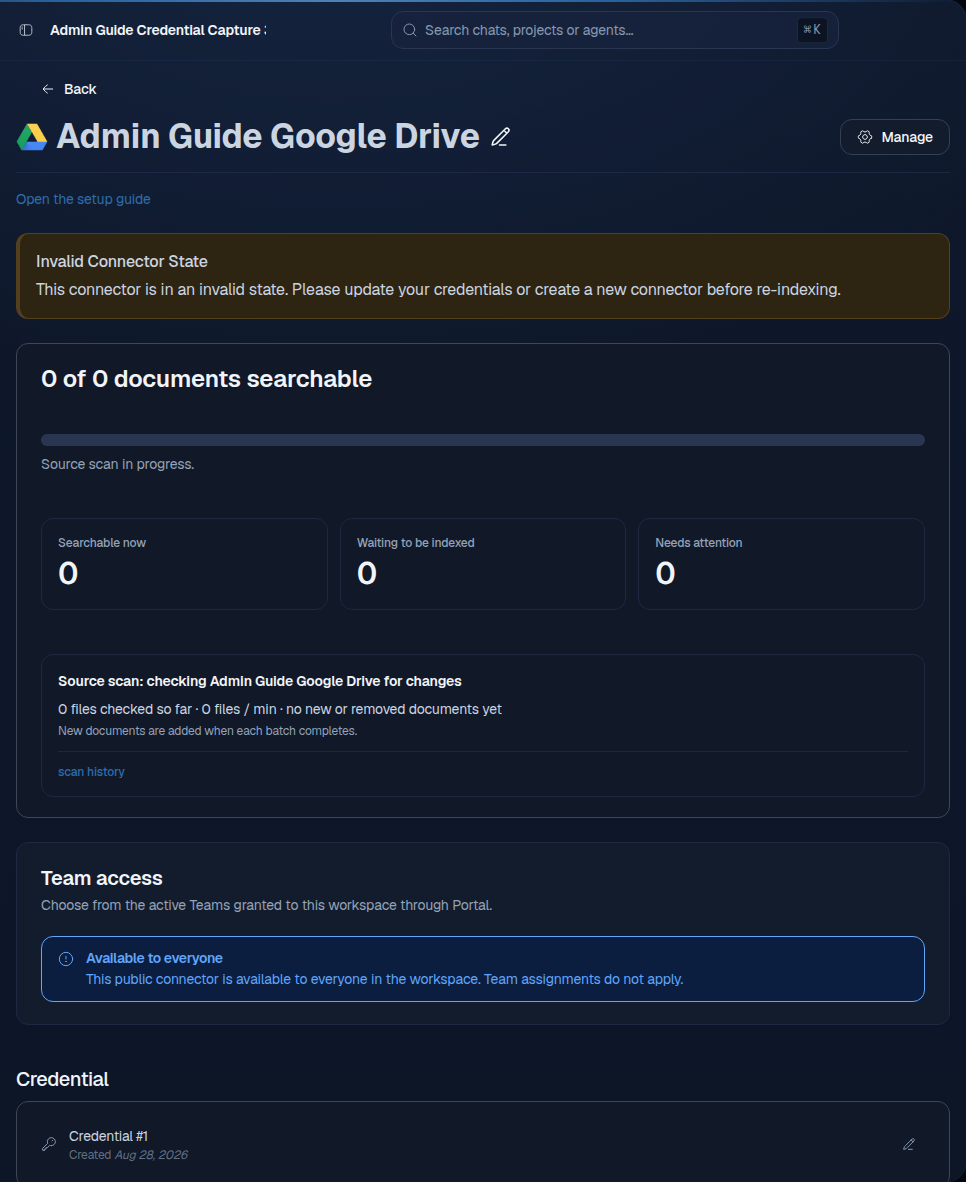
Use Reconnect only for standard OAuth. To move a service-account connector, including one with permission sync, to a new key, add the new key as a credential, then switch the connector to it with Use another credential. Portal validates the new key before saving it. The connector keeps its documents and settings, and permission sync fetches the file permissions again with the new key. Once no connector uses the old credential, remove it from the Credentials tab. Choose permission sync when you create the connector, before indexing starts. After indexing starts, delete and recreate the connector to change from Public or Private to permission sync. Permission sync cannot be changed to another access mode after activation. Before removal, check document sets, agents, and Team shares that use the connector.