26 Document sets
A document set is a named, reusable scope of indexed content. Use document sets to give Knowledge Search and agents a curated slice of your workspace, rather than searching every connector at once.
This page covers what to do on the Document Sets page at /app/admin/documents/sets. Reach it via the Knowledge flyout in the left sidebar, then click Document Sets. Before you create a set, make sure the underlying source is already wired up. See Connectors for that step.
26.1 What document sets do
A document set groups one or more connectors into a scope your users can pick later. Use them to:
- Define a topical scope such as
Finance policiesorSupport playbooksthat combines several connectors. - Provide a curated slice of indexed content that agents and Knowledge Search can attach without exposing every connector at once.
- Provide a stable handle that agents and Knowledge Search can reference, even as connectors come and go.
Document sets do not re-index your data. They reference content that connectors have already indexed. If a connector is still indexing, documents will appear in the set as they become available.

The Existing Document Sets table shows each set’s name, the connectors it draws from, its status, and whether it is public. Use the trash icon in the Delete column to remove a set.
26.2 Create a document set
Open the Knowledge flyout in the left sidebar and click Document Sets. Then click New Document Set.

Fill in the form:
- Name. Use a short, business-friendly label your users will recognise. Names are unique within a workspace.
- Description (optional). One sentence explaining what is inside. This shows up in the picker when members attach the set to a chat or agent.
- Pick your connectors. Use the search box to find and select the connectors whose content should be included. You can select any connector that has at least one indexed document. Mix and match across types if it serves the scope (for example, a Confluence space plus an uploaded policy PDF).
- Click Create Document Set.
Saving the set kicks off a background sync that compiles the document list. The row shows a syncing state until the sync finishes, then flips to Up to Date.
26.2.1 Add uploaded files
Use a file connector when the content exists only on your computer or in a local export. As an admin, select Add Connector, choose File, and upload the files. Members create their own file connectors from Connectors; those are private to the member or shared with the member’s Teams, so only an admin-created connector can be workspace-wide. Roles, limits, and sharing rules: File connectors.
Use safe business filenames and do not upload secrets, personal data, or temporary exports. After the file connector is indexed, create a document set here and select that connector.
A file connector holds uploaded documents rather than reading a provider, so it is not in the connector comparison.
26.3 Scope and Team access
A document set has its own visibility in addition to the access rules on its connectors:
- Make this document set public makes the set available to all workspace members.
- With the toggle off, the set stays out of the workspace-wide picker and reaches only the Portal Teams you assign to it.
When you create or edit a set, use Assign team access for this document set to select the Portal Teams that should receive it. Manage Team identity and membership in Portal. Nous owns only the binding between the synchronized Team and the document set.
Sharing a compatible private document set with a Team adds that Team to the eligible ACL for its connector documents without making the content workspace-public. Selecting that document set during search is a separate operation: the selection narrows the request and cannot bypass the resulting ACL.
26.3.1 Team-share notifications for document sets
When a private document set is shared with a Portal Team, Nous sends an email and adds one in-app Team-share notification for each active Team member who newly gains effective access to the set. The recipient is the Team member, not the administrator who saved the change. A member who already has access through a direct document-set share or another active Team does not receive a duplicate. The actor, workspace admins who already have access, inactive Team members, and members in another tenant are not recipients. Public sets and direct-only shares do not create Team-share notifications.
Open the in-app inbox from the account menu: click your sidebar avatar, then choose Notifications. The avatar badge and menu row show the unread count. Opening the inbox refreshes the access check but does not dismiss a row. Use Dismiss notification to clear unread state; dismissed rows remain visible as history and stay dismissed after refresh and sign-in.
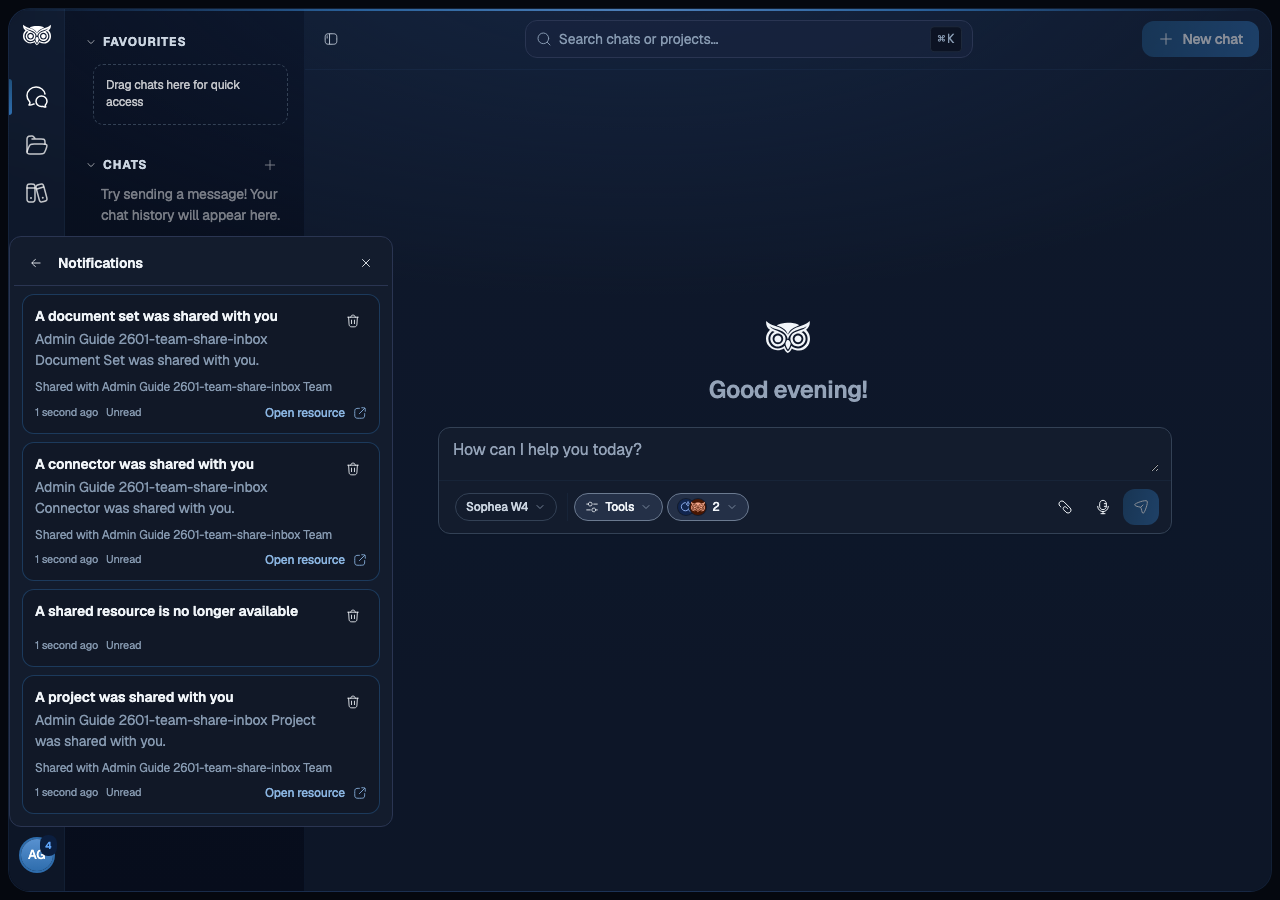
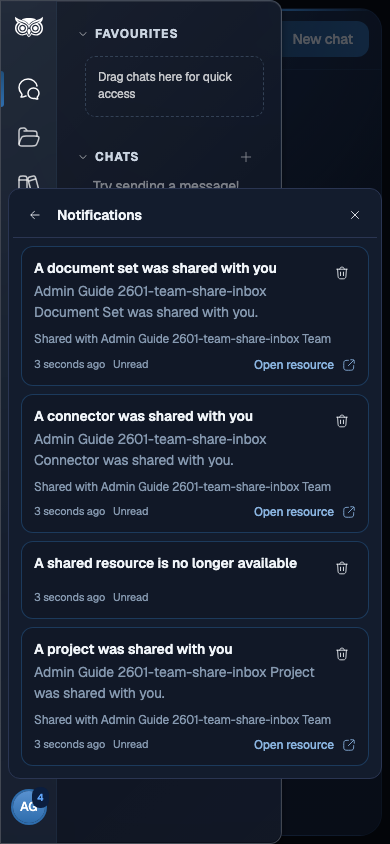
The inbox covers Team-share events for Projects, private Connectors, and private Document Sets. An accessible row shows its resource link, the Team names associated with the share, and the received time. Retrying the same Team-share mutation is deduplicated. Removing a Team and adding it again is a new grant and creates a new event rather than replaying the old row.
If the document set is revoked, deleted, or otherwise inaccessible, its row stays in history but the fresh open-time access check removes the set name, connector details, Team names, and link. The row shows only safe unavailable wording. A later regrant creates a new event with fresh details; it never restores private details in the old unavailable row.
Document-set sharing has two boundaries: the set’s own visibility and the visibility of each connector it references. Sharing a set with a Team does not make its connectors public, and selecting a set in Knowledge Search does not bypass either ACL. Test retrieval as a real member of the intended Team after the set reaches Up to Date.
26.4 Status badges
Each row carries a status badge and a Public badge. Use the status to decide when a set is safe to share.

| Badge | Meaning | What to do |
|---|---|---|
| Up to Date | The set is compiled and matches your current configuration. | Safe to attach in Knowledge Search and agents. |
| Syncing | The set is compiling its document list after a create or edit. | Wait. Do not advertise it to users yet. |
| Deleting | A delete request is in flight. | Wait for the row to disappear. |
The Public badge indicates the set is visible to all workspace members. A private set instead shows its configured Team access in the editor. An Up to Date badge means the document set itself is compiled. It does not guarantee that every connector behind it has finished search indexing. If a connector is still processing, new searchable documents join the set as they become ready. Check the Connectors page if you expect more content than the set shows.
If a set stays in a syncing state longer than a few minutes for a small scope, check the underlying connectors first. A connector stuck on its own indexing run will hold up its document sets.
26.5 Edit or delete a set
Click the pencil icon on a row to open the editor. You can change the name, description, and connectors. Saving puts the set back into a syncing state while it recompiles.
To delete a set, click the trash icon in the Delete column. The row enters the Deleting state and disappears once cleanup finishes.
Deleting a document set does not delete the underlying connectors or their indexed content. The data stays in your workspace and is still searchable from any other set that references the same connectors.
Once a set reaches Up to Date, head to Knowledge Search to attach it to a chat or to an agent’s knowledge pane.