34 Sophea Nous Desktop App
Sophea Nous Desktop is the macOS client for Sophea Nous: a thin native wrapper around the same web app you use in the browser. The web app stays the product surface; the desktop shell adds a persistent window that remembers its size and position, OS menus and keyboard shortcuts, and quick switching between Sophea deployments.
This page covers installing the app from GitHub Releases, passing the macOS Gatekeeper check on first launch, picking an instance, and signing in. Use the desktop app when you want Sophea in its own window instead of a browser tab.
34.1 Requirements
- A Mac with Apple Silicon (M1 or newer). Intel builds are not published yet.
- macOS 13 or newer.
- Access to a Sophea deployment: your organization’s workspace, or the staging/local instances shipped with the app.
34.2 Download and install
Desktop releases are published on the Sophea repository’s GitHub Releases page. Each release carries a disk image (Sophea-<version>-mac-arm64.dmg), a plain zip archive, and a SHA256SUMS.txt with the checksums of both.
- Download the
.dmgfor the version you want. - Open the disk image and drag Sophea into Applications.
- Eject the disk image.
To verify the download before installing, compare its checksum with SHA256SUMS.txt:
shasum -a 256 ~/Downloads/Sophea-*-mac-arm64.dmg34.3 First launch: the Gatekeeper prompt
Desktop builds are not signed with an Apple Developer ID yet, so macOS Gatekeeper blocks the first launch. This is expected and safe to pass for a build you downloaded from the official Releases page:
- Double-click Sophea in Applications. macOS shows a dialog saying the app cannot be opened. Dismiss it.
- Open System Settings > Privacy & Security.
- Scroll to the Security section, find the message about Sophea being blocked, and click Open Anyway.
- Confirm in the follow-up dialog. The app opens, and macOS remembers your choice for future launches.
34.4 Choose an instance
On first run the app asks which Sophea instance to connect to:
- Local: a development stack running on the same machine (
http://localhost:3000). - Staging: the Sophea staging deployment.
- Production: the Sophea production deployment.
- Custom URL: any HTTPS origin (HTTP only for
localhosttargets), plus an optional separate auth host for deployments that keep their identity provider on its own hostname.
The choice is saved and can be changed any time from the Instance menu. The active instance drives the window title and the navigation rules: only the instance’s app and auth origins may load inside the window, while external links open in your default browser.
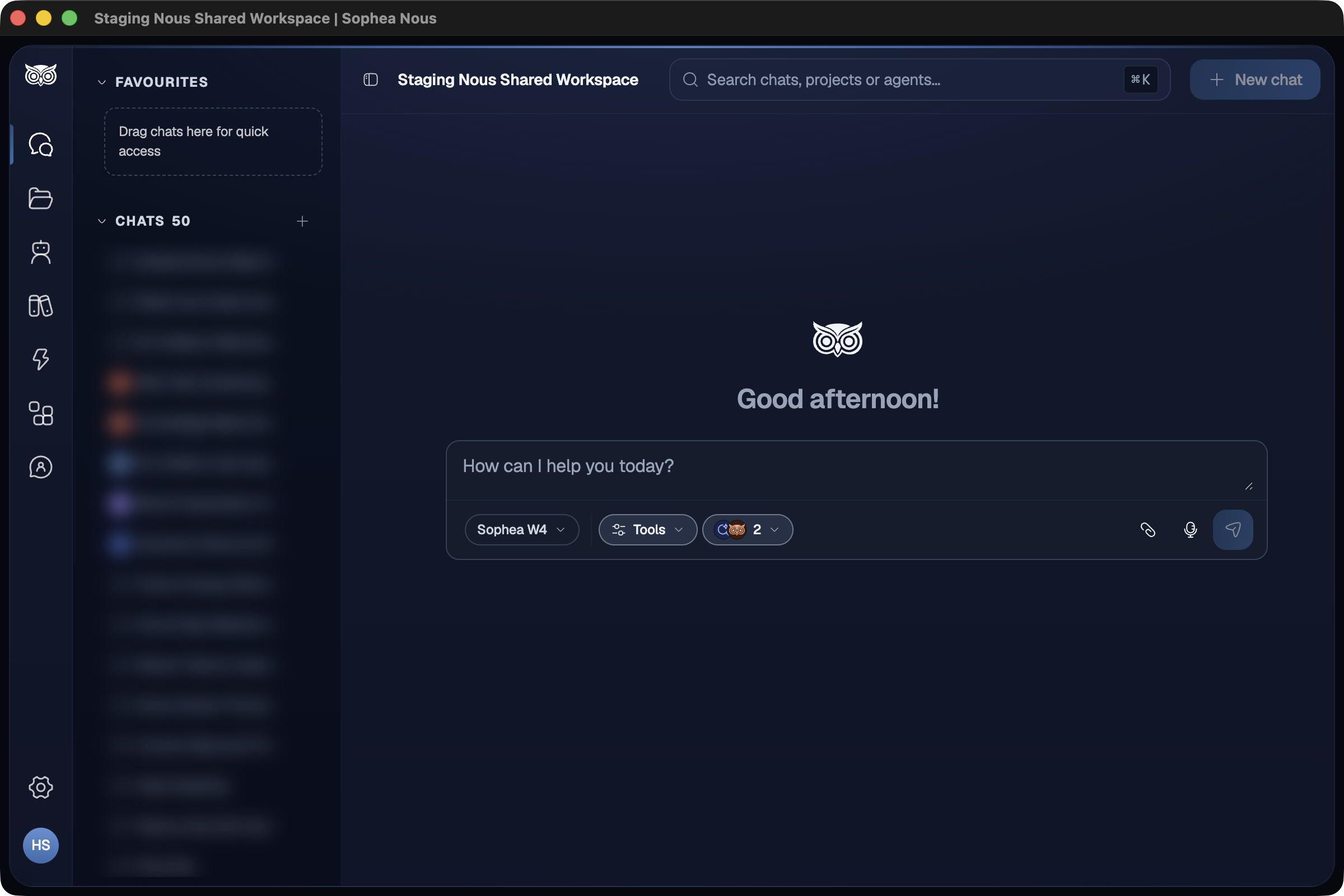
34.5 Sign in
Login is the same Zitadel flow as the browser: the app redirects to the hosted login page, you sign in, and the session cookie persists across restarts. There is no separate desktop account.
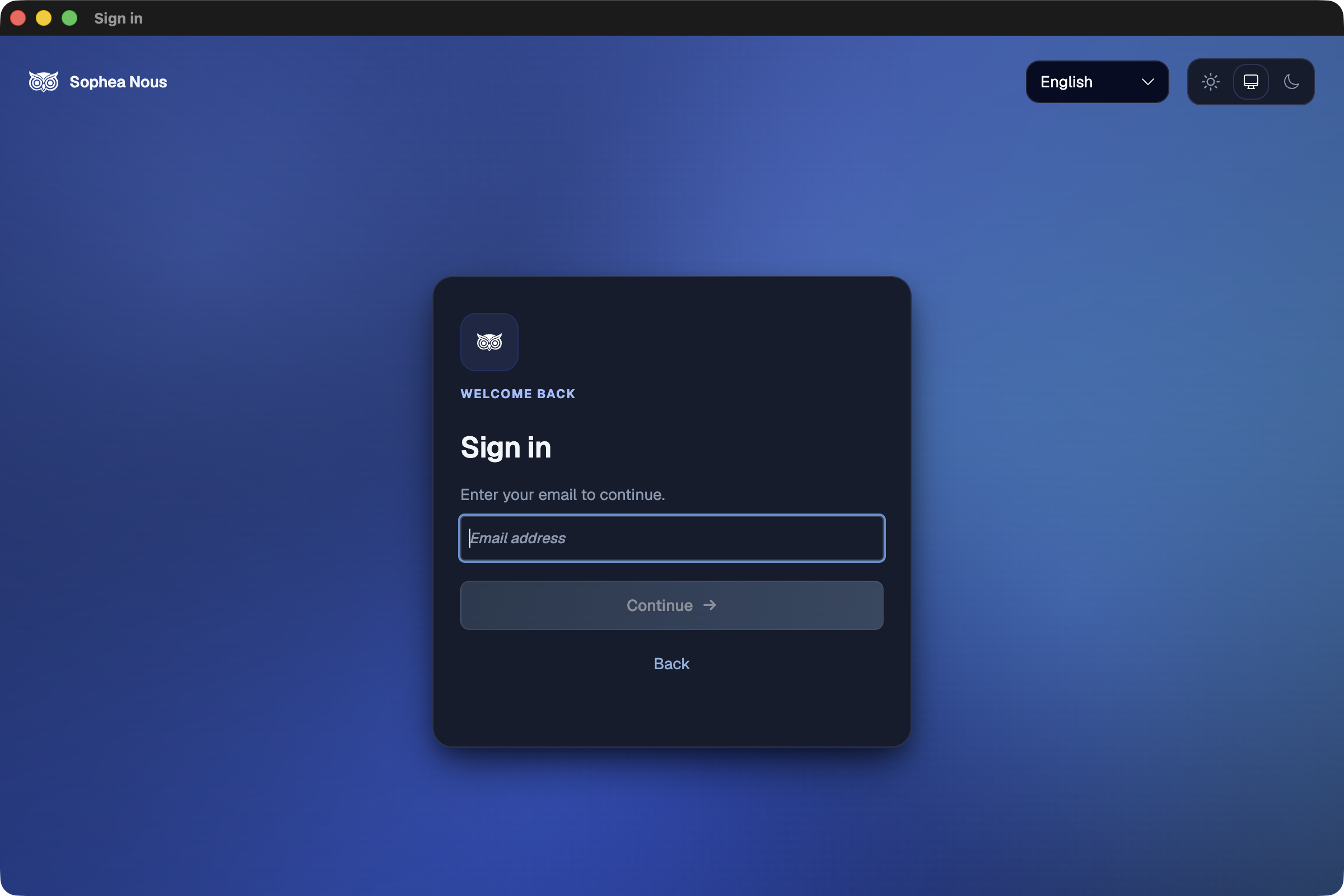
To sign out or switch accounts, use Sophea > Clear session and quit from the menu. This wipes the stored session and window state and closes the app; the next launch asks for an instance and a fresh login.
34.6 Current limitations
- No automatic updates. New versions arrive as new GitHub Releases; install them over the old app as in Download and install.
- macOS only. Windows and Linux builds are planned follow-ups.
- Apple Silicon only. Intel Macs are not supported by the published artifacts.
- No local folder sync yet. The shell today is windows, menus, and instance management; folder sync arrives in a later release.
For the terminal-based companion on the same workspace, see the Sophea Agent CLI page in this guide.